Quick start
- Sign in with your passkey. You land on the Dashboard.
- Set up squads and platforms in Teams, Squads & Platforms, then invite people with one-time links.
- Publish a question set and create a cycle in Evaluation cycles & questions.
- Open each submitted evaluation, write feedback and a private note, then Mark reviewed.
- Review every AI finding (accept, edit or hide), then Publish to employee.
- Agree development actions, and follow the team in Team overview.
- Between rounds: track every action in Team development plans and open each person's page for their skill profile, path and 1:1 notes.
01Your dashboard
After sign-in you land on the Dashboard. The sidebar holds everything you lead; this guide and the video are linked at the bottom of it.
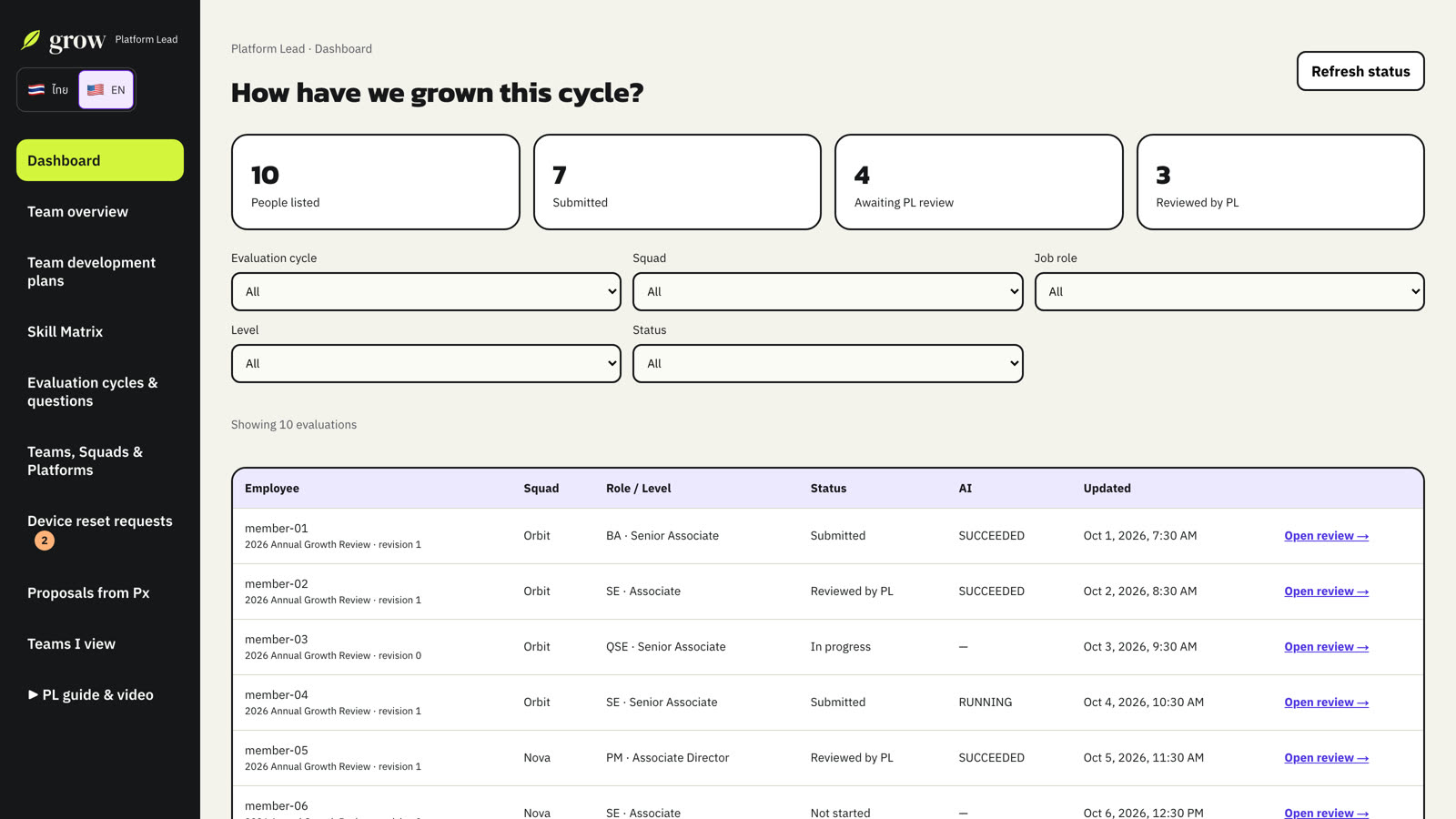
- The counters show where the cycle stands. Awaiting PL review is your to-do list.
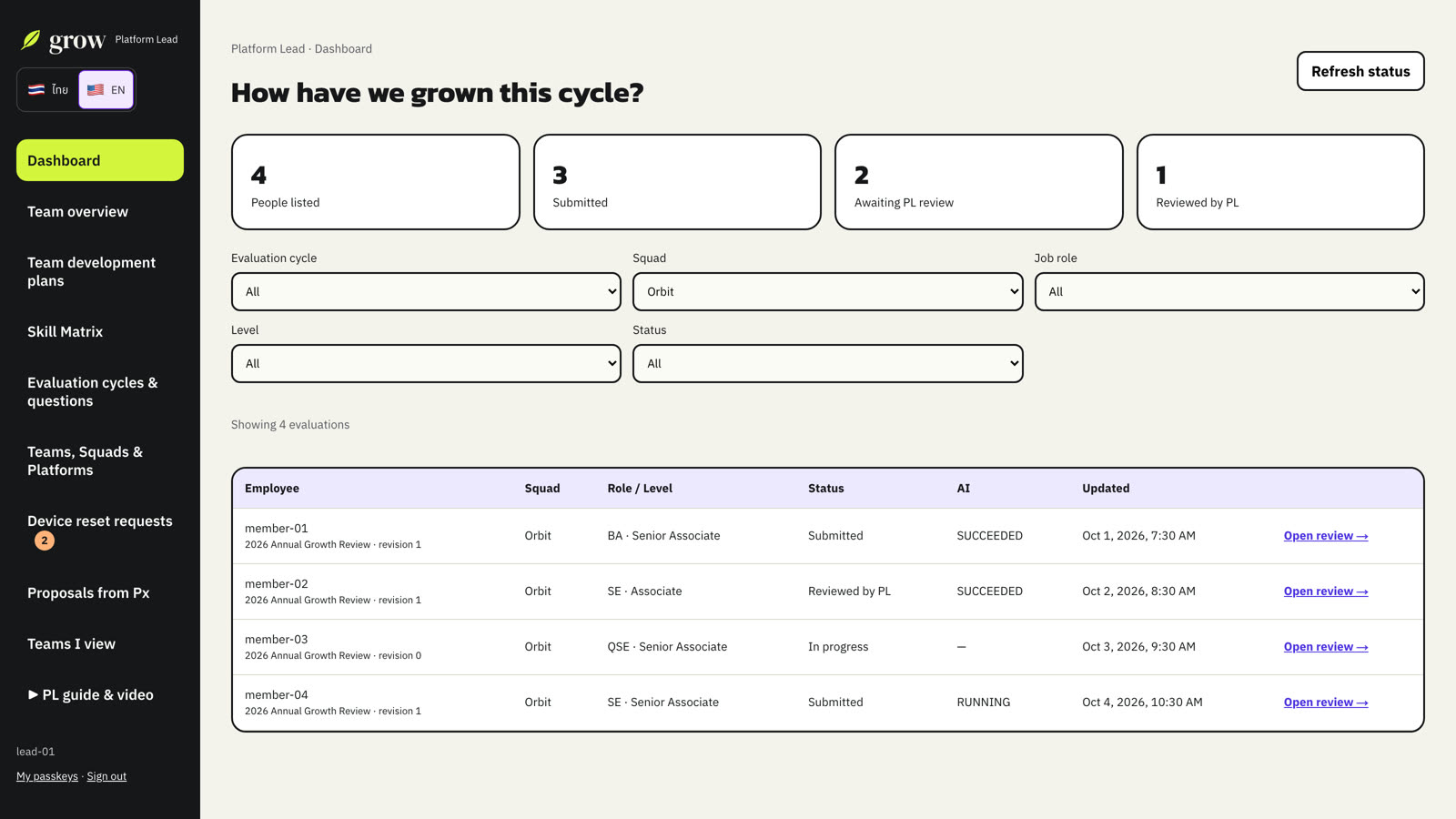
- Filter by cycle, squad, job role, level or status to focus.
- Choose Open review → on a row to open that evaluation.
02Set up your team
Open Teams, Squads & Platforms. Squads are the groups you lead; each card shows its people and platforms.
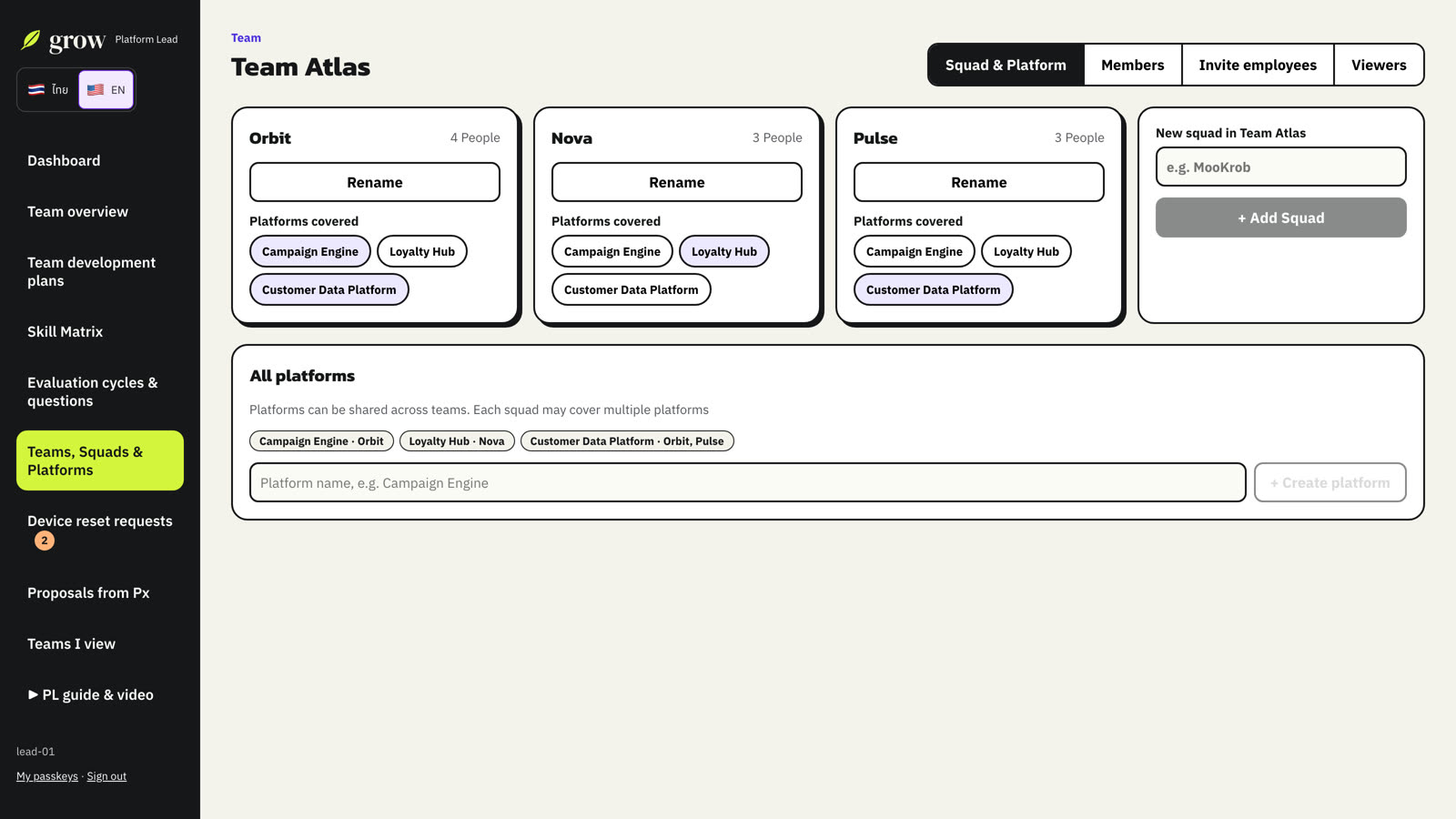
- + Add Squad creates a squad. Rename changes its name.
- Keep the platform list up to date. Platforms are for filtering and tagging work, not for permissions.
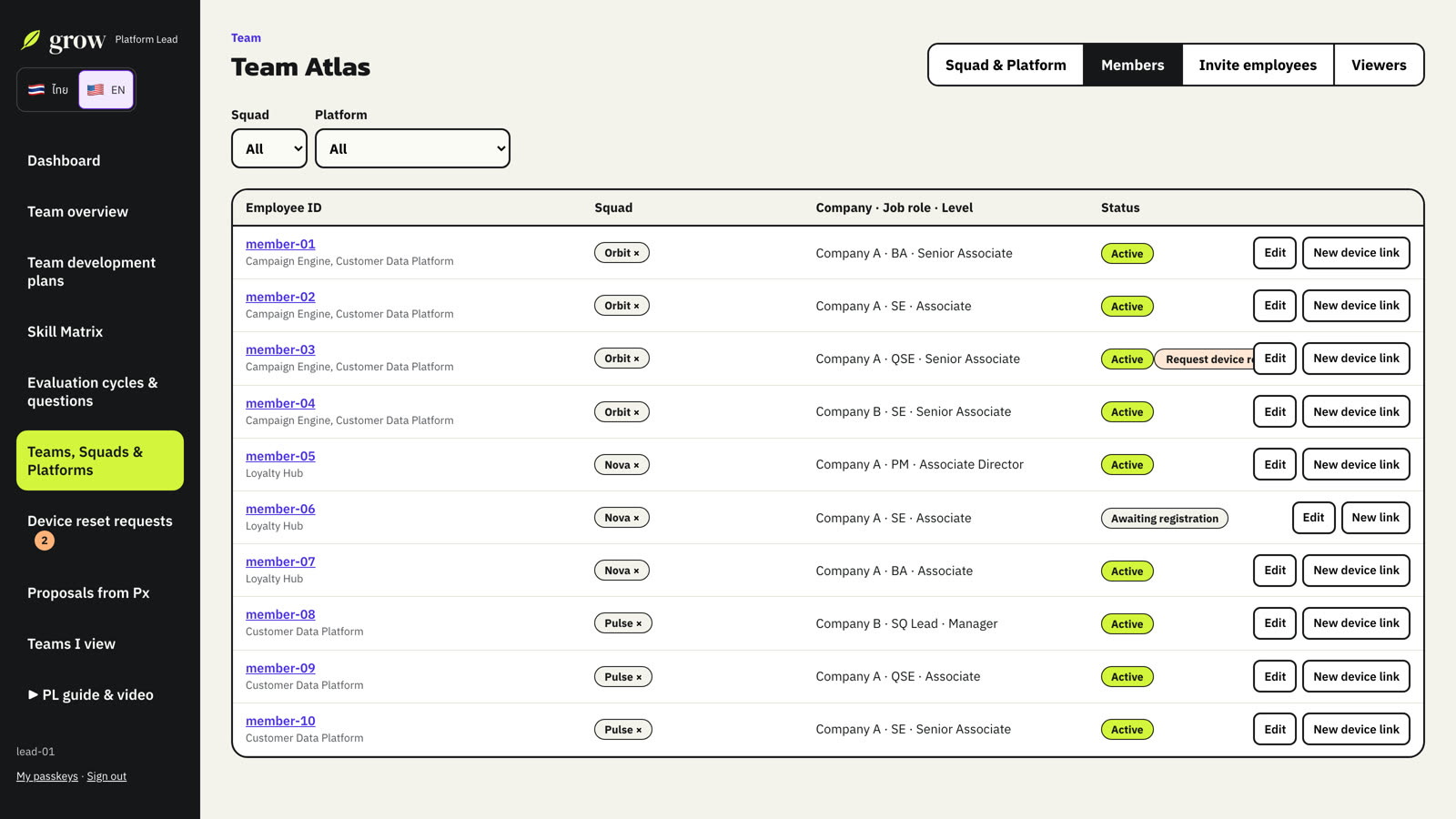
- The Members tab lists everyone with squad, role, level and whether their passkey is registered. From there you can edit a member, move them to another squad, or create a new link if theirs expired.
03Invite people
- Open the Invite employees tab.
- Choose the squad and the default company, job role and level.
- Paste one person per line. Add `,role,level` after a person if they differ from the defaults.
- Choose Create links + download CSV.
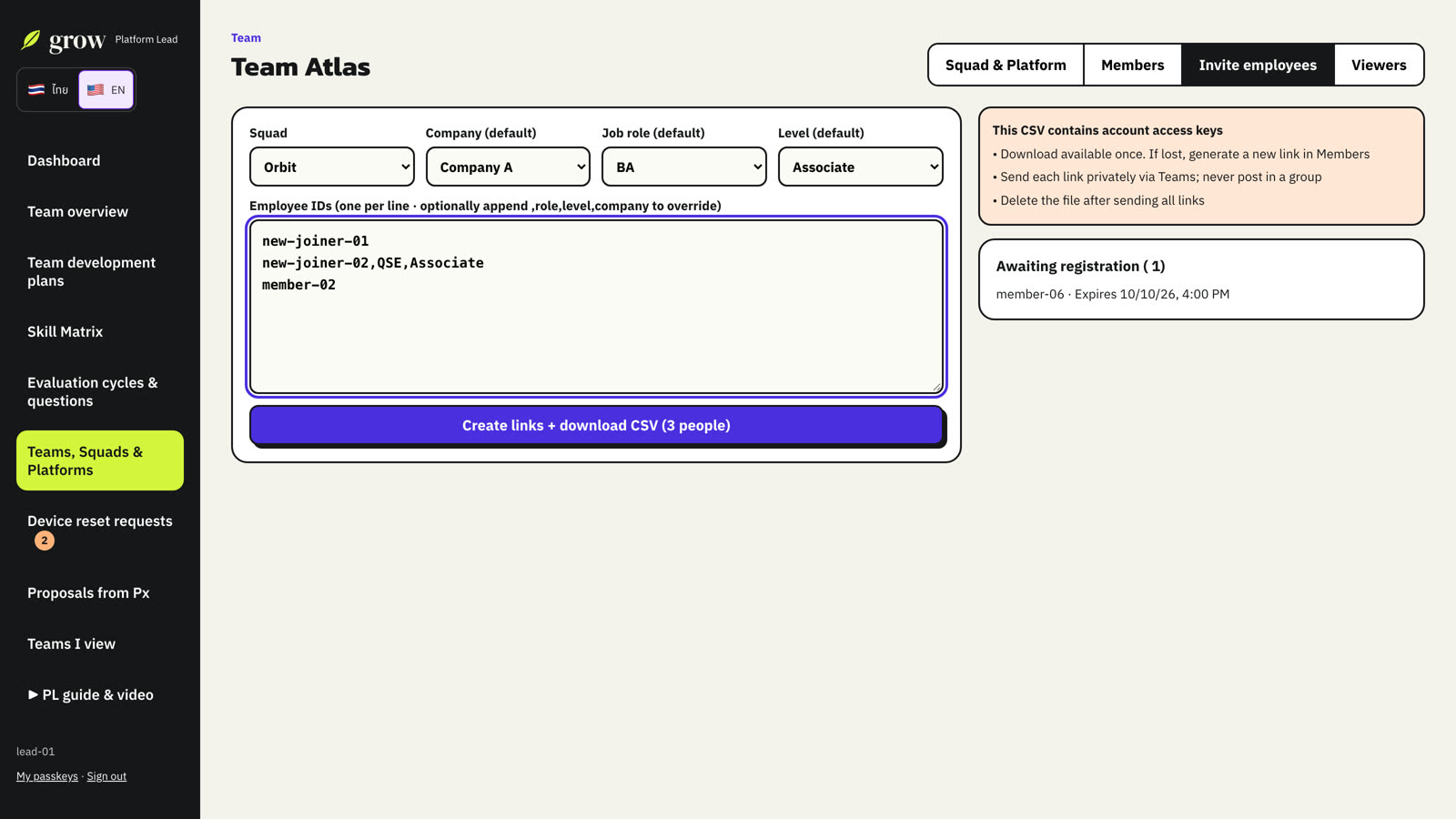
People who have not registered yet appear under Awaiting registration with the expiry time. If a link expires, create a new one from the Members tab.
04Questions and cycles
Open Evaluation cycles & questions. The question set (template) defines the sections, cards and fields employees fill in.
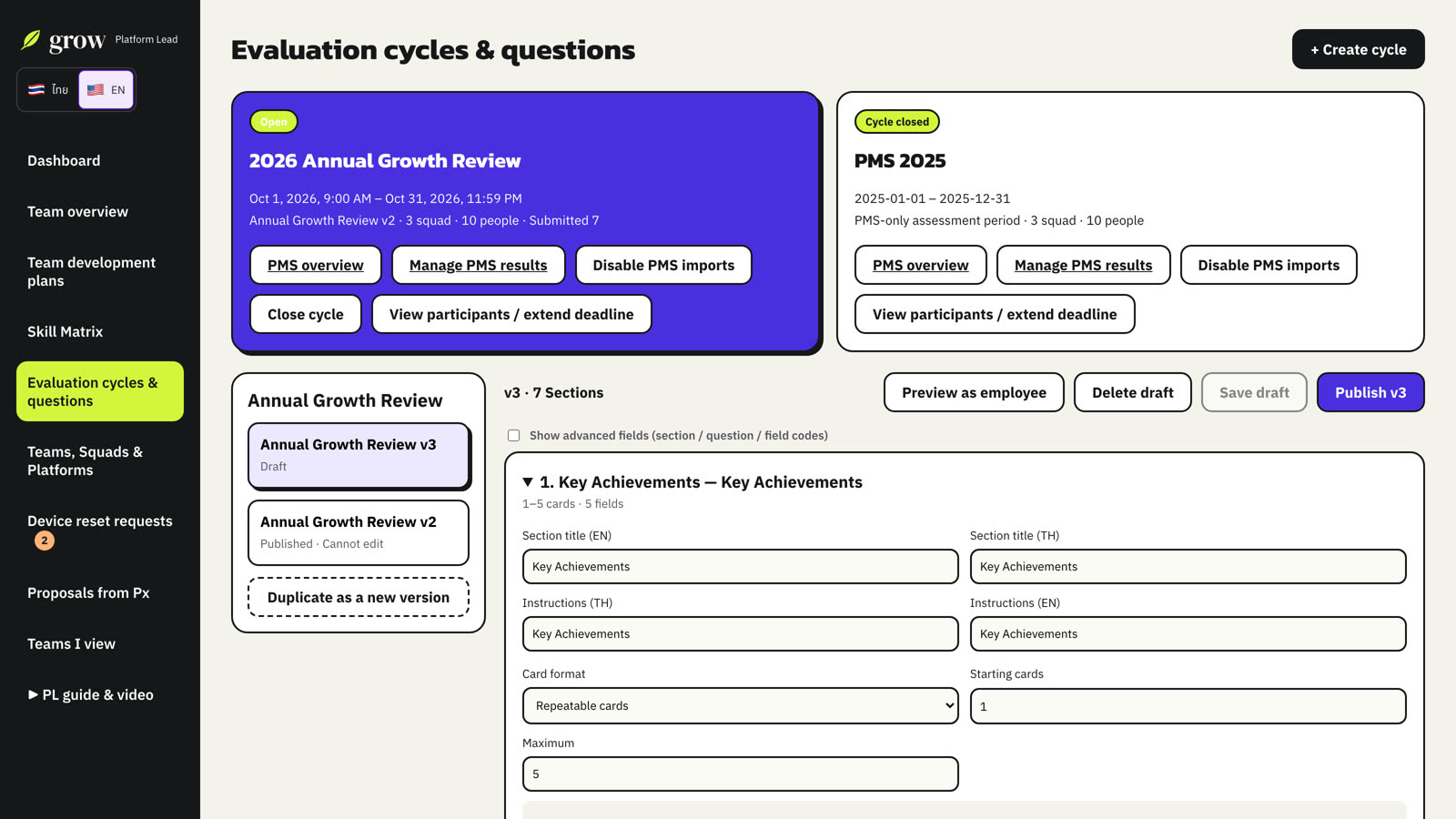
- A published question set is locked so answers stay comparable. To change it, choose Duplicate as a new version.
- Edit sections and fields in the draft, check it with Preview as employee, then Publish.
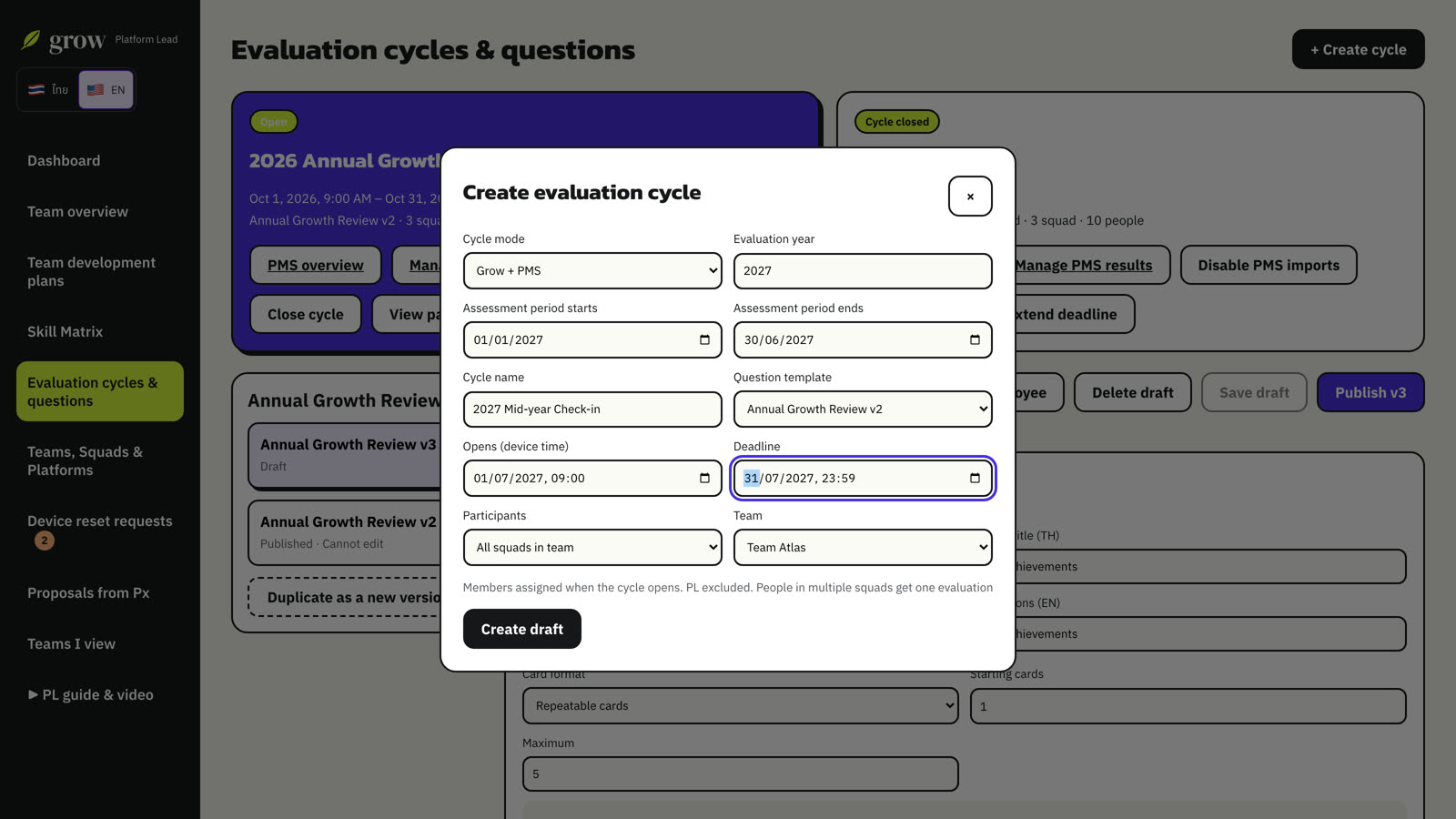
- Choose + Create cycle to start a round.
- Choose the mode: Grow + PMS or PMS only (for importing past PMS results).
- Set the cycle name, evaluation year, assessment period, question set, opening time and deadline.
- Pick the participating squads and choose Create draft.
- Open the cycle when ready. Everyone in scope gets their evaluation. You are never included in your own cycle.
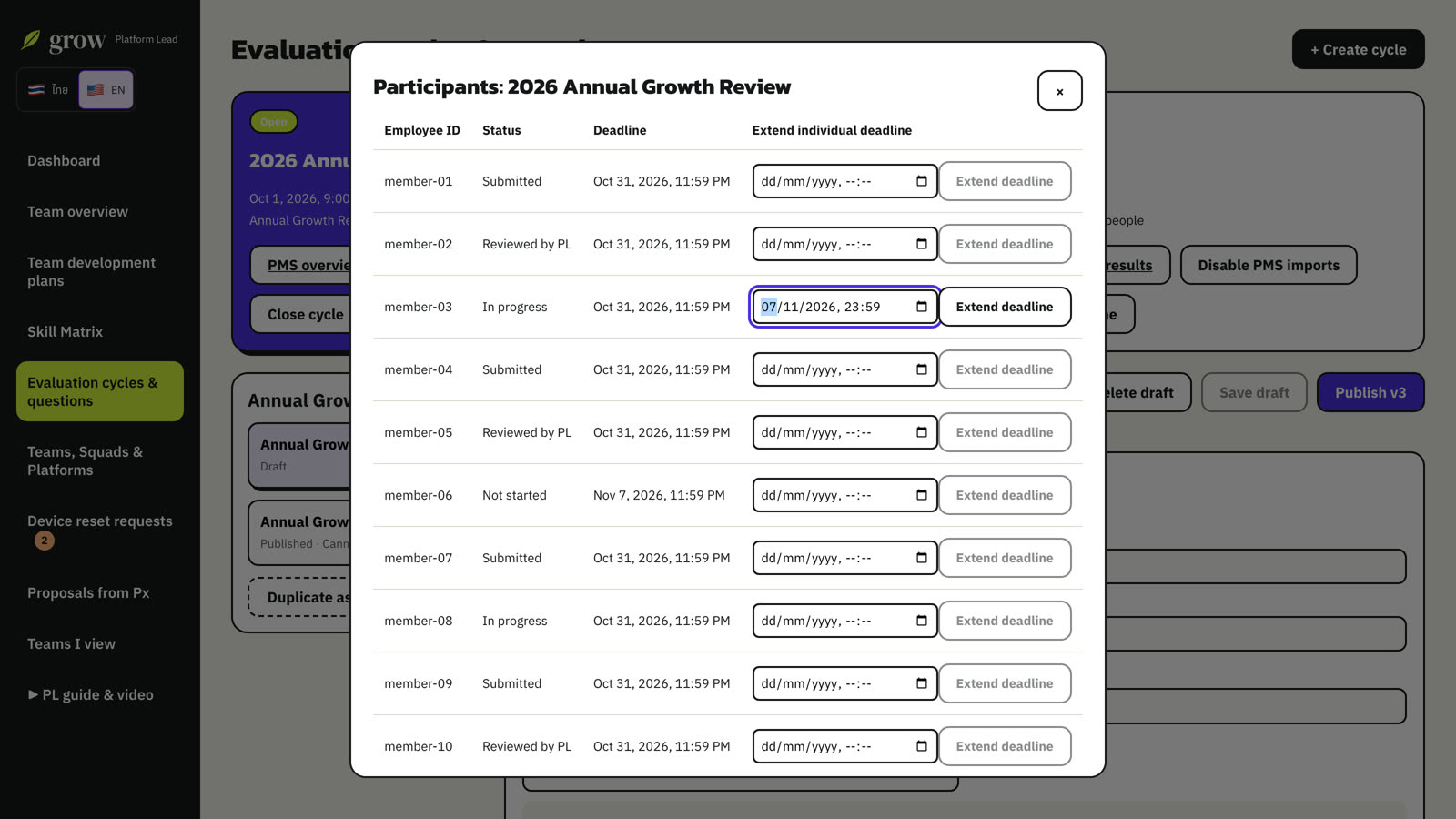
Extend a deadline for one person
Choose View participants / extend deadline, set a new date for that person and choose Extend deadline. Everyone else keeps the original deadline.
When the round is over, choose Close cycle. Closed rounds are what the organisation overview (Px) uses.
05Read and give feedback
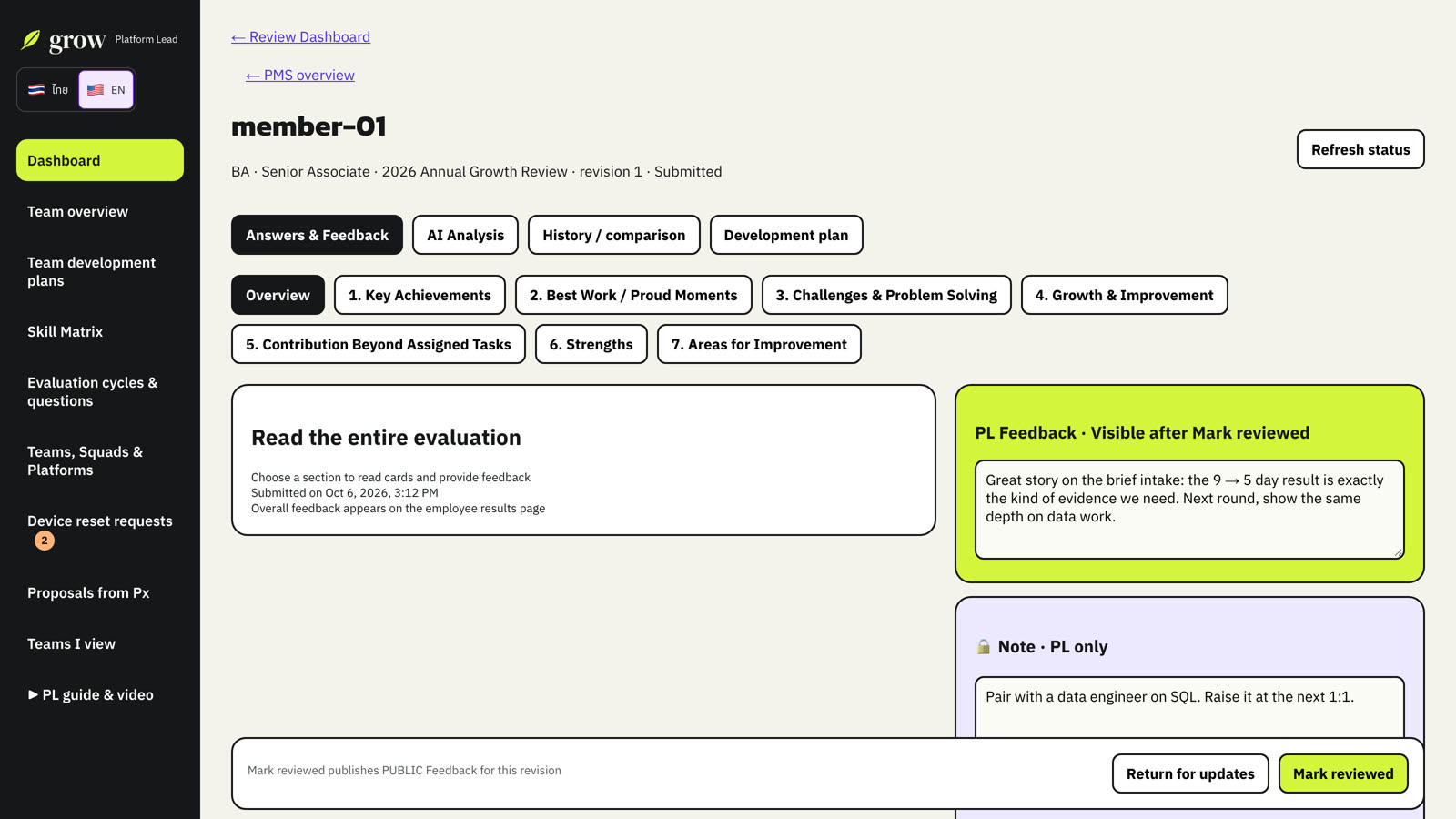
- Open a submitted evaluation from the Dashboard.
- Step through the sections with the tabs. Each card is one story.
- Write PL Feedback for the employee, and a Note for yourself.
- Save. Then choose Mark reviewed, or Return for updates with a reason if the story needs more work.
06AI analysis: the AI drafts, you decide
Open the AI Analysis tab. The AI reads the employee's cards (and the PMS results if you imported them) and maps the evidence to skills in the company Skill Matrix, against the expectation for the employee's role and level.
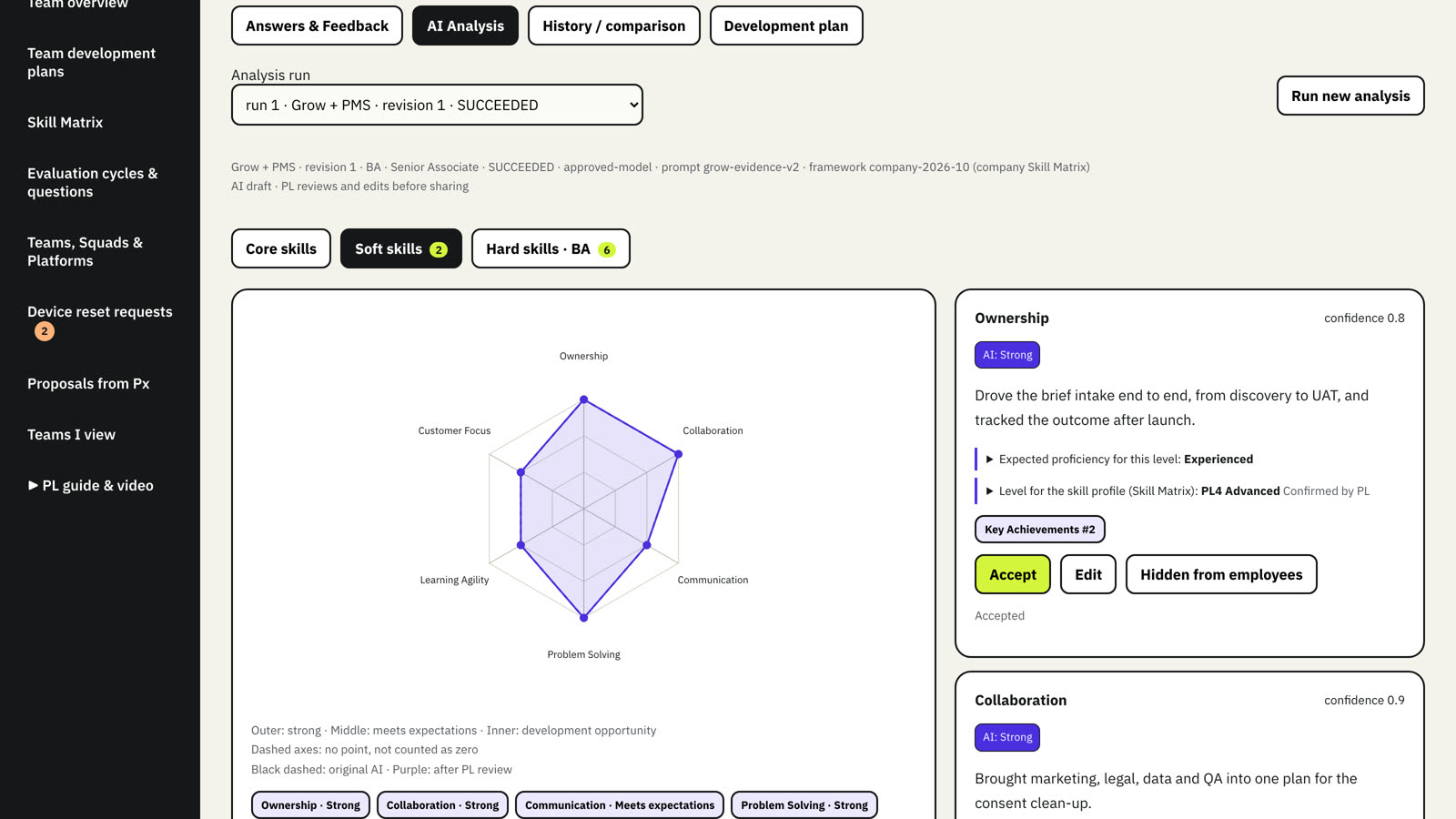
- Accept a finding as it is.
- Edit it to change the level, the summary or the evidence.
- Hidden from employees keeps a finding out of the published result.
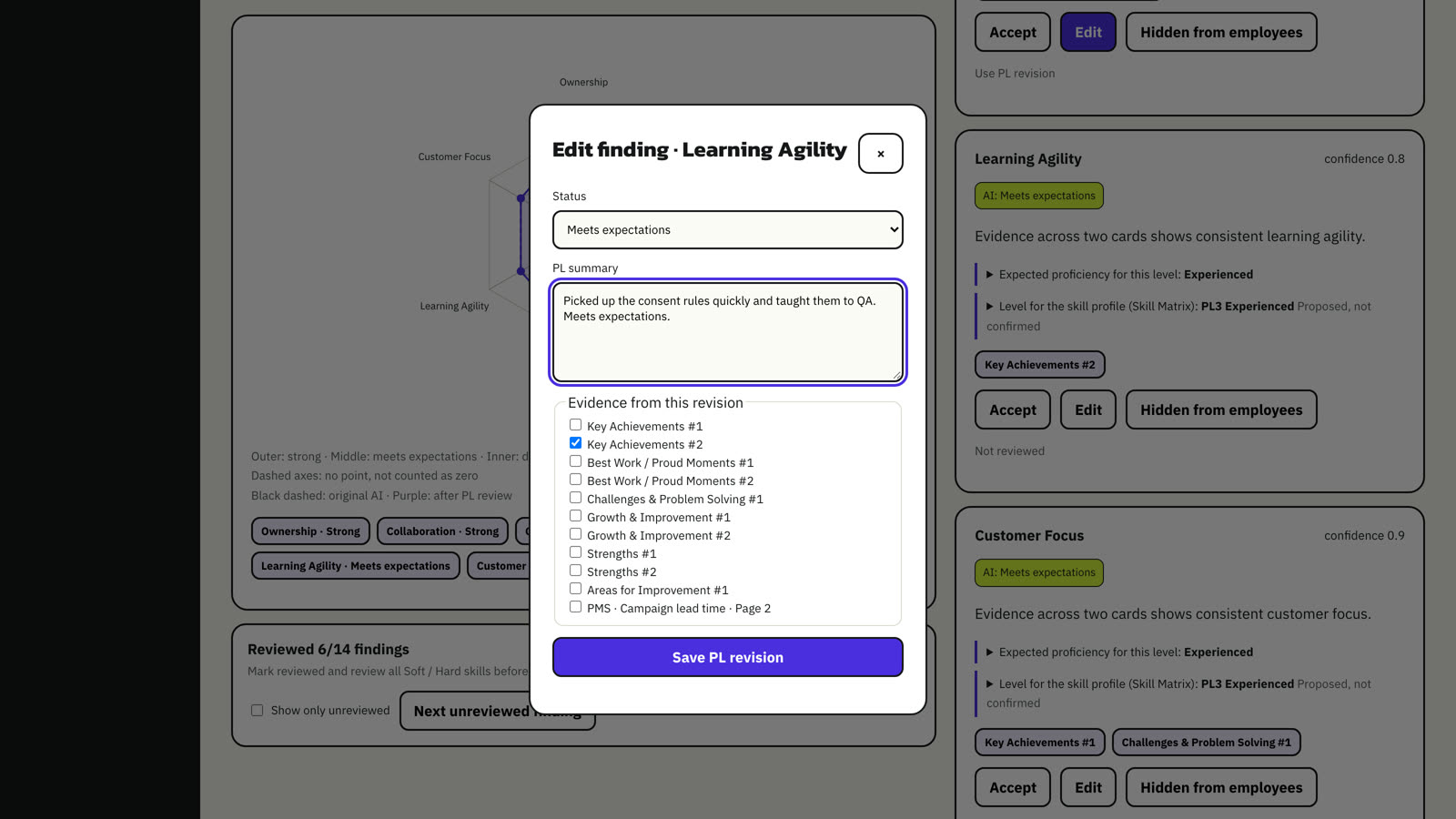
The one-to-one questions, evidence recommendations and confidence values are for you only.
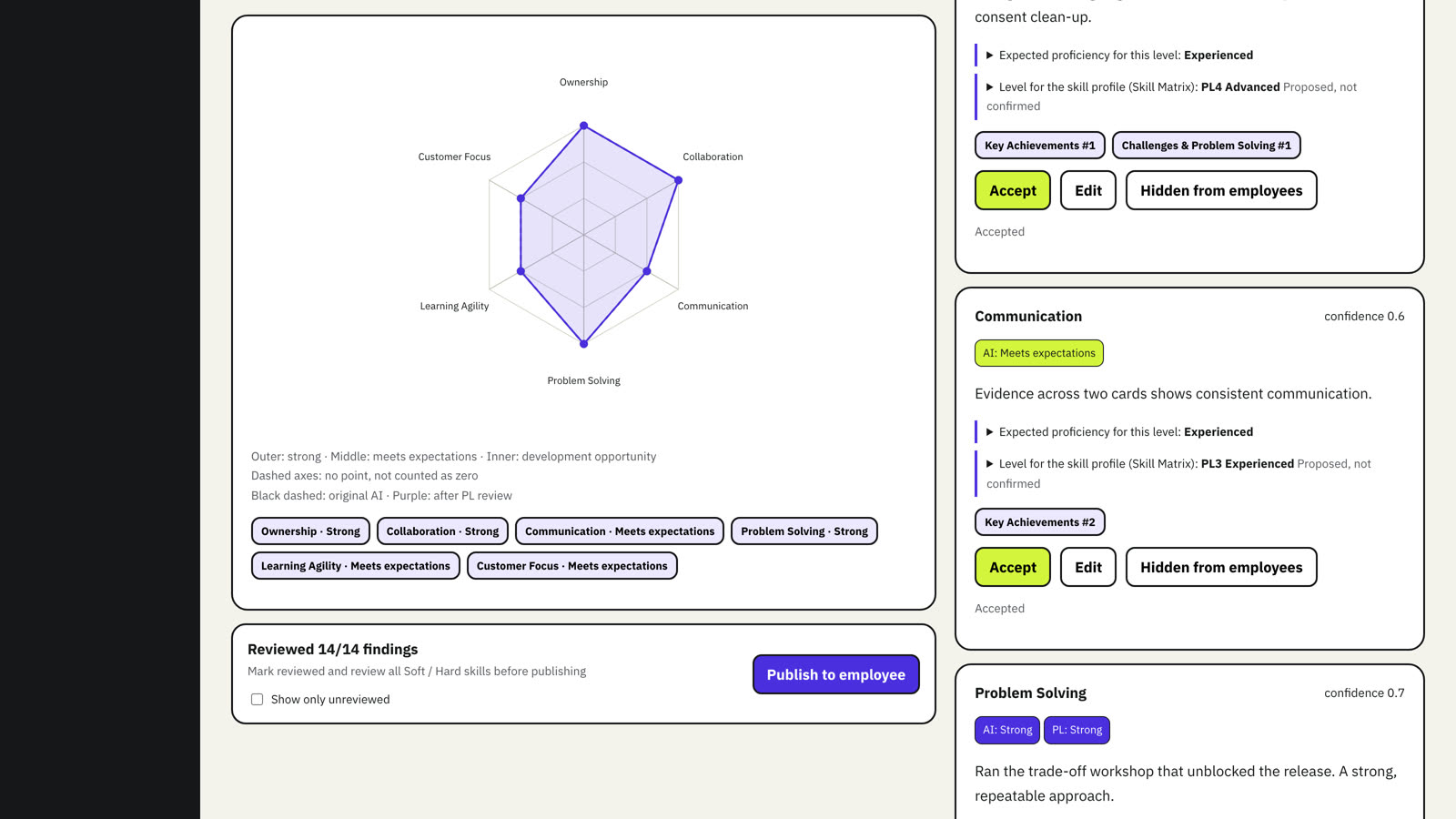
Confirm the level for the skill profile
Each finding with evidence has Level for the skill profile (Skill Matrix). Open it to see the skill's five level descriptors from the company Skill Matrix, with the proposed level selected (from the result against the expected level). Pick the level this round's evidence shows; it is saved as Confirmed by PL.
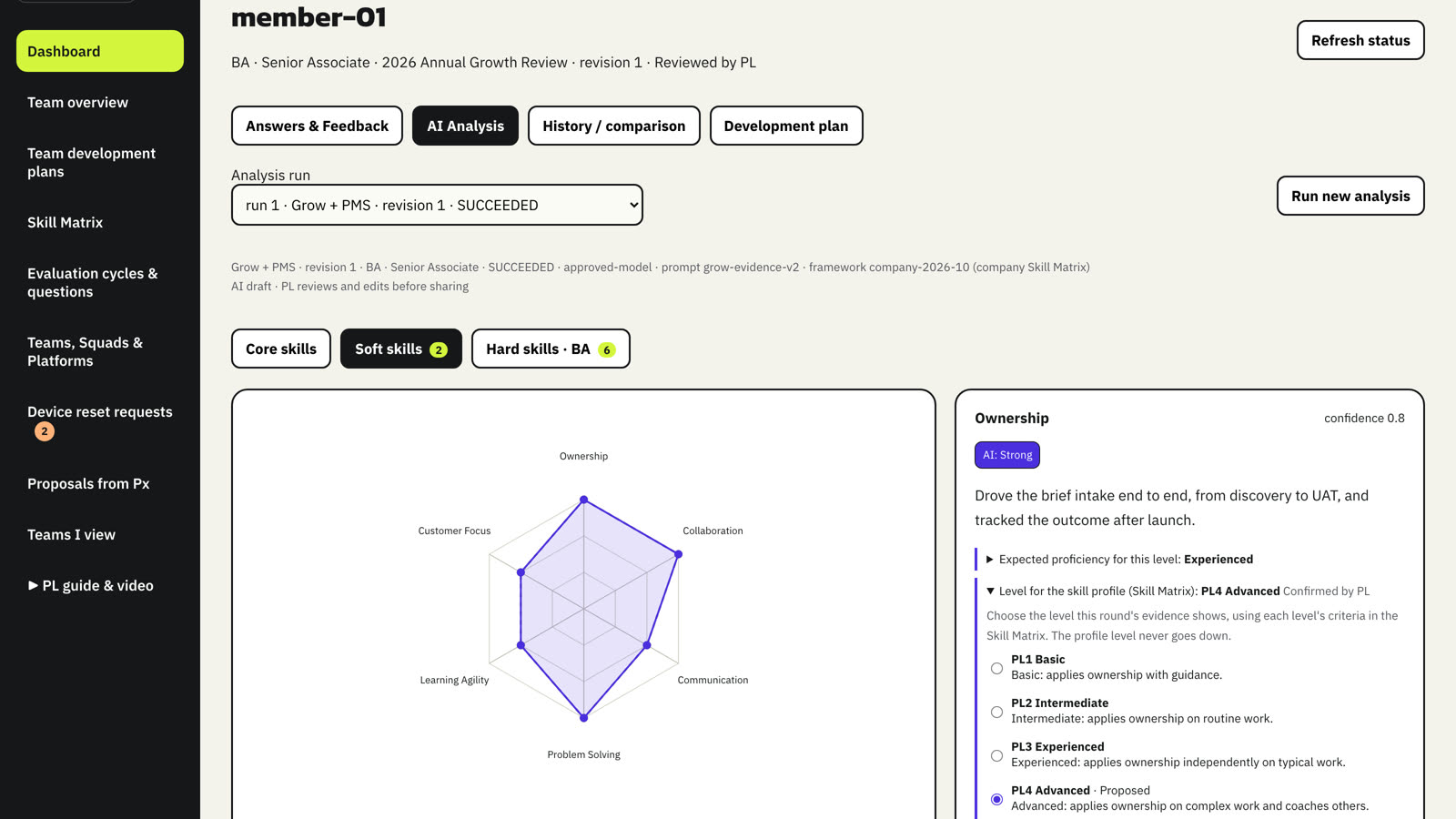
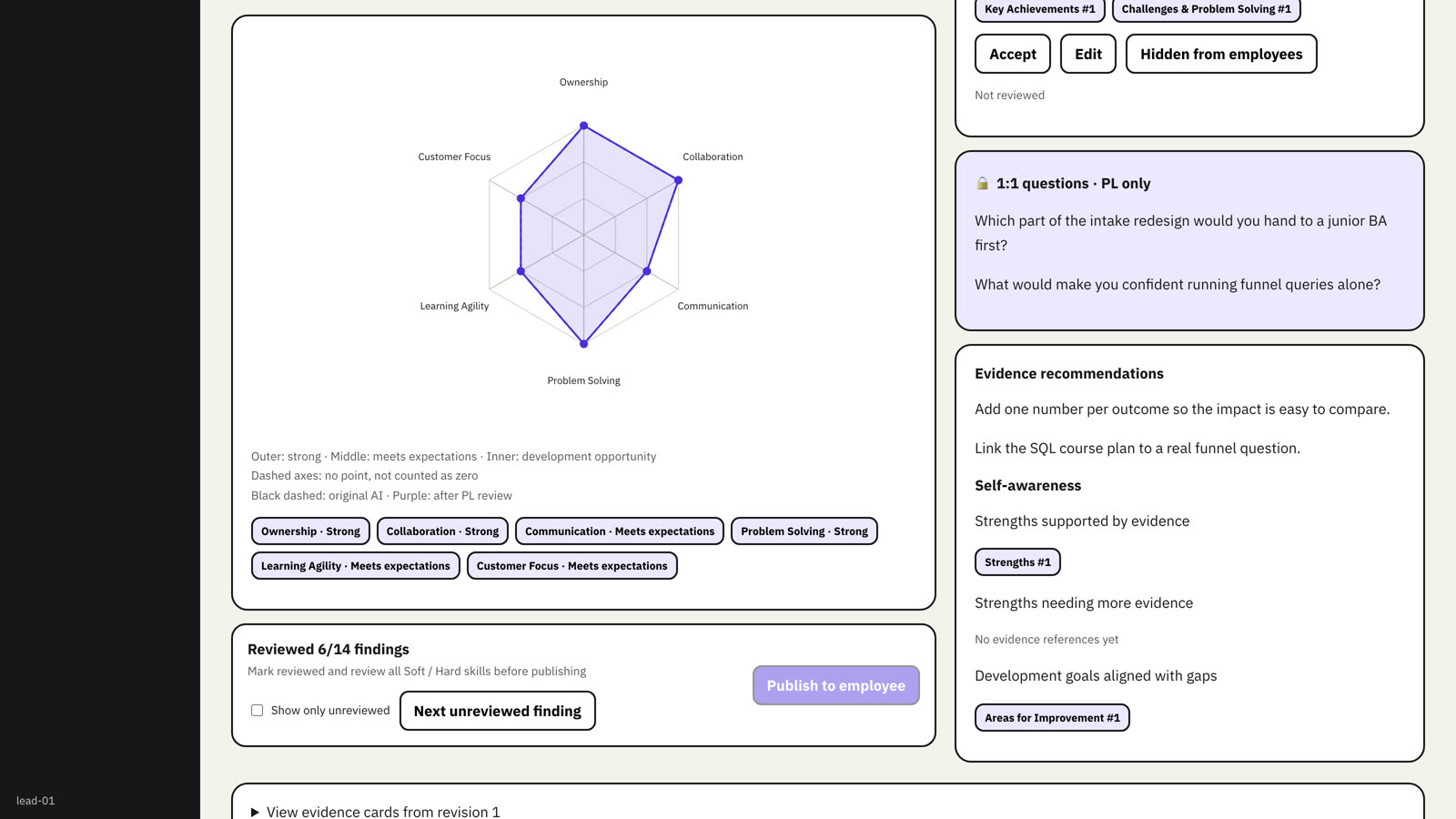
Publish to employee unlocks once every Soft and Hard skill finding has been reviewed. The employee then sees the result on their own page.
07Turn insight into action
In the Development plan tab, draft an action from an area to develop, from a reviewed finding, or write your own.
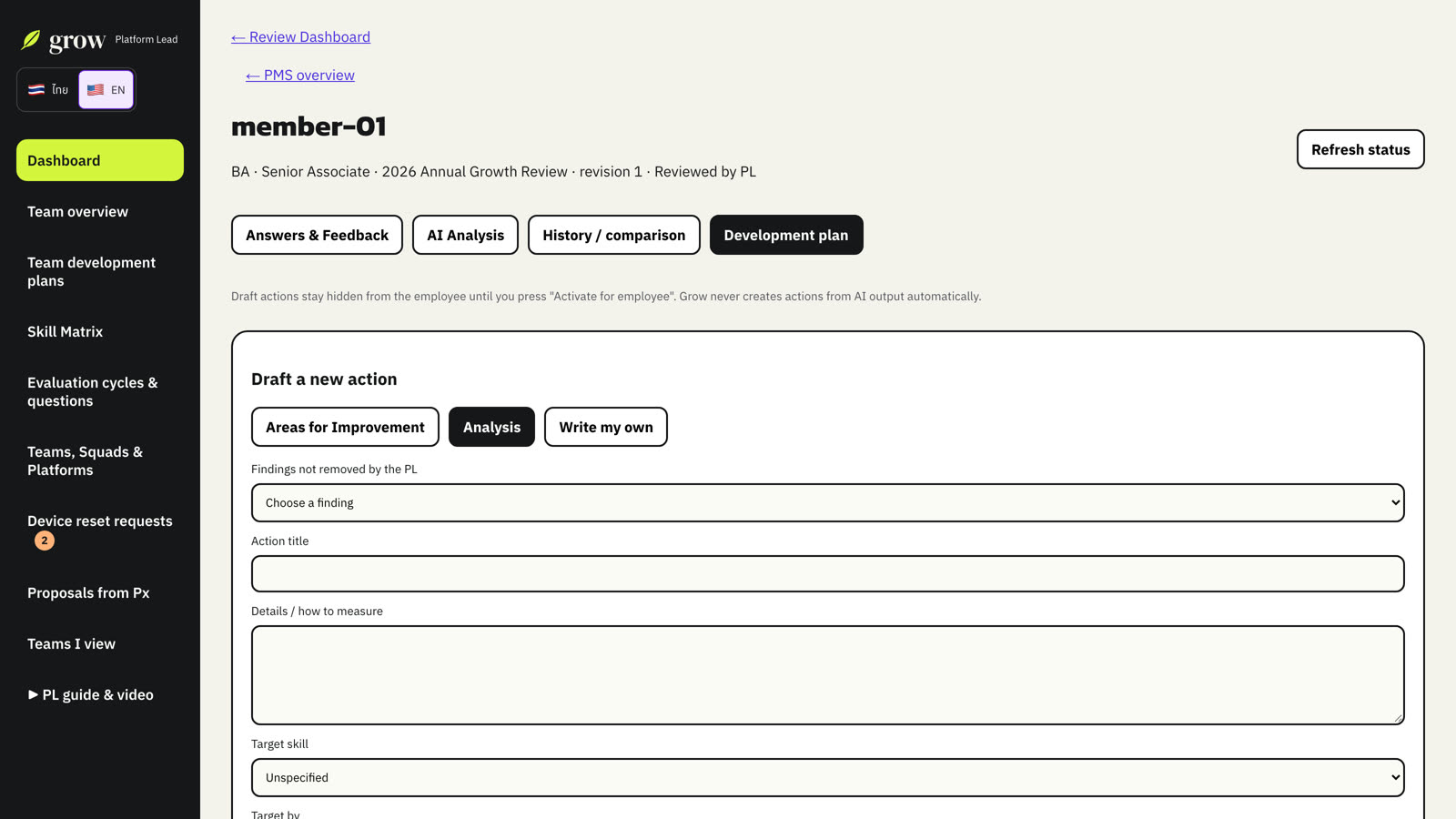
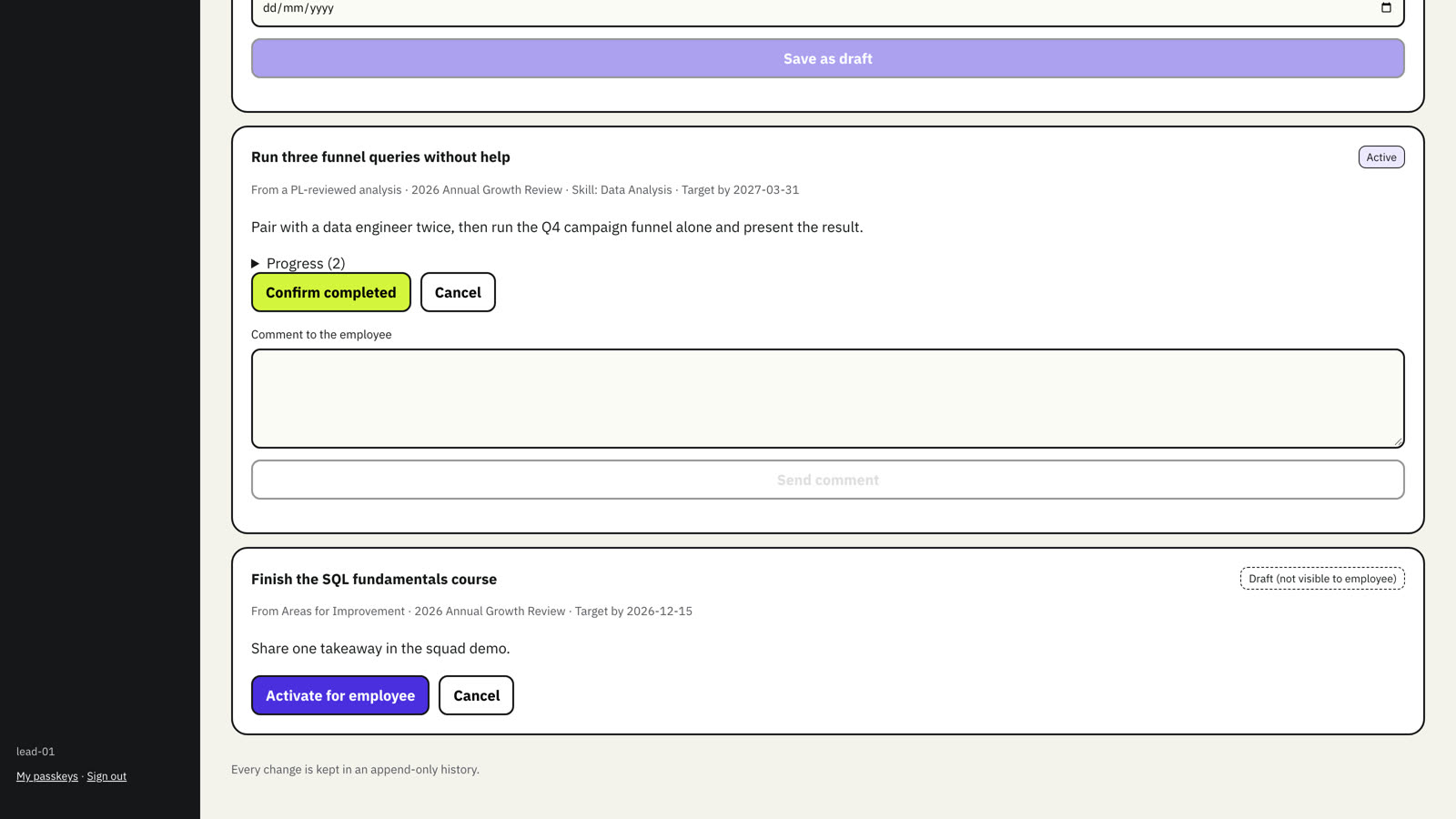
- Drafts stay hidden until you choose Activate for employee.
- The employee logs progress; you can comment.
- When they tick Done, choose Confirm completed, or reopen with a reason. Every step is kept in the history.
08Team development plans
Team development plans in the sidebar lists every action of your team, across all rounds, grouped by person. Use the views In progress, Waiting for PL to confirm, Drafts, Closed and All, and filter by person.
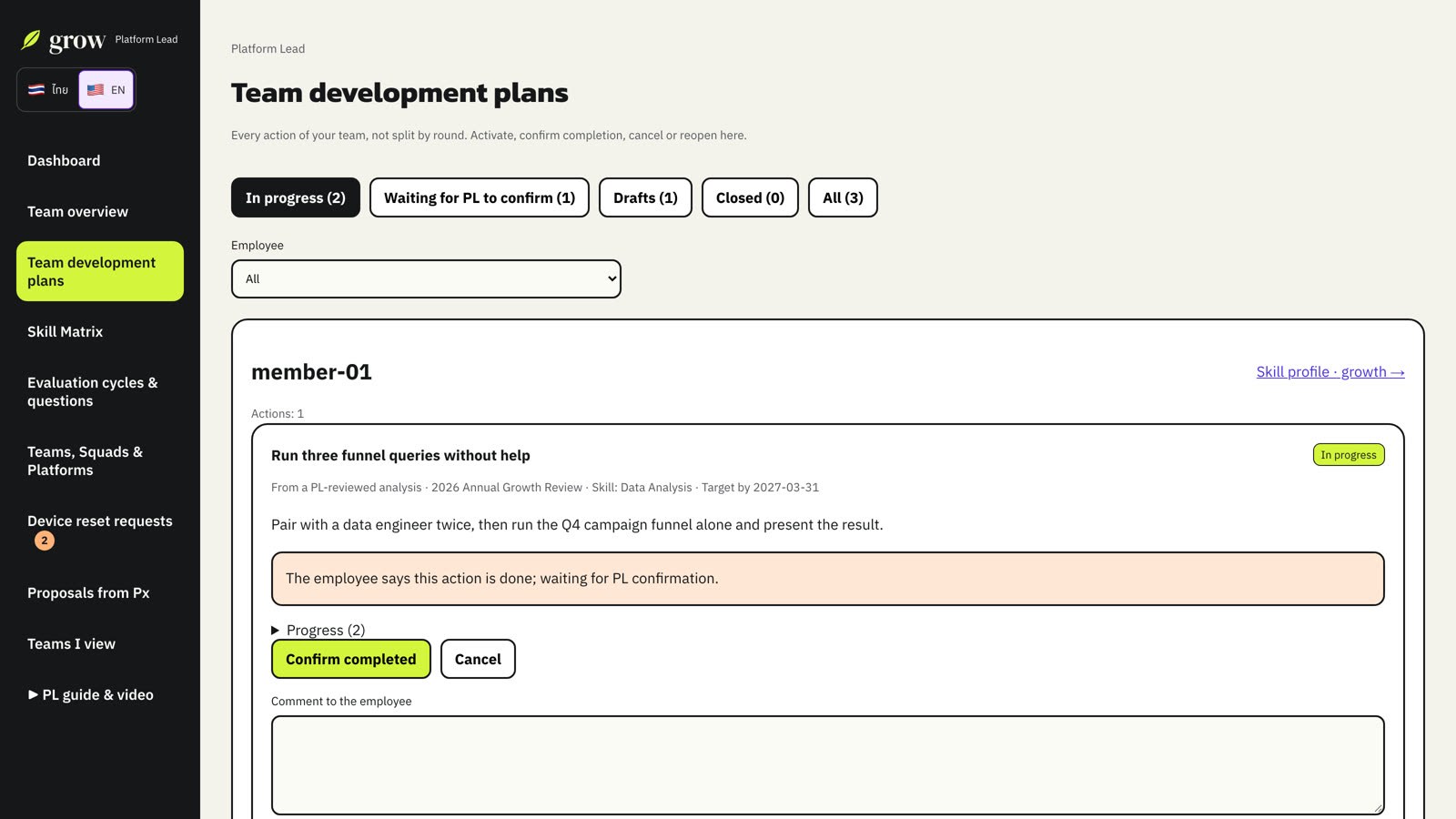
Only a current lead of the person's team can change an action. Actions of people who moved to another team stay readable.
09Each person's growth page
Open a person from Teams → Members, the review header, or the board. The page brings together everything between rounds:
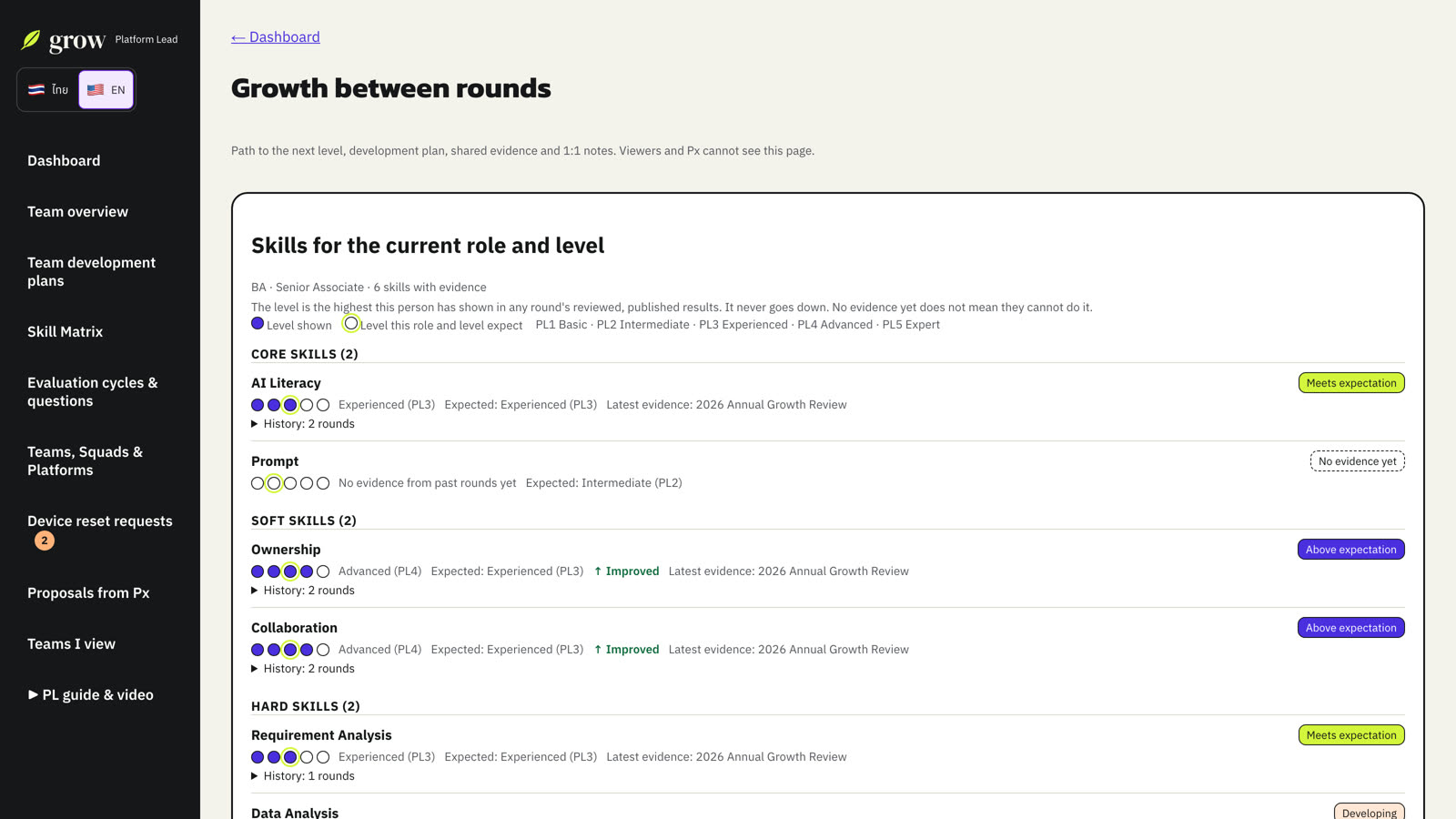
- Skill profile: skills of the current role and level, and other skills the person holds from before. Levels never go down; no evidence is never a weakness.
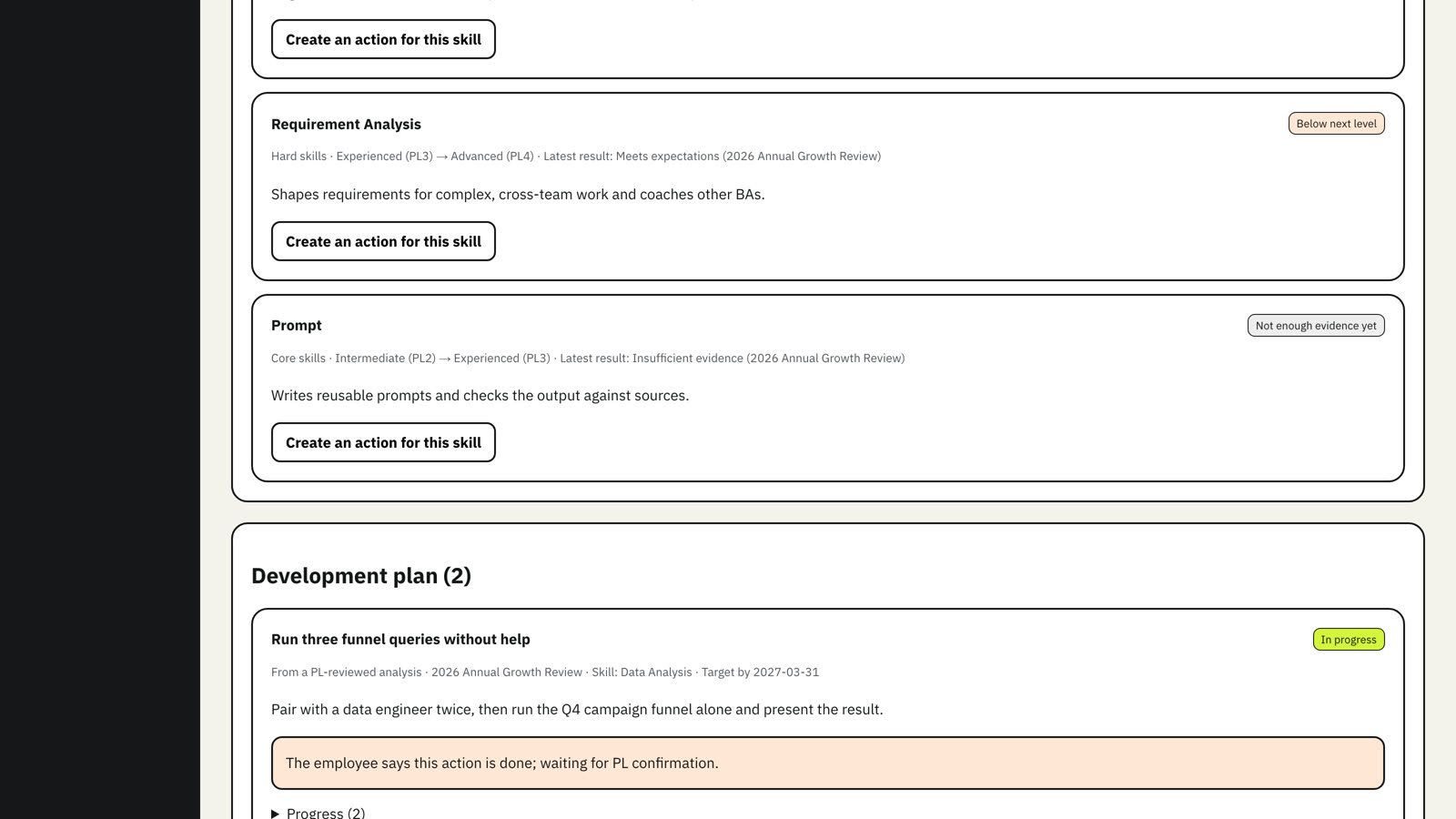
- Path to the next level: skills whose expectation rises at the next level, with the latest result. Choose Create an action for this skill to draft an action.
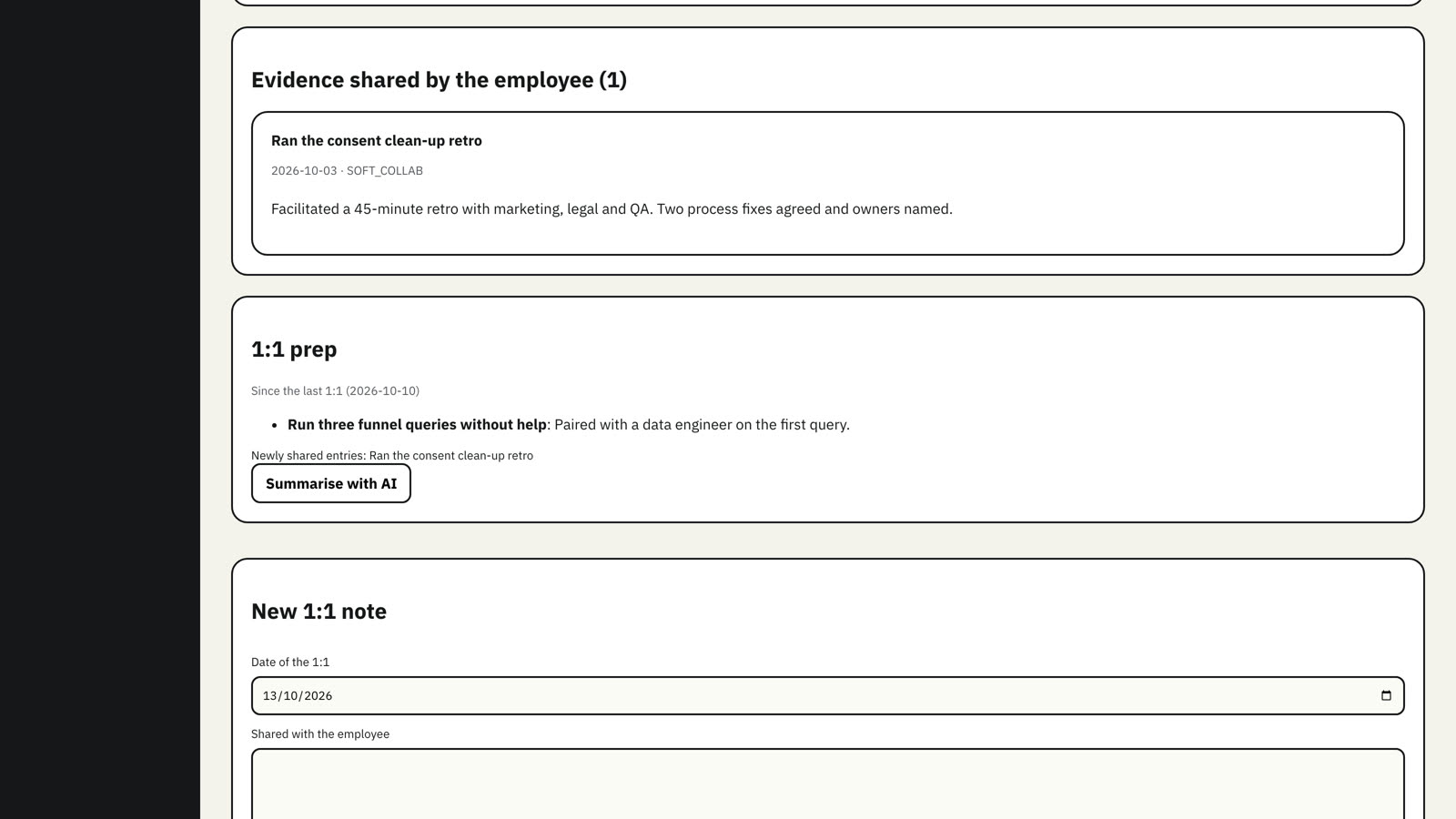
- Development plan, evidence the person shared, 1:1 prep and 1:1 notes.
1:1 notes
Write a note after each 1:1. The shared part is visible to the employee, who can reply once; the private part is for leads of the team only. Notes can be edited for 24 hours, then only added to. 1:1 prep lists progress, newly shared evidence and responses that ask to talk since your last note.
10PMS results
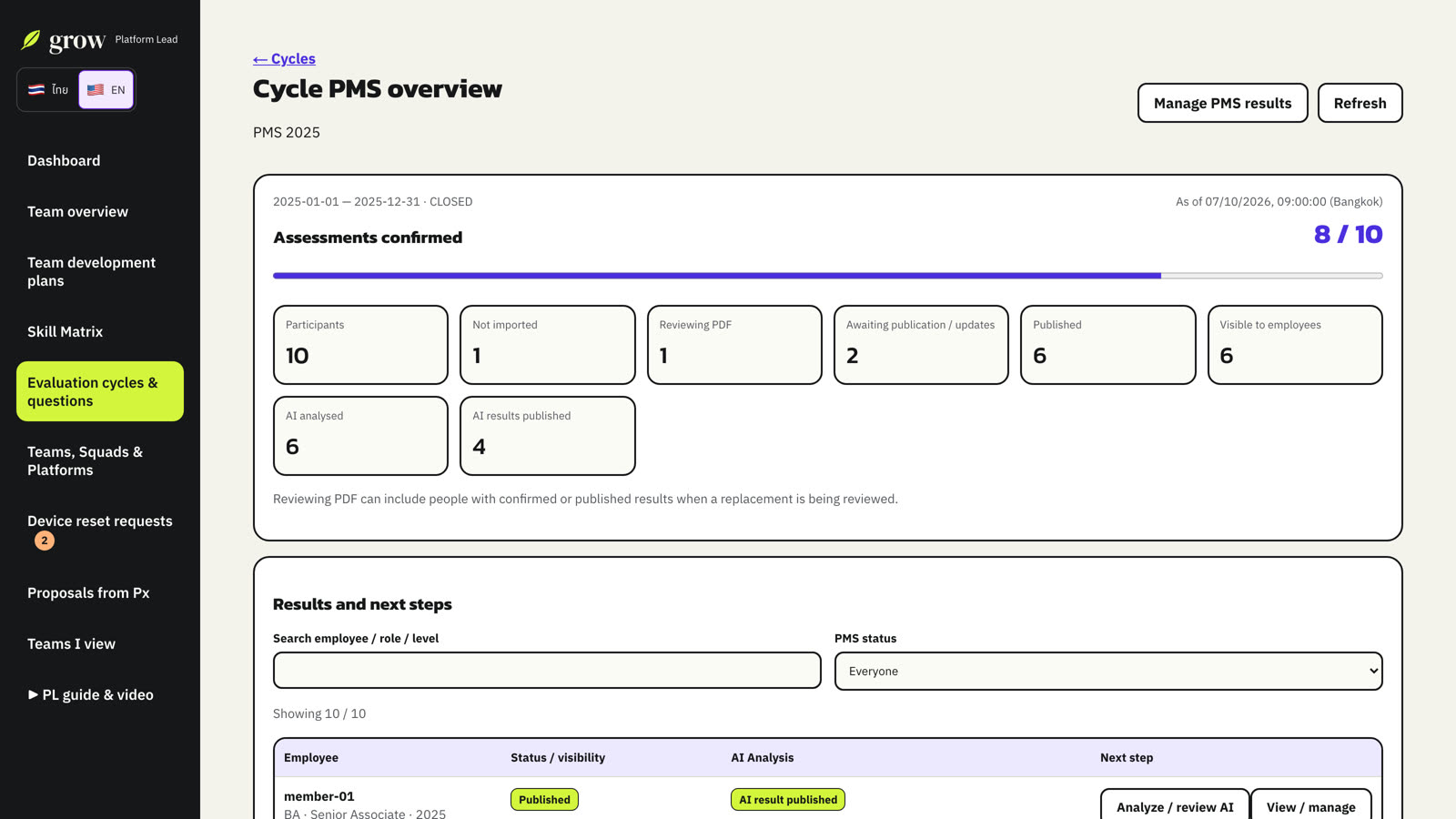
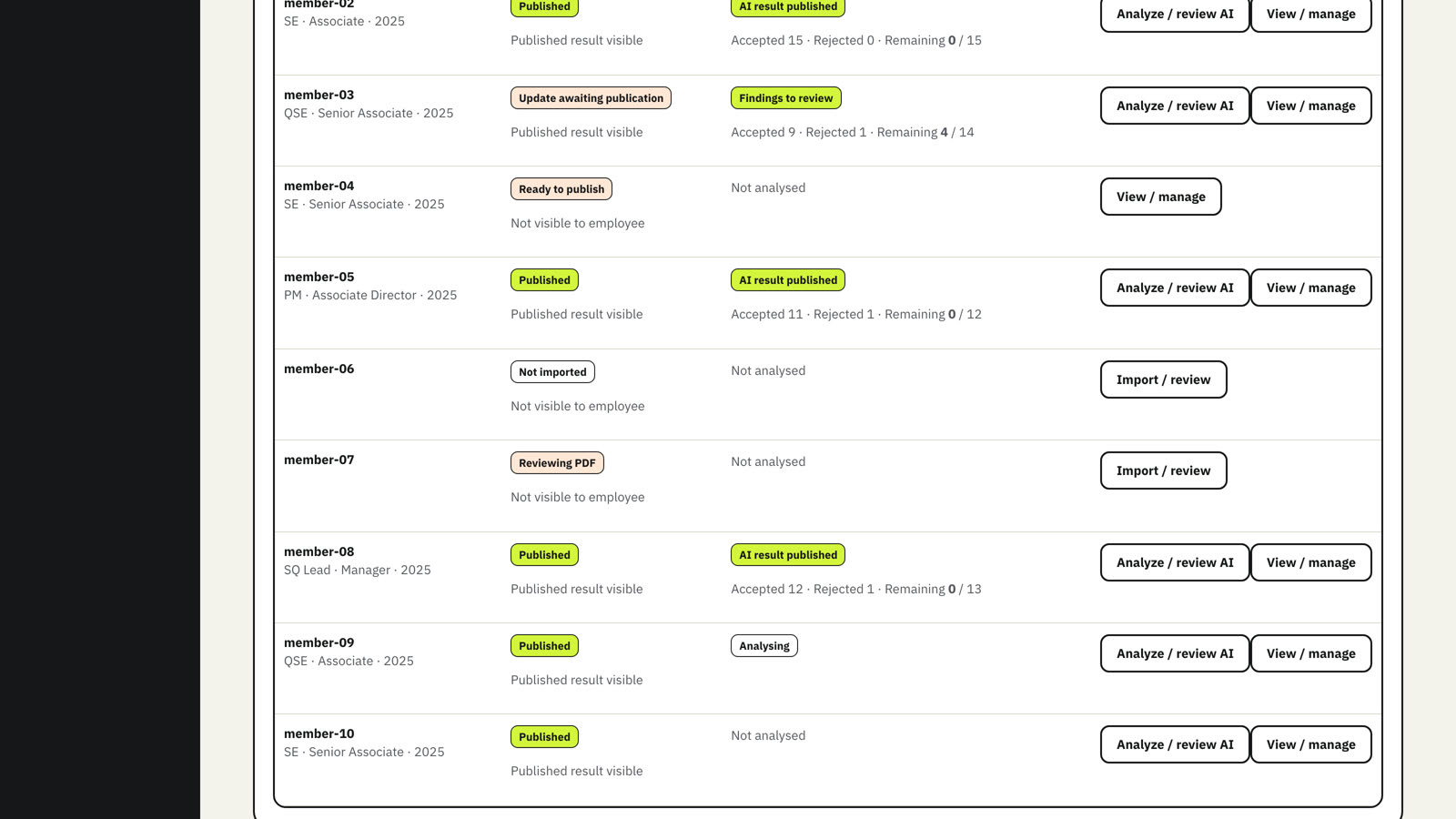
In a cycle with PMS, choose Manage PMS results to import each person's PMS form (PDF or Excel), check what Grow extracted, correct it if needed, and publish. The PMS overview shows progress and the next step for every person.
11See the whole team
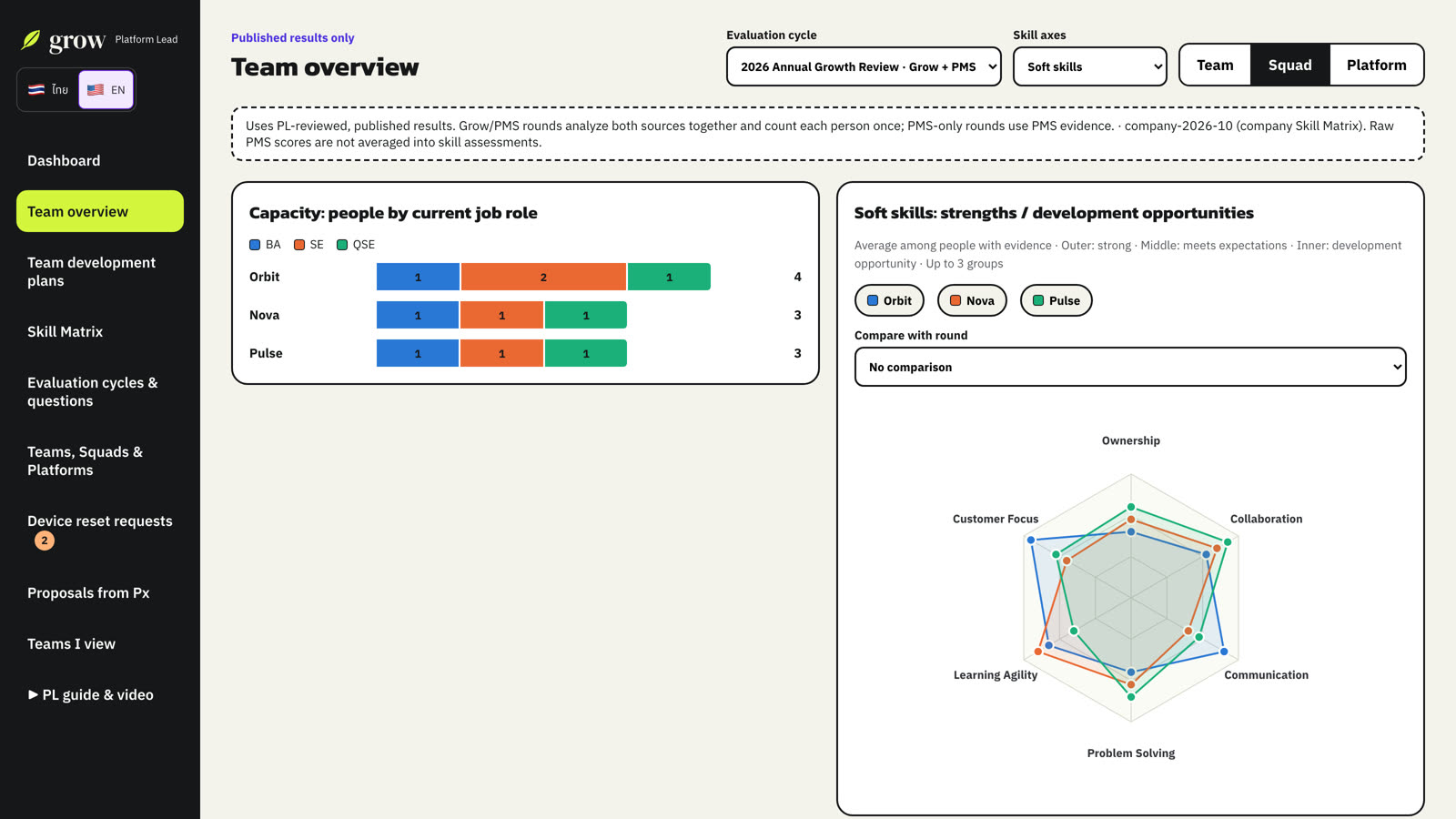
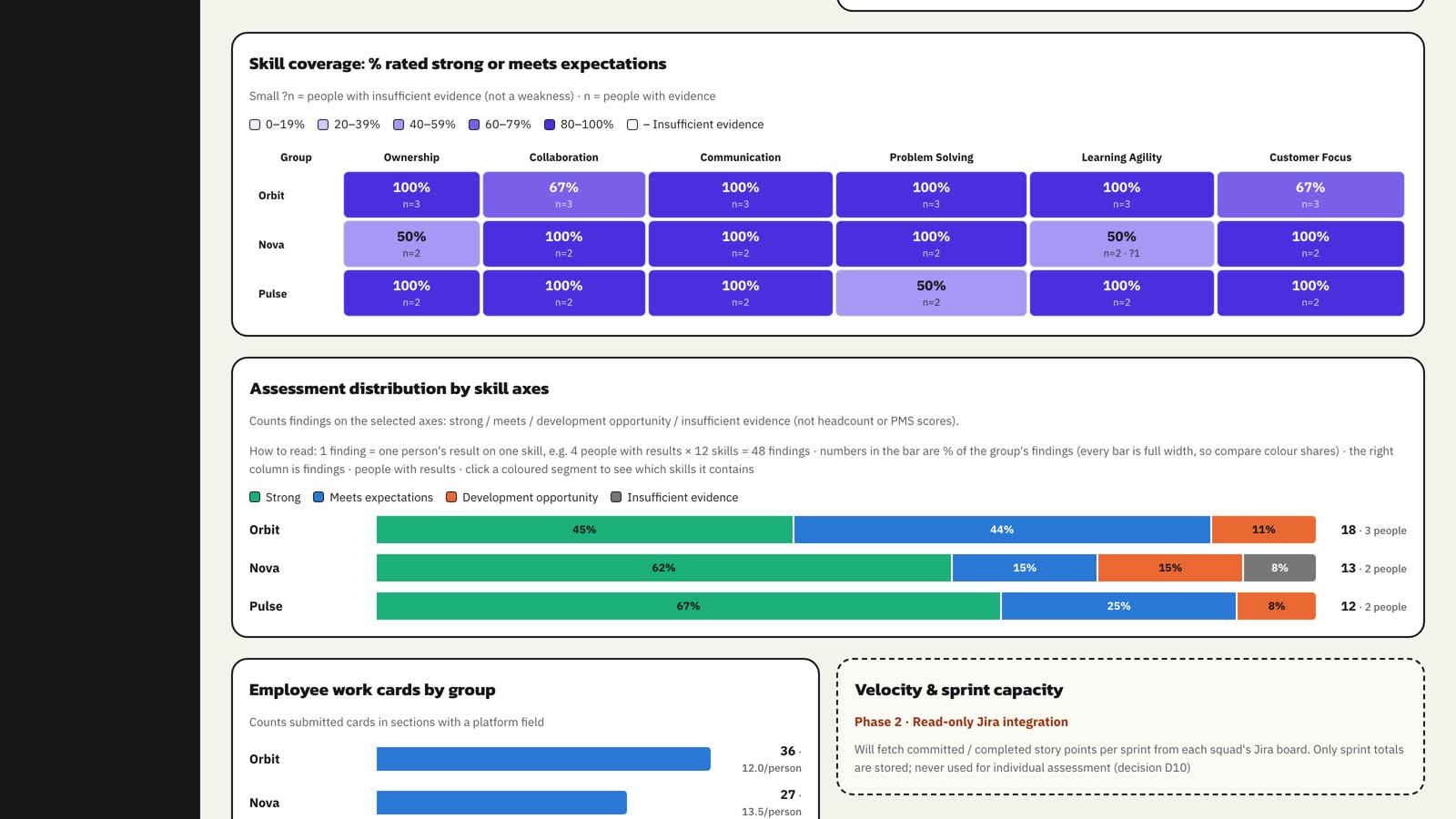
Team overview compares squads, platforms or the whole team. Pick a cycle and a skill axis (Core, Soft or Hard by role).
12Skill Matrix
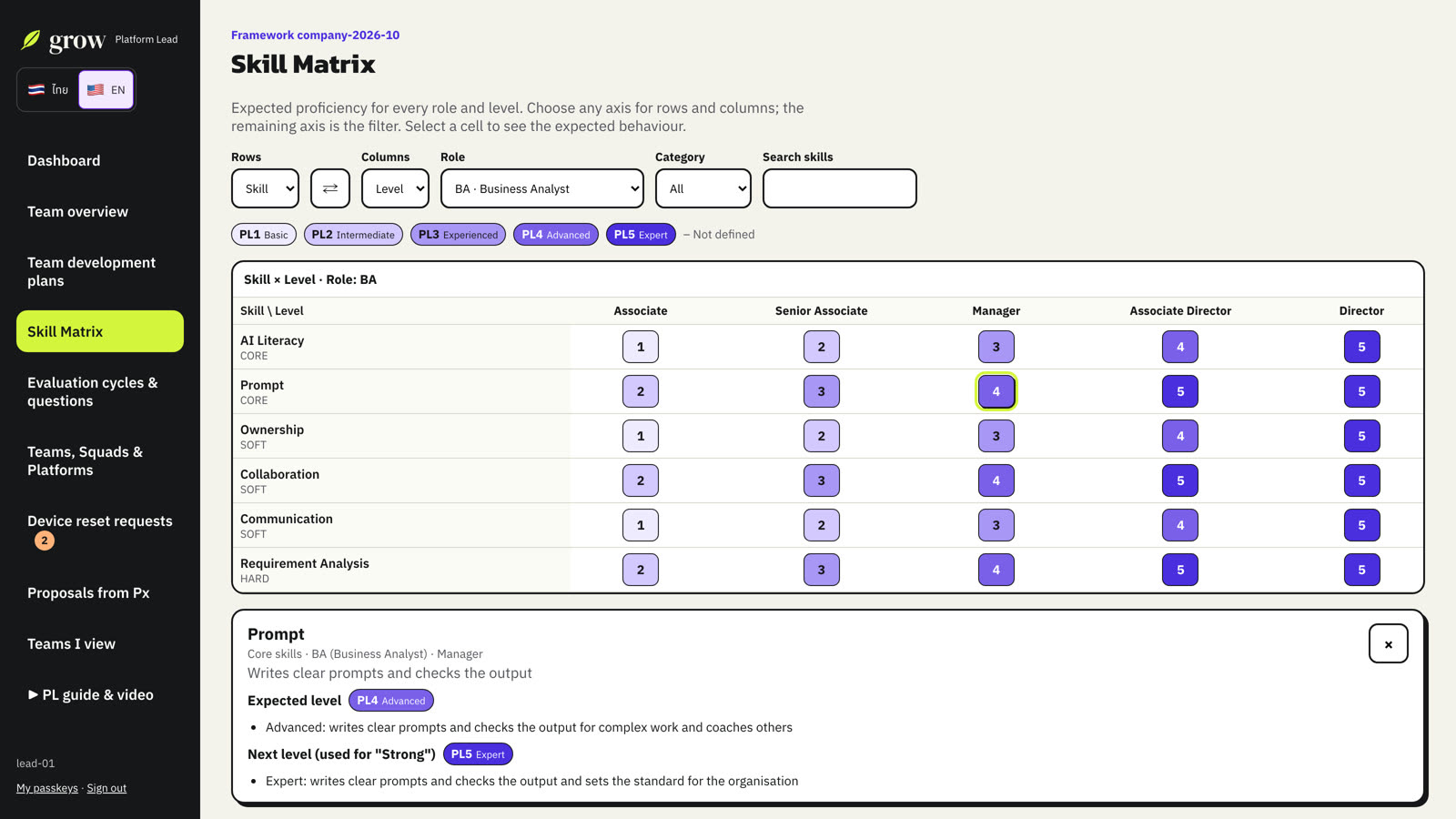
Skill Matrix shows the expected proficiency for every role, level and skill. Pivot rows and columns, and select a cell to read the expected behaviour and what Strong looks like at the next level.
13Device reset requests
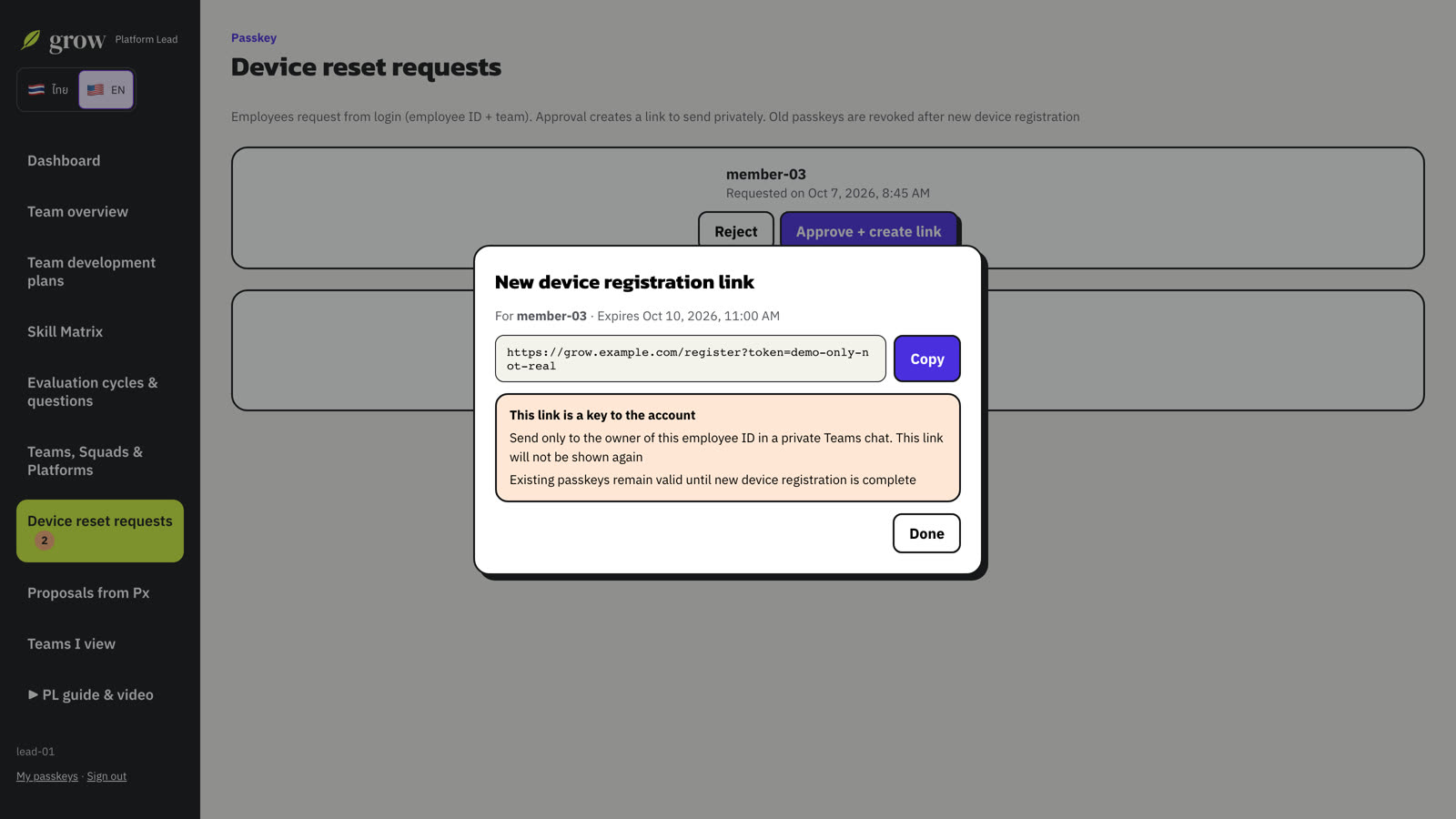
When someone loses their passkey, they send a request from the sign-in page and it appears under Device reset requests (with a badge in the sidebar).
- Check that the request is genuine.
- Choose Approve + create link (or Reject).
- Copy the one-time link and send it privately. It is shown only once.
14Viewers and Px proposals
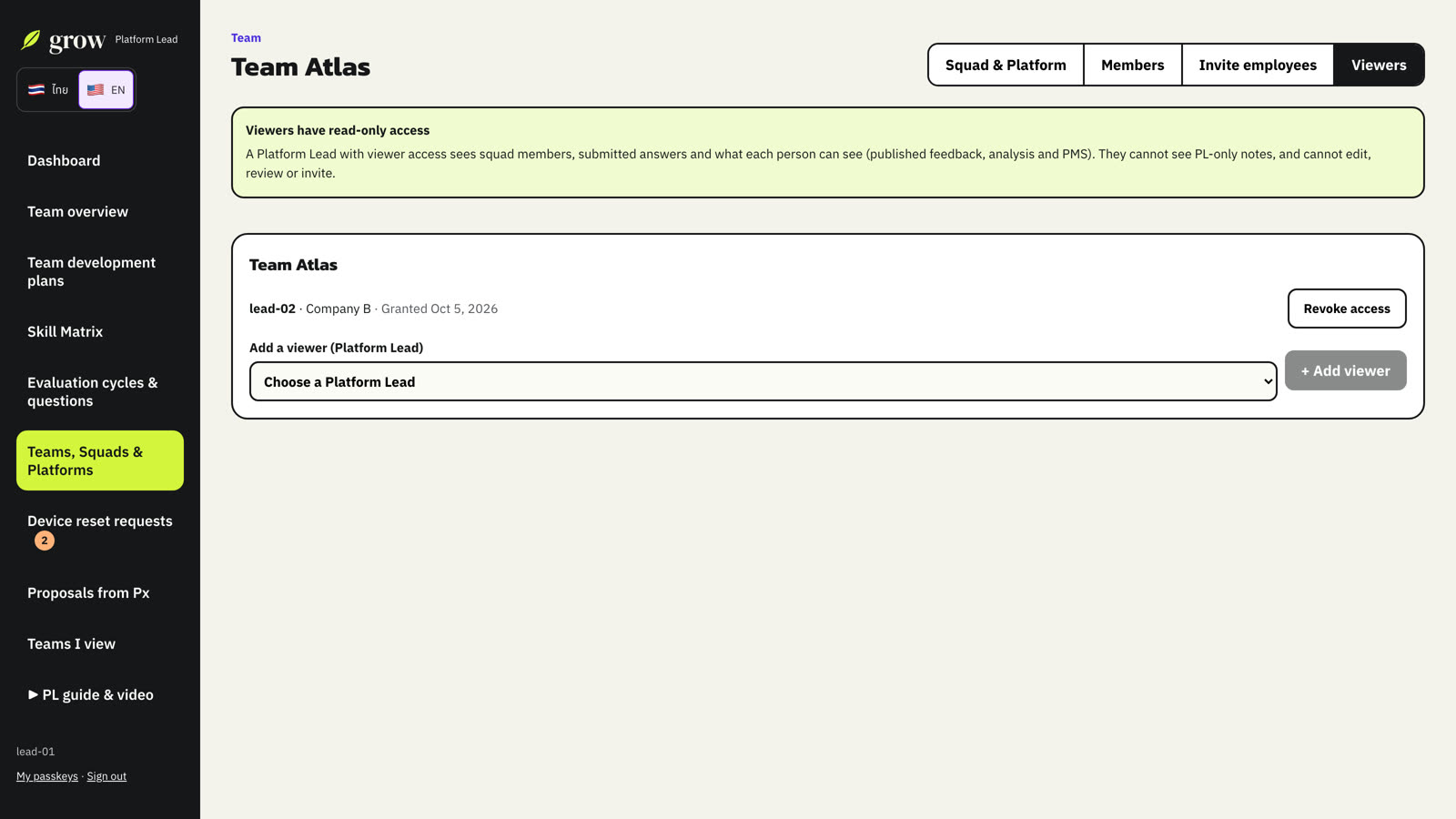
Viewers. In the Viewer tab of your team page you can give another Platform Lead read-only access to your team. A viewer sees answers and published results but never your notes, and cannot change anything. Teams you view appear under Teams I view.
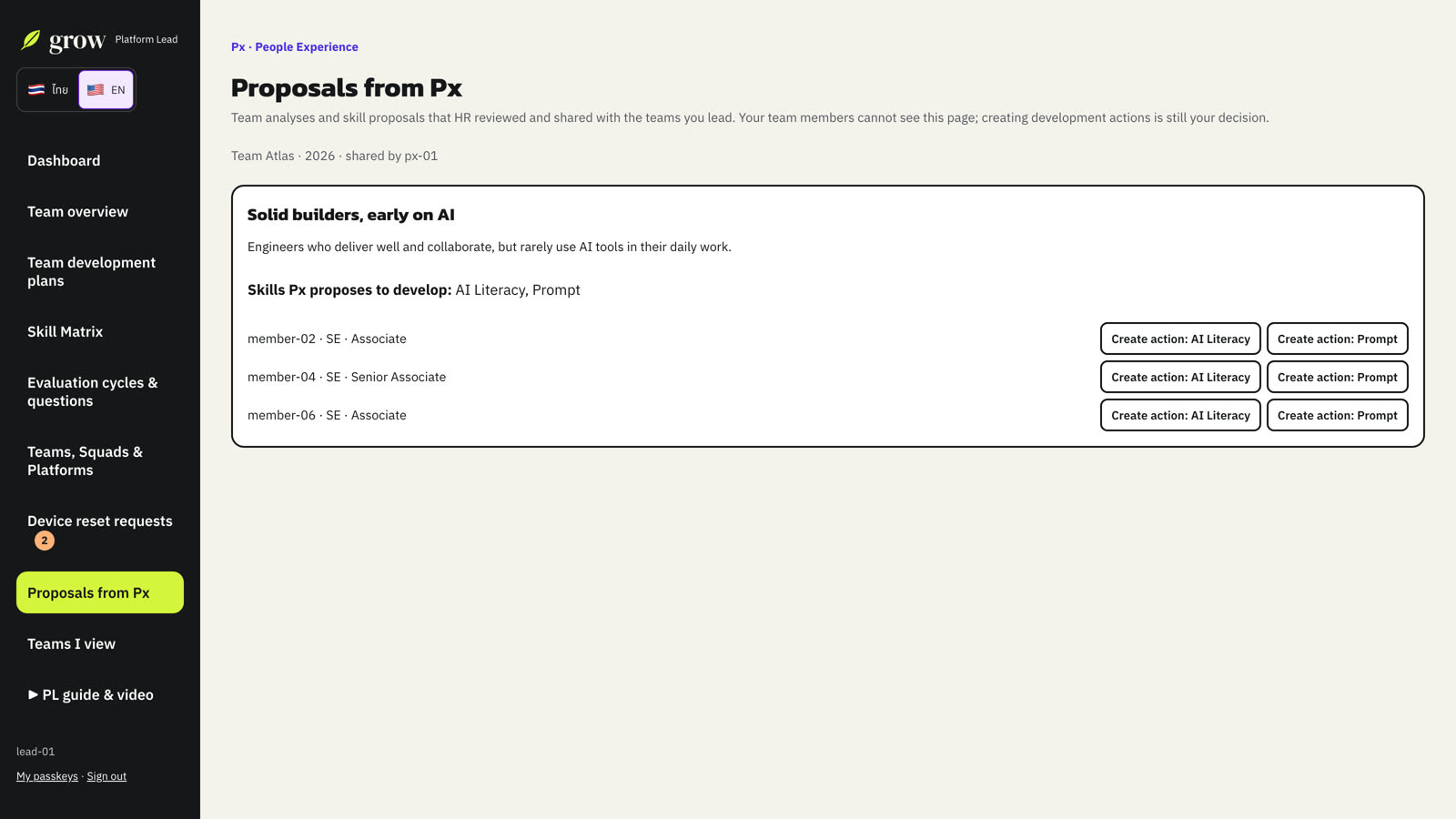
Proposals from Px. People Experience (Px) may share a reviewed team analysis or a suggested learning group with you. Choose Create action to start a development action with the skill already filled in. You decide; nothing is created automatically, and your team members never see these proposals.
15Good practice
- Send registration and reset links privately, one person at a time.
- Write feedback the employee can act on; keep personal reminders in the Note.
- Read the evidence before accepting a finding. Edit it when you know better.
- Use Insufficient evidence as a conversation starter, not a judgement.
- If you are also a member of another squad, open My evaluation from the sidebar to fill in your own.