Quick start
- Sign in with your passkey. A Px without a squad lands on the Organisation overview.
- Choose the evaluation year, a year to compare with and how to group people. Read the heat map.
- Open AI team analysis for one team, review every item, then share it with the team's Platform Lead.
- Use AI employee groups to find people who could learn the same skills together.
- Keep teams and Platform Leads tidy in Teams & Platform Leads; fix profiles in Employee.
- Set up your company group in Company and Job role & Level; change the standard in Edit Skill Matrix and re-run analyses in Rounds & re-analysis.
- Every change needs a reason and is recorded in Change history.
01What Px can and cannot see
Px is the People Experience role. It is granted by the system team (not from the app), and it can be combined with being a squad member or a Platform Lead. A Px works inside one company group: the group's name is shown under “Px · People Experience” in the sidebar, and every page shows only the teams, people, rounds and settings of that group.
| Px sees | Px never sees |
|---|---|
| Published, PL-reviewed results of closed rounds, as aggregates | Self-evaluation answers or work cards |
| Per-skill published levels per person (to plan training) | PL feedback text or private PL notes |
| Team structure, Platform Leads, viewers and profiles | Raw AI runs, 1:1 questions, PMS import data or scores |
| Their own Change history | Their own evaluation (always excluded) |
02Sign in
Sign in with Sign in with Passkey, like everyone else. The sign-in page also links to every guide and video. If you also have another role, the sidebar shows My other roles with links to your Platform Lead dashboard or your own evaluation. This guide and the video are always at the bottom of the Px menu.

03Organisation overview
The overview combines the published results of every round closed in the chosen evaluation year, across all Platform Leads. The included rounds are listed on the page.
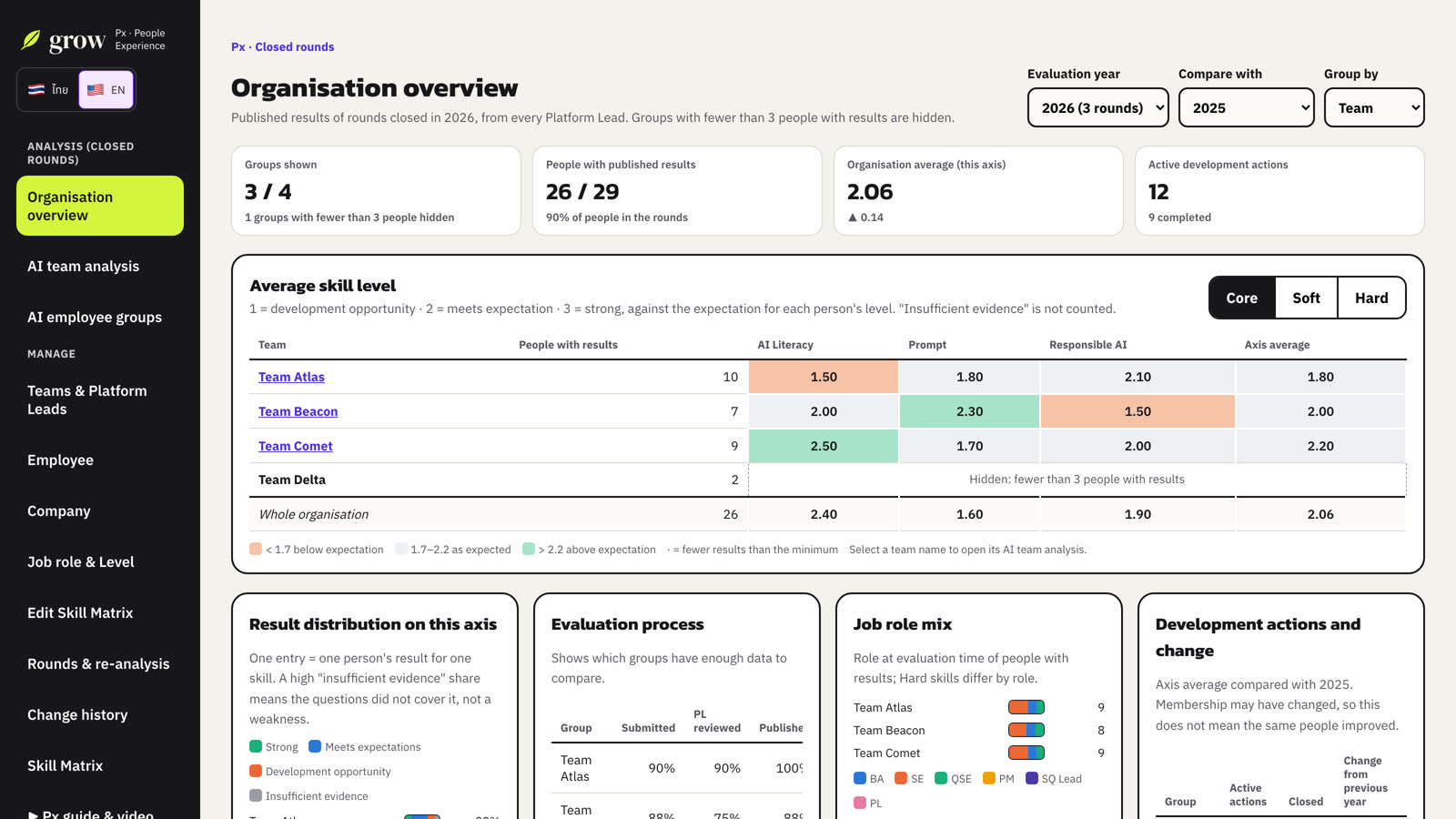
- Choose the Evaluation year and, optionally, a year to Compare with.
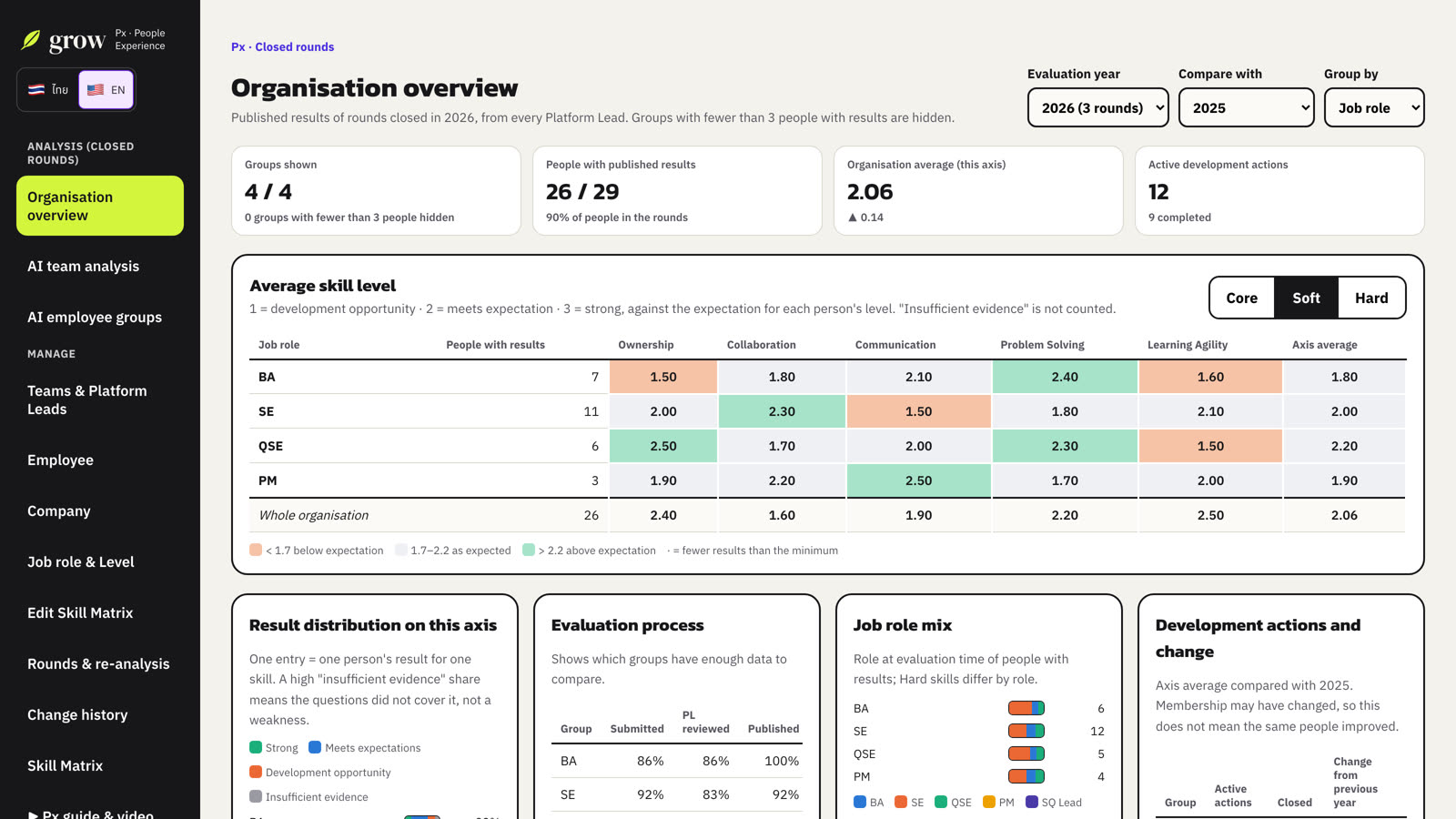
- Choose Group by: team, company, job role or level.
- Switch the skill axis between Core, Soft and Hard.
- Read the heat map: 1 = development opportunity, 2 = meets expectation, 3 = strong. Orange cells are below expectation, green above.
- Select a team name to open its AI team analysis.
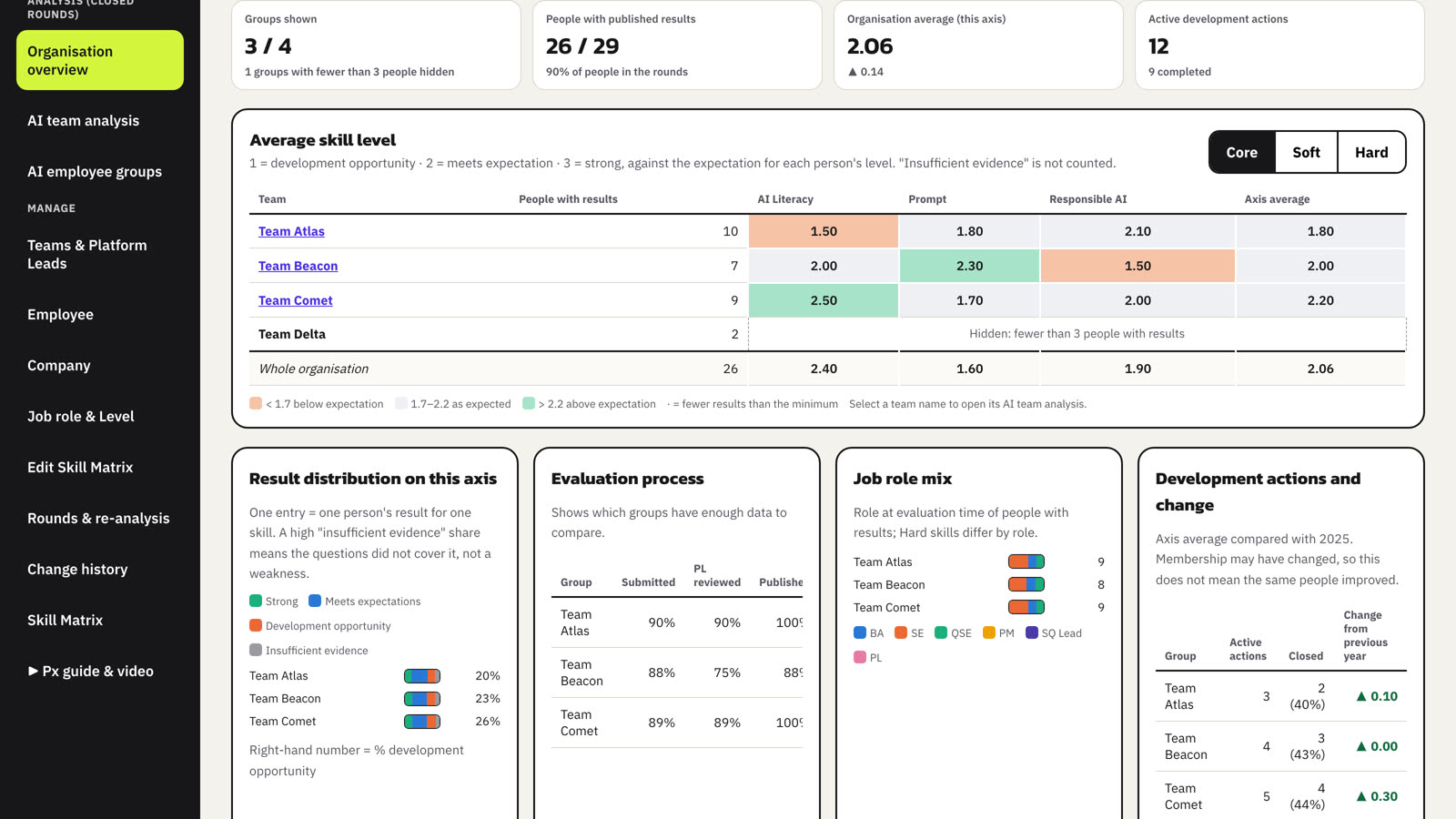
Below the heat map you find the result distribution on the axis, how far each round got (submitted, PL reviewed, published), the job role mix, and development actions with the change from the comparison year.
04AI team analysis
Choose a team and a year, then Run new analysis. The AI receives only the team's totals, the organisation baseline, the role and level mix, platform names and the previous comparable year. It receives no names and no individual data, and Grow computes every number itself.
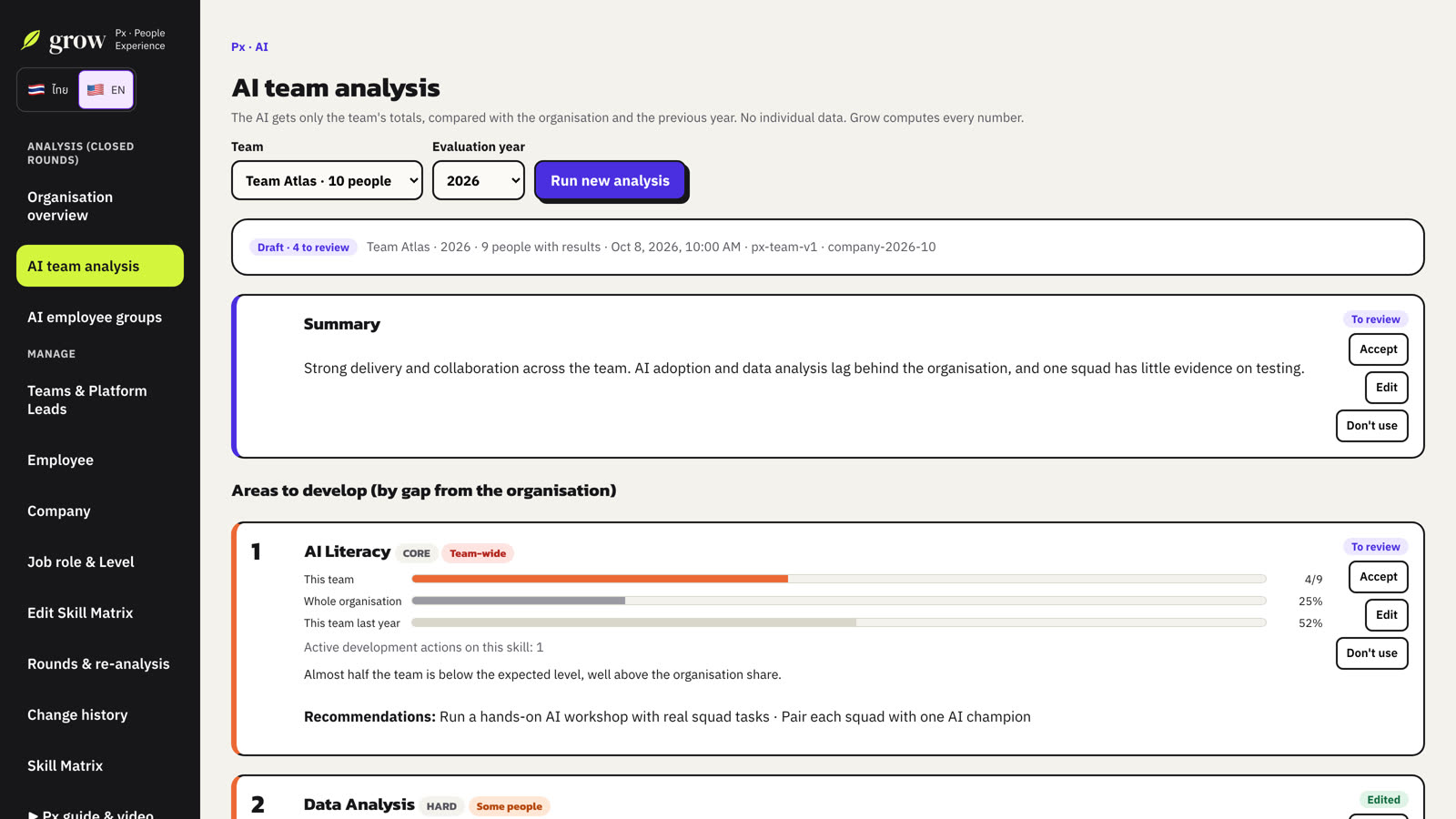
- Areas to develop show this team, the whole organisation and this team last year, plus active development actions on that skill. “Team-wide” or “Some people” tells you how widespread the gap is.
- Strengths to build on are skills where the team can mentor others.
- Not enough data to conclude marks skills with too little evidence to judge.
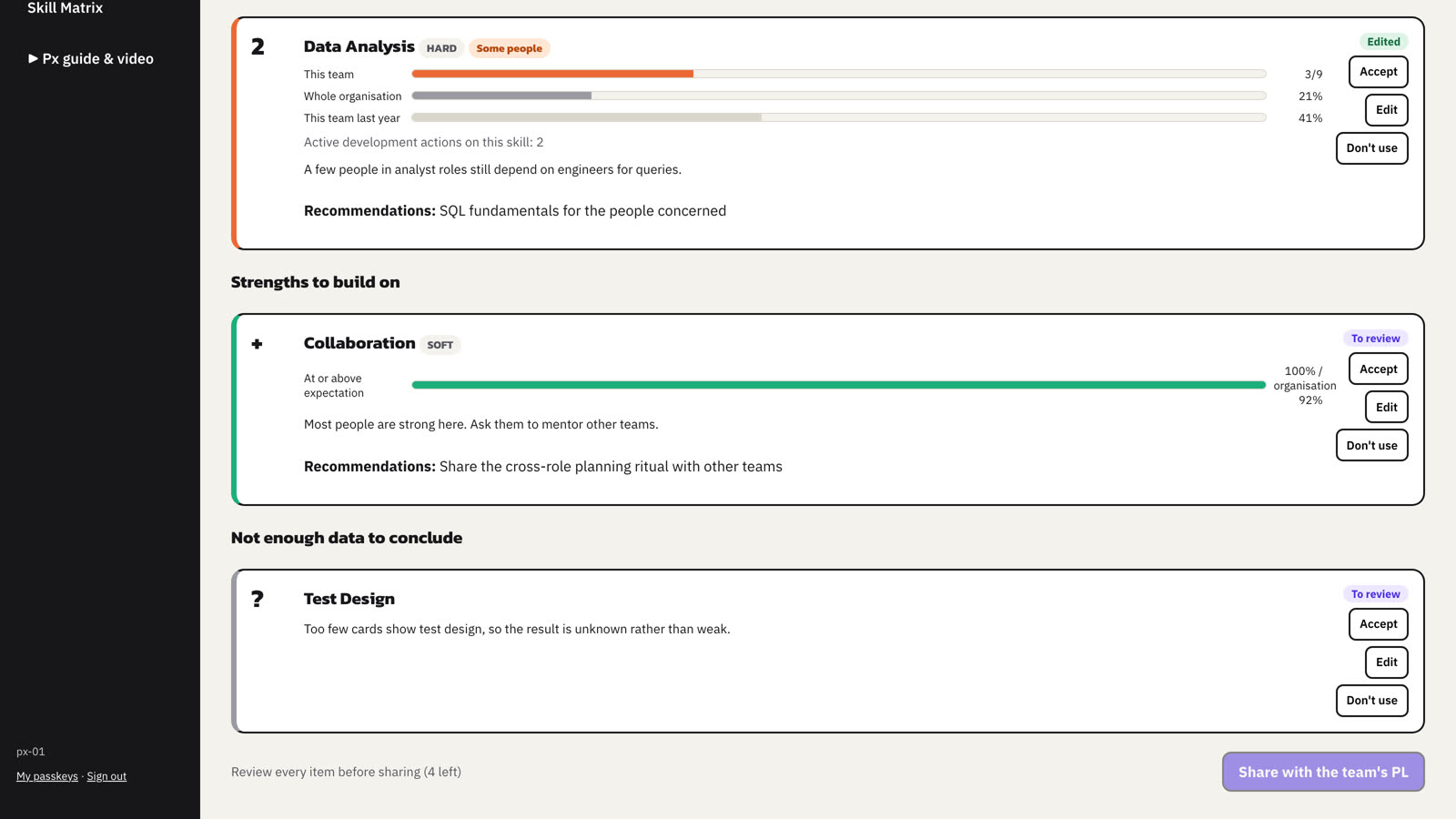
- Review every item: Accept, Edit or Don't use.
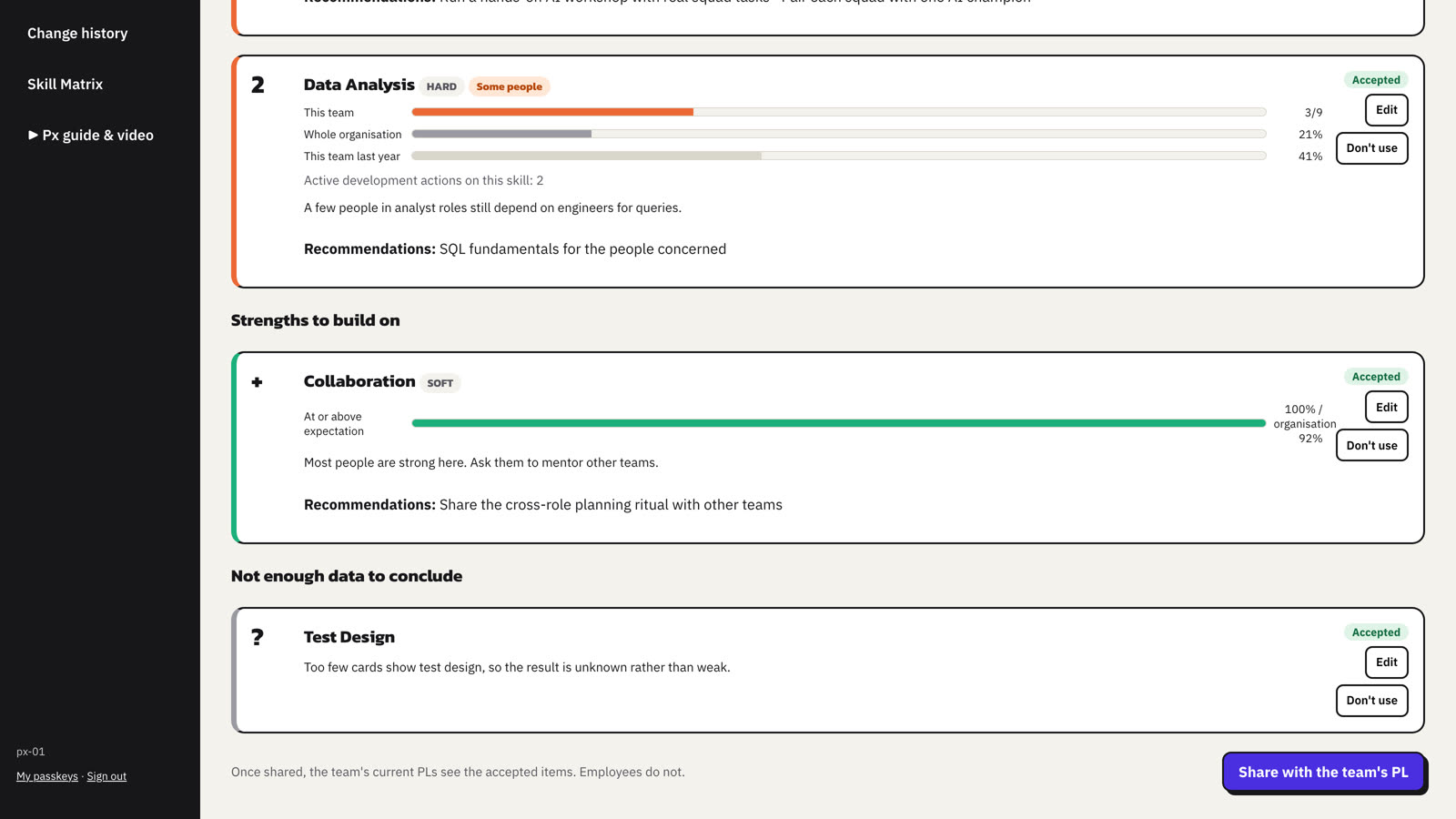
- When nothing is left to review, choose Share with the team's PL.
05AI employee groups
For one team and one year, the AI suggests groups of people who could develop the same skills together. It works with pseudonyms (E01, E02 …) and per-skill results only; Grow maps them back to people afterwards and validates that everyone is in exactly one group.
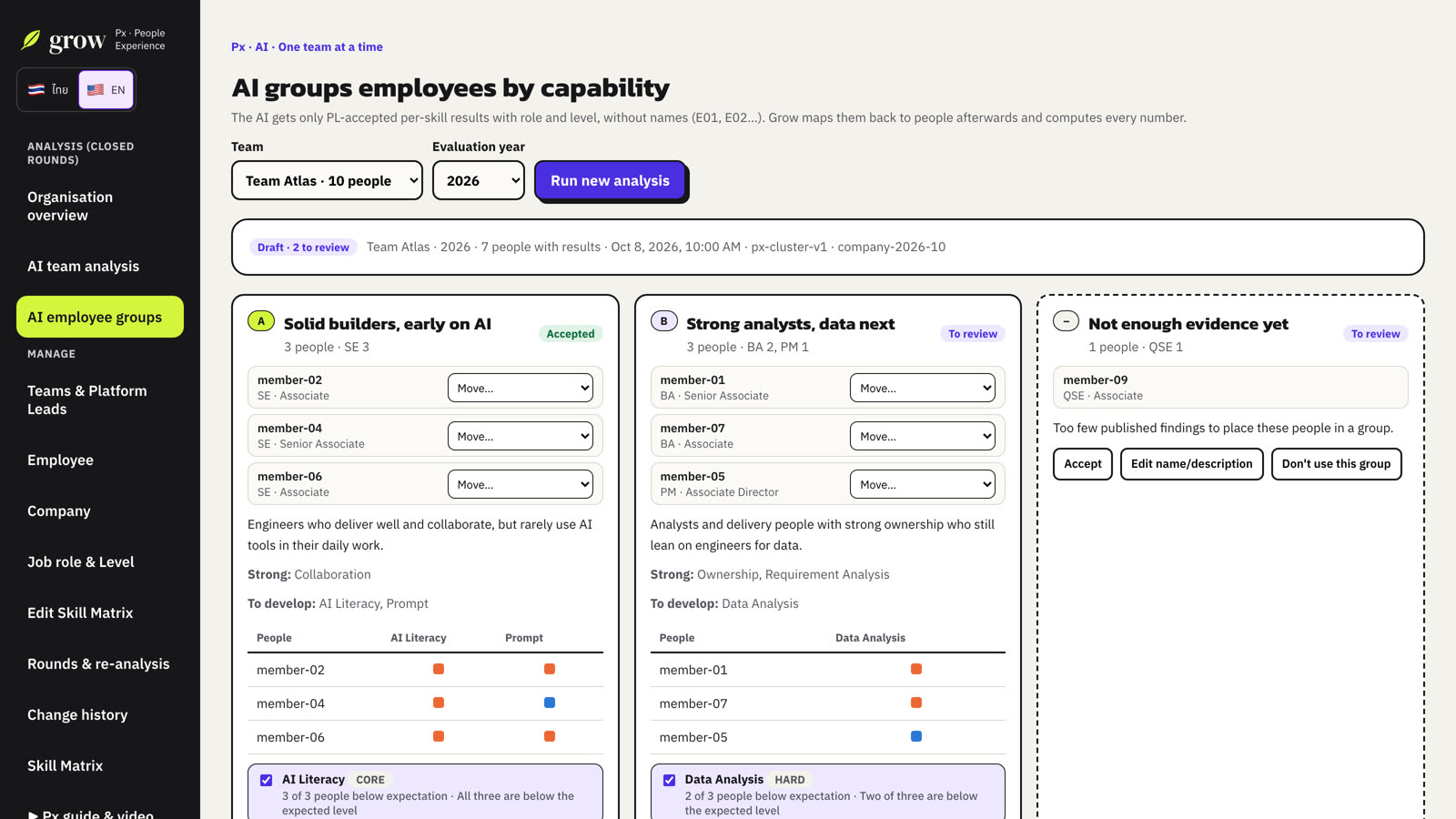
- Rename a group or edit its description with Edit name/description.
- Move people between groups with Move….
- People with too little evidence form a separate group with no skill suggestion.
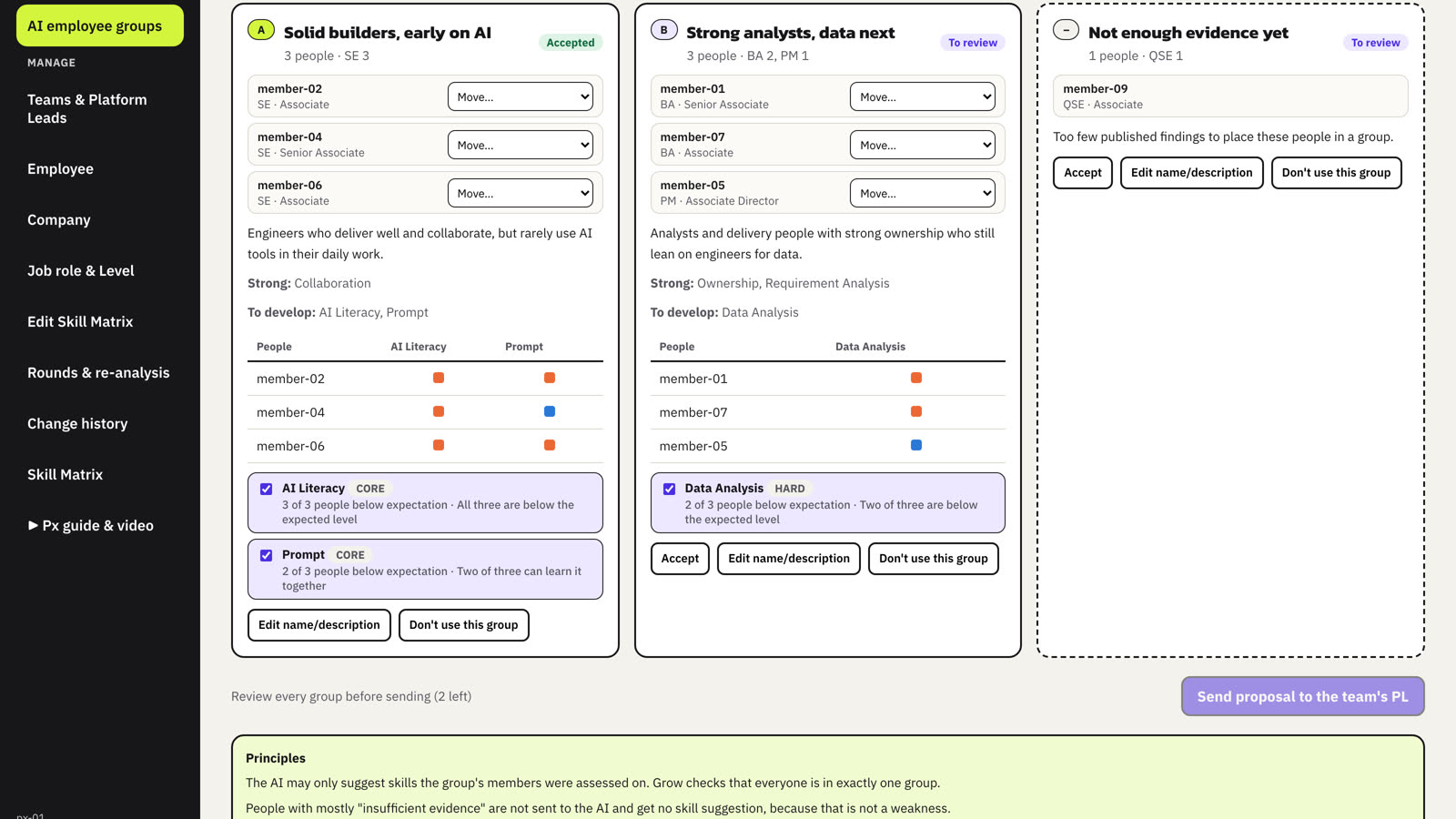
- Tick the skills you want to propose for each group. Only skills in that role's framework can be suggested.
- Accept or Don't use this group, then Send proposal to the team's PL.
What the Platform Lead receives
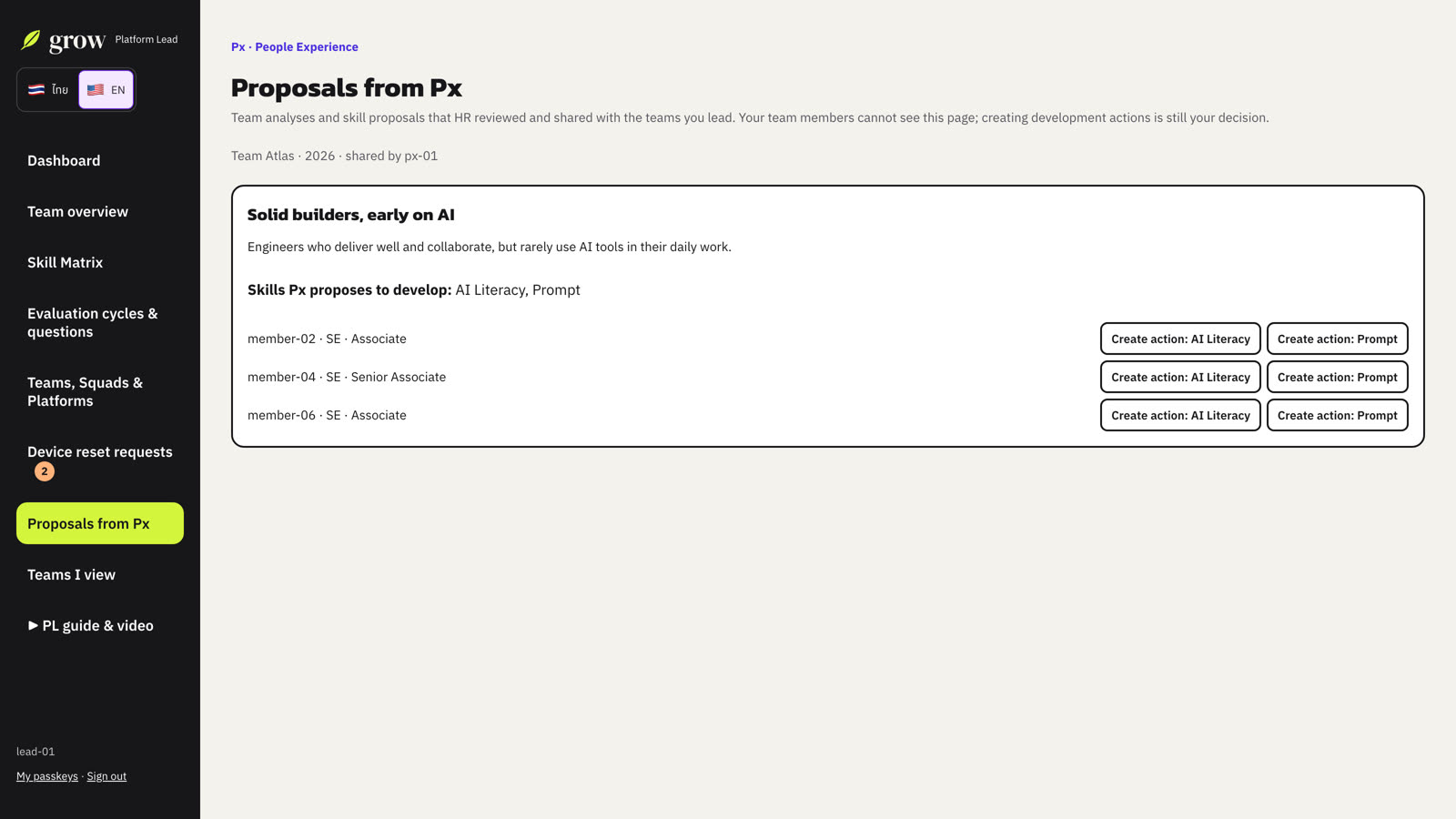
The lead finds your shared proposals under Proposals from Px. One click starts a development action with the proposed skill already filled in. Grow never creates actions automatically; the lead decides.
06Teams & Platform Leads
This page starts with anything that needs attention, such as a team without a Platform Lead or an expired registration link.
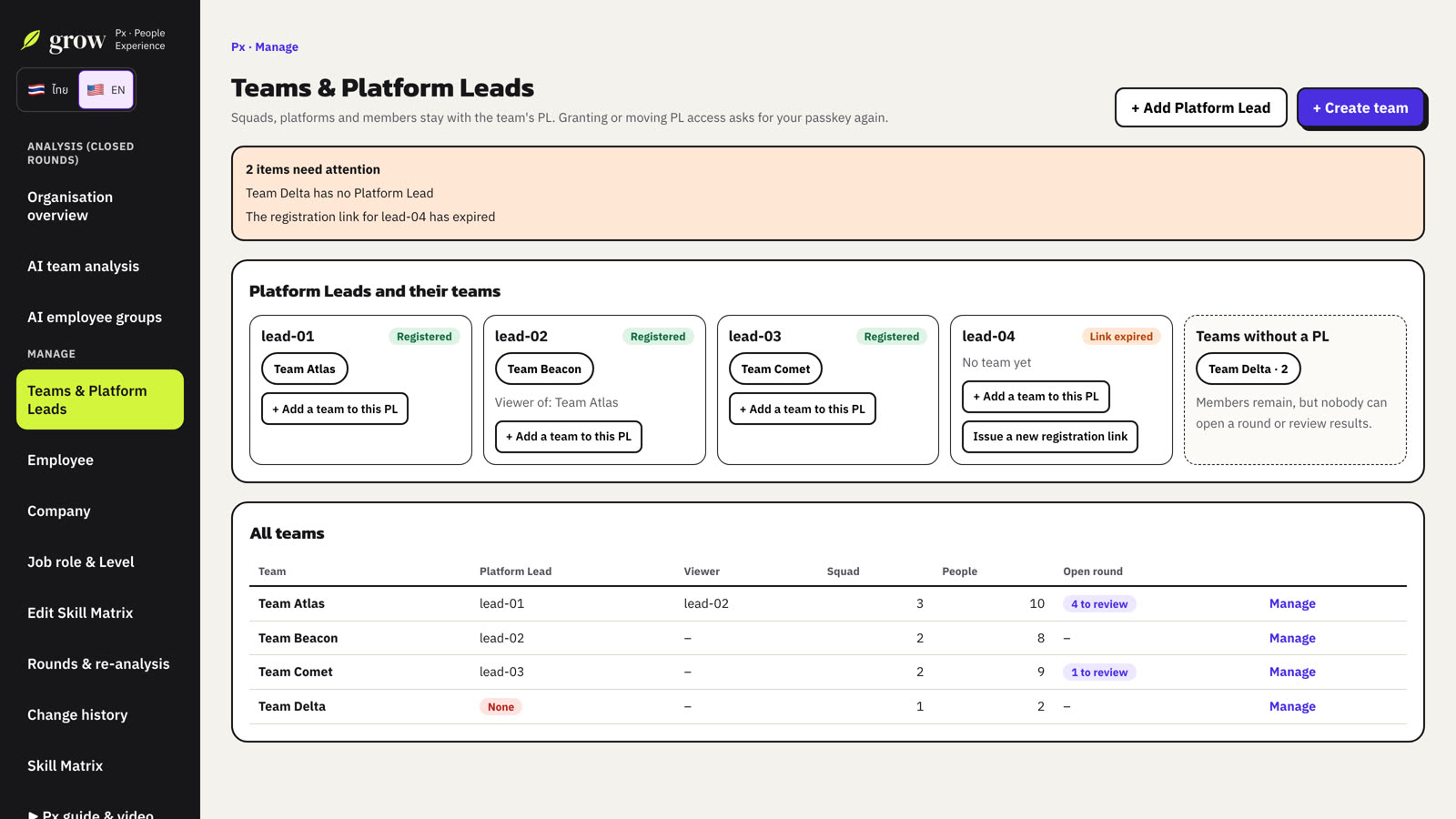
- + Create team creates a team. Teams cannot be deleted; Archive team is possible when the team has no members and no evaluation in an open round.
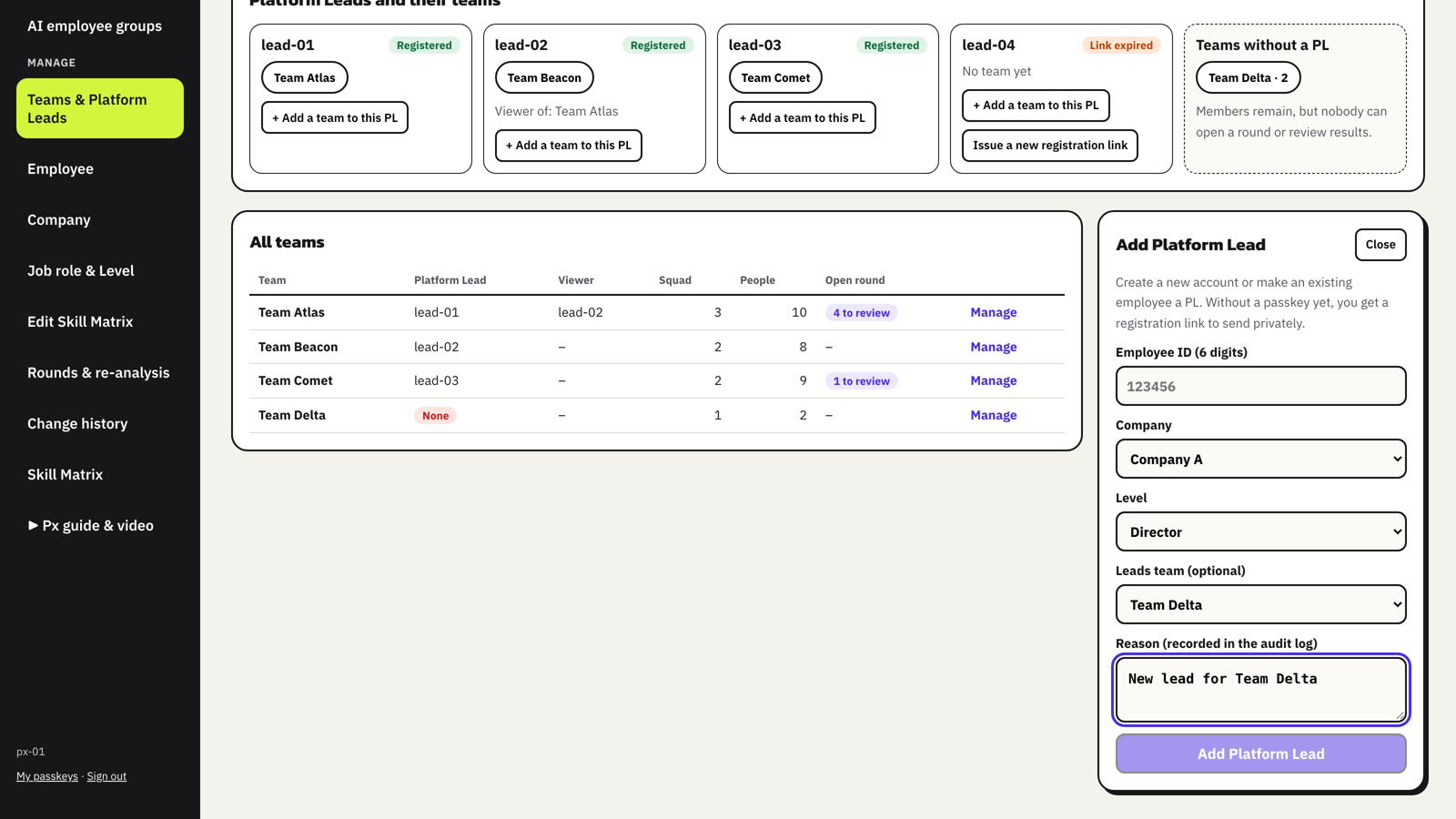
- + Add Platform Lead creates a Platform Lead account, or gives the role to an existing employee, with company, level and an optional team.
- + Add a team to this PL gives an existing lead another team.
- Issue a new registration link works only for a lead who has no registered passkey. Grow shows a one-time link to copy and send privately.
Move a team to another Platform Lead
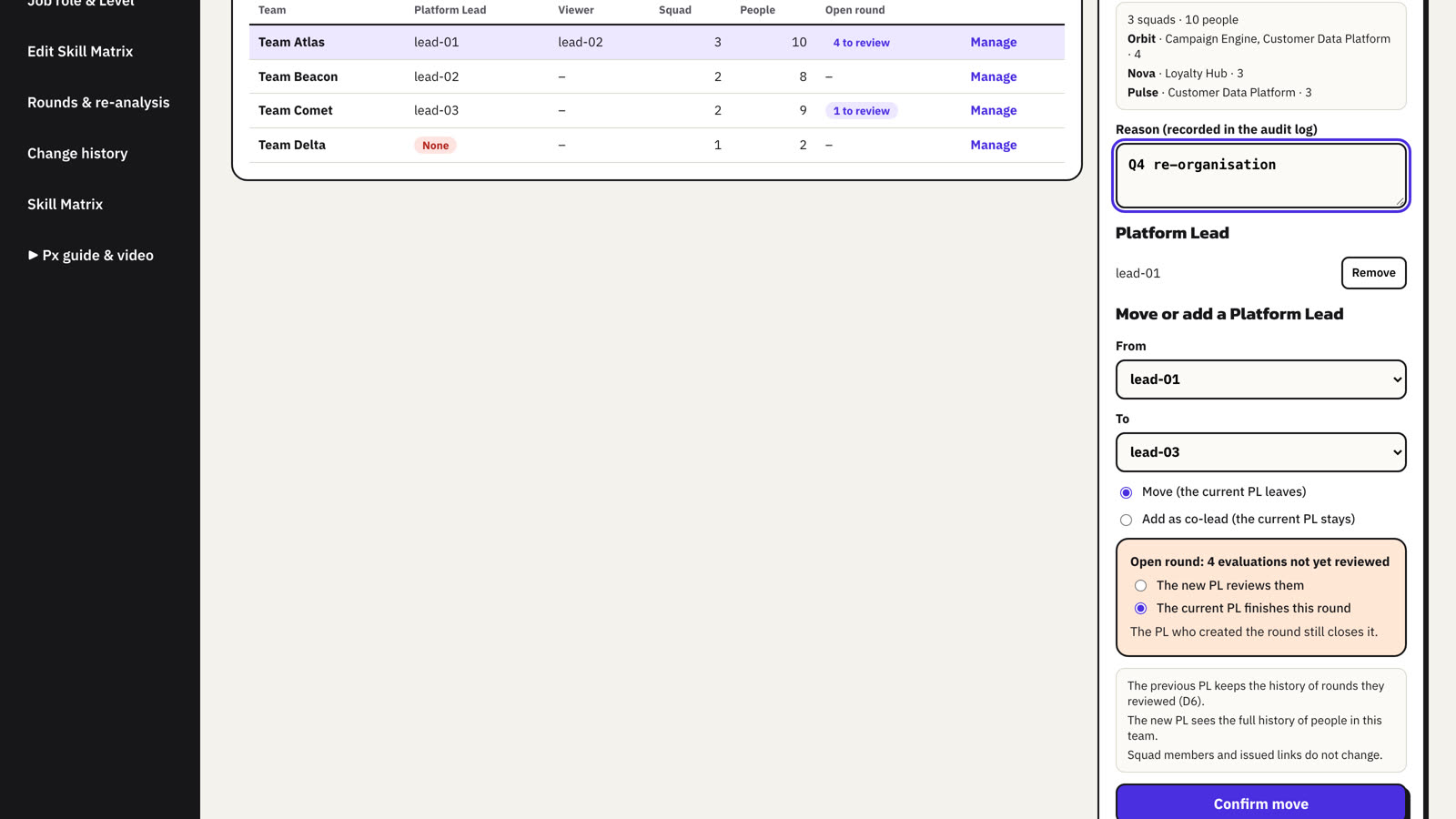
- Choose Manage on the team.
- Pick From and To, and choose Move (the current lead leaves) or Add as co-lead.
- If the team has an open round, choose who reviews the unreviewed evaluations: the new lead, or the current lead finishes this round.
- Enter a reason and choose Confirm move. Grow asks for your passkey again.
07Employee profiles
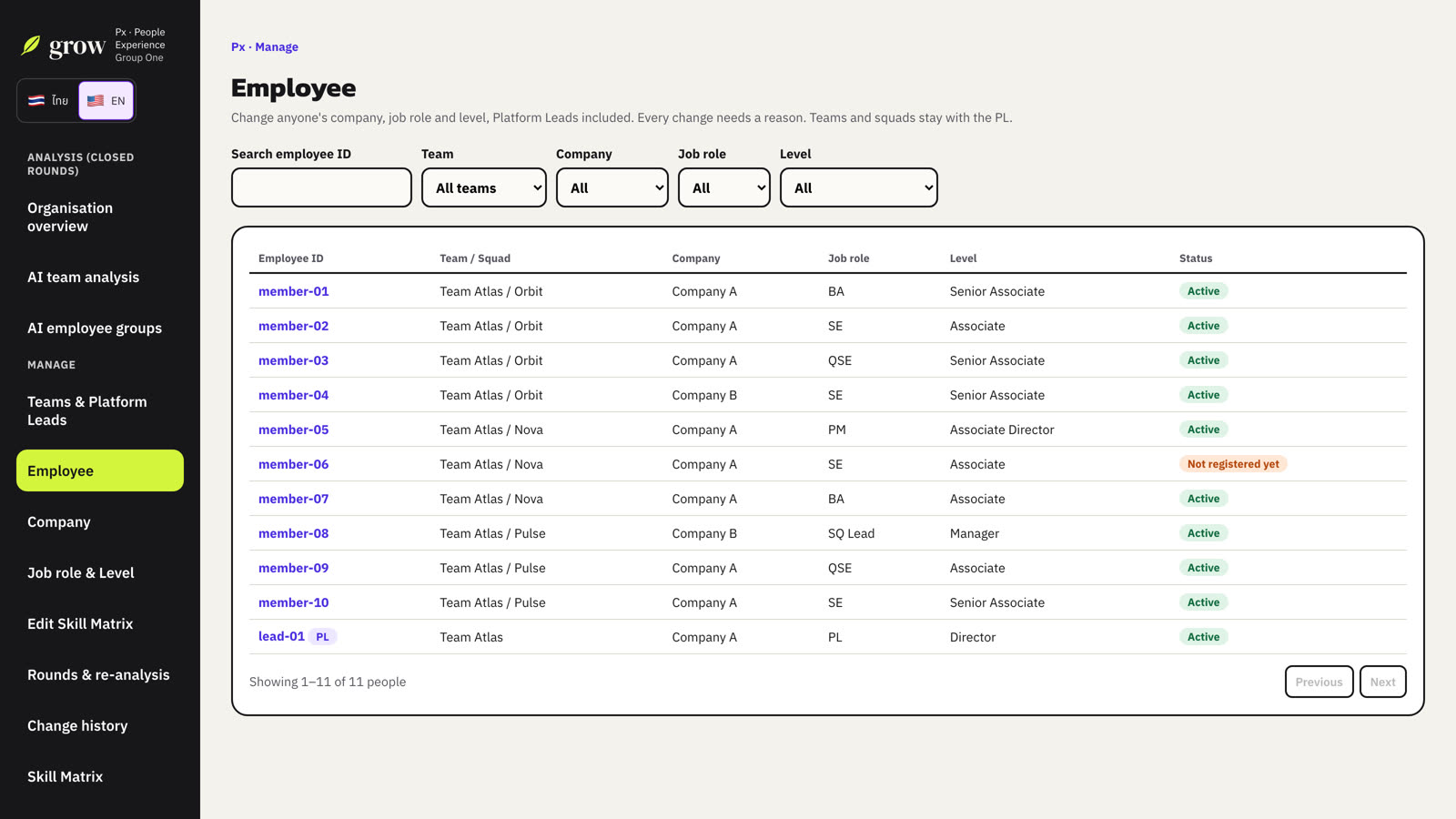
Employee lists everyone, including Platform Leads. Search and filter by team, company, job role and level.
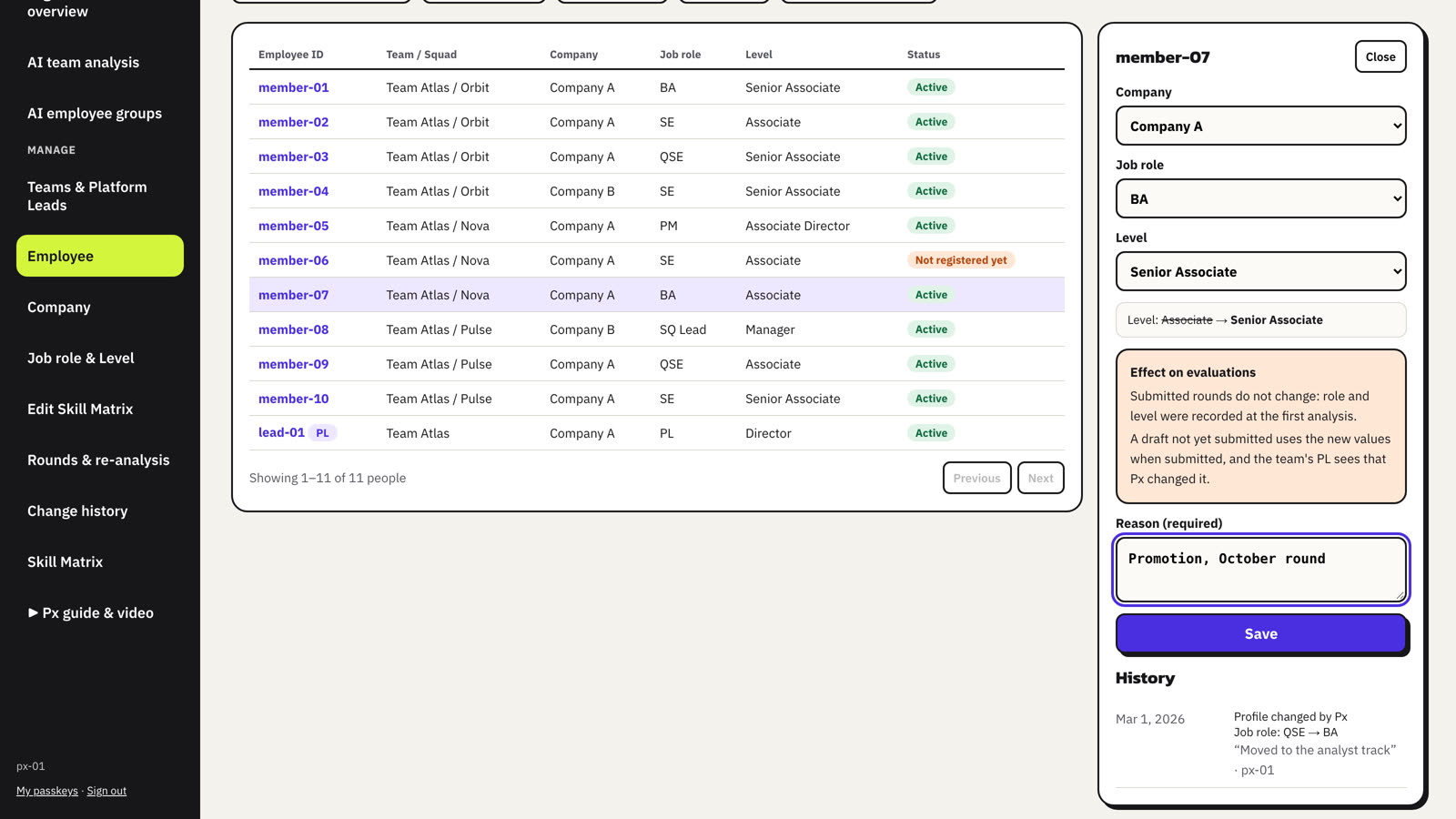
- Select a person.
- Change their company, job role or level.
- Enter a reason (required) and choose Save.
08Your company group: companies, job roles and levels
Companies in the same group share teams, job roles, levels and one Skill Matrix. Company lists the companies of your group with the number of people in each.
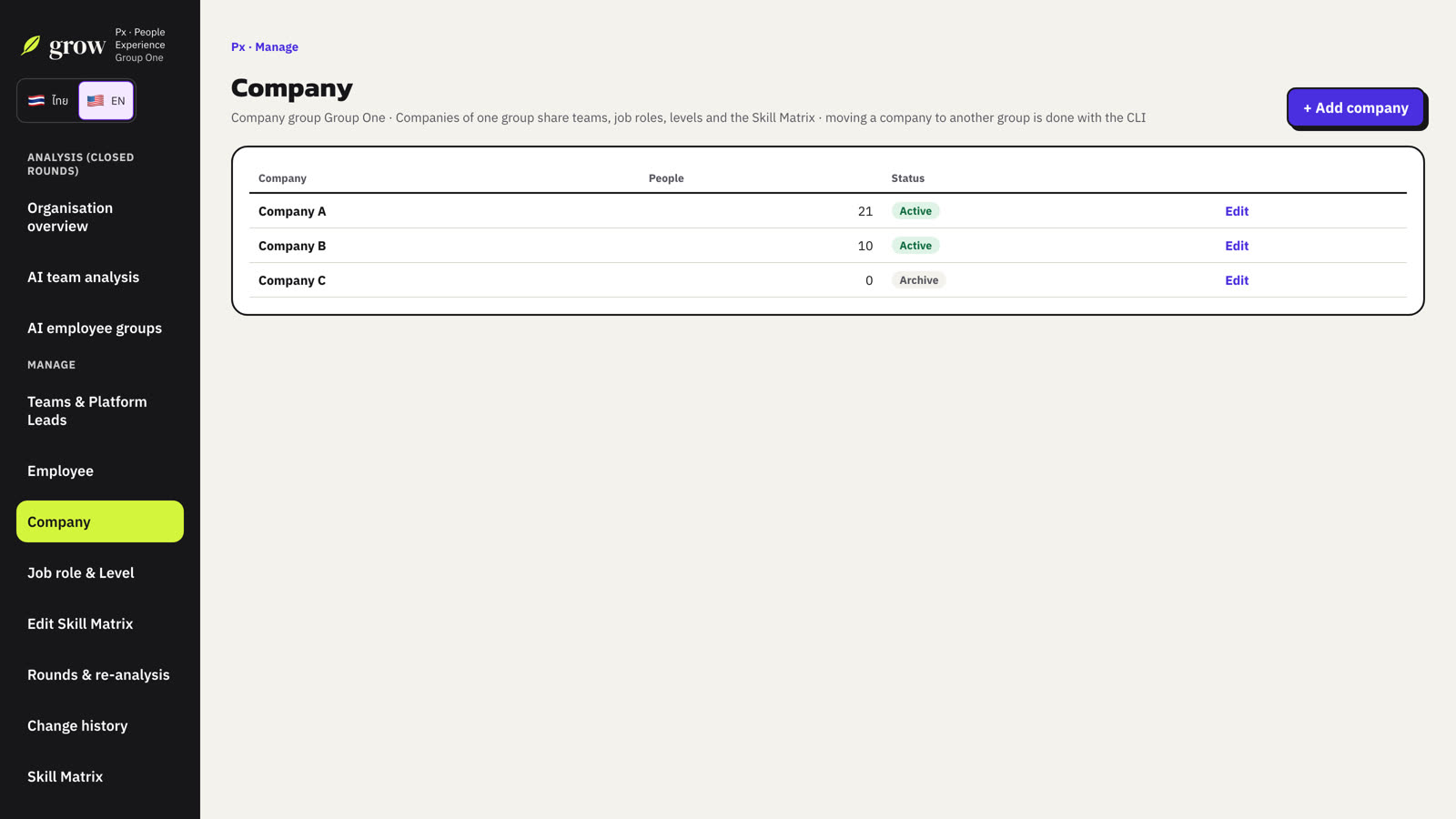
- + Add company adds a company to your group.
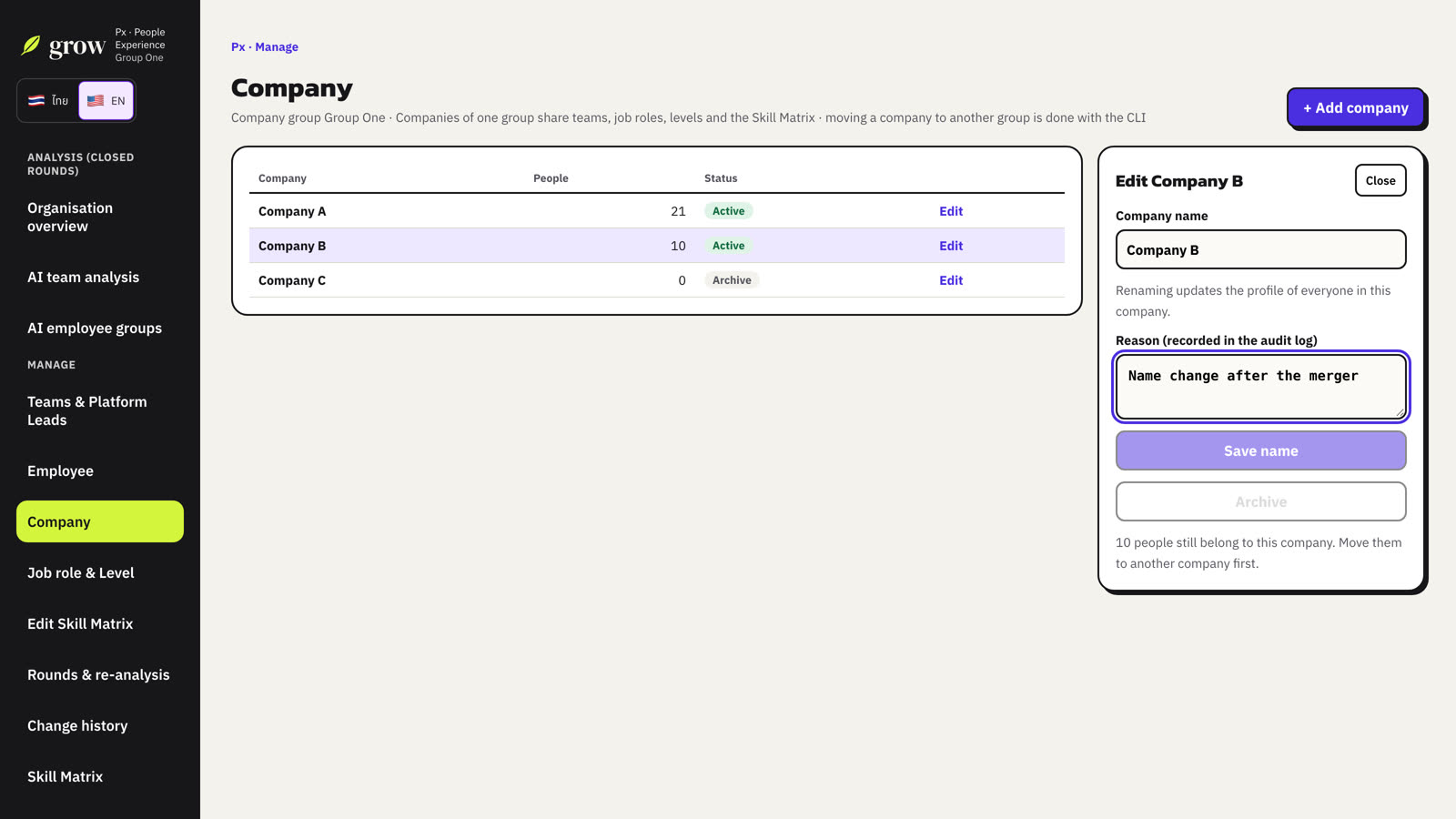
- Edit renames a company. Everyone's profile in that company follows the new name.
- Archive is possible only when nobody is left in the company. Move people to another company first in Employee.
- Moving a company to another company group is done by the system team (CLI), not in the app.
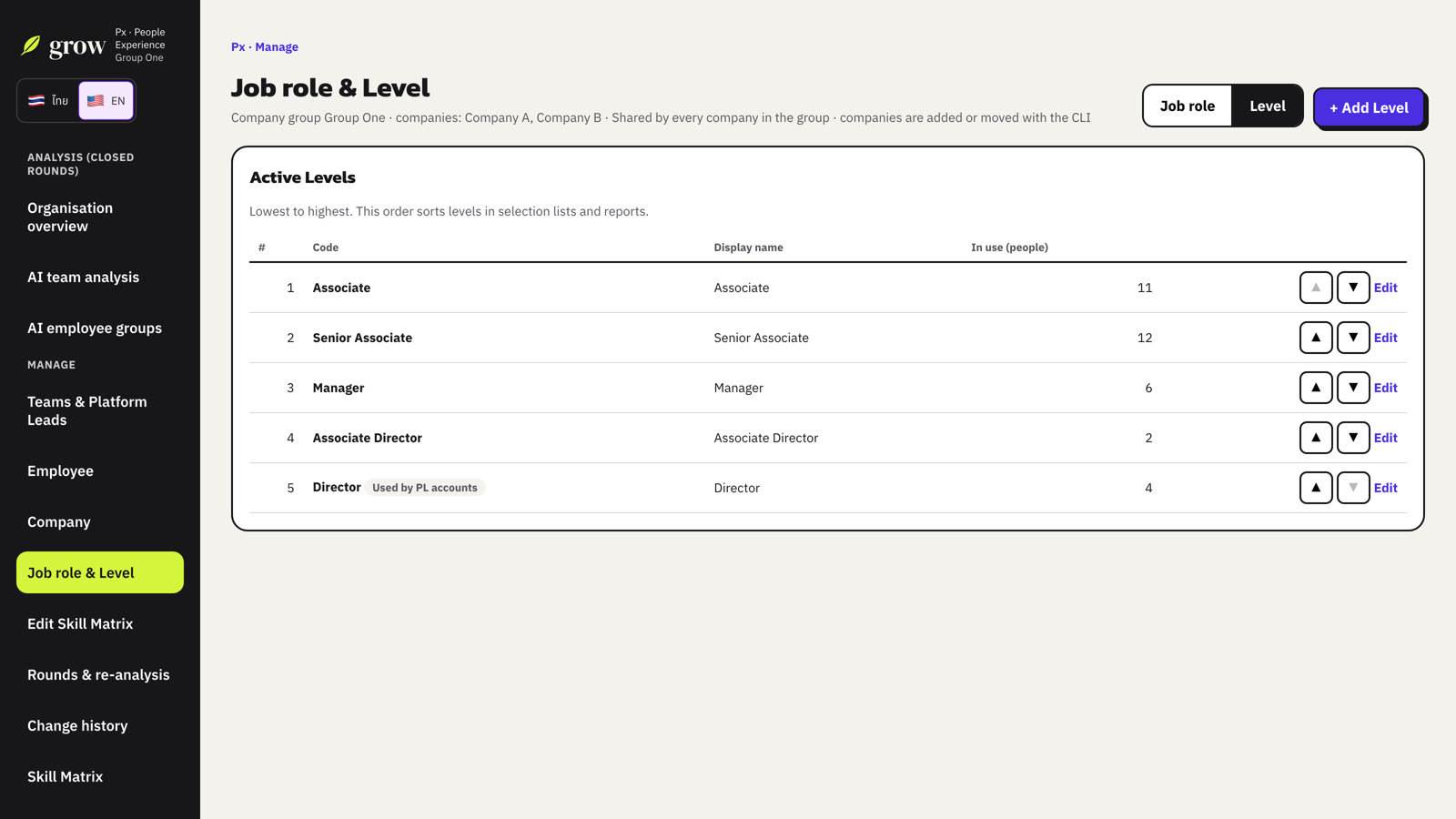
Job role & Level holds the lists every profile and the Skill Matrix use. Switch between the Job role and Level tabs.
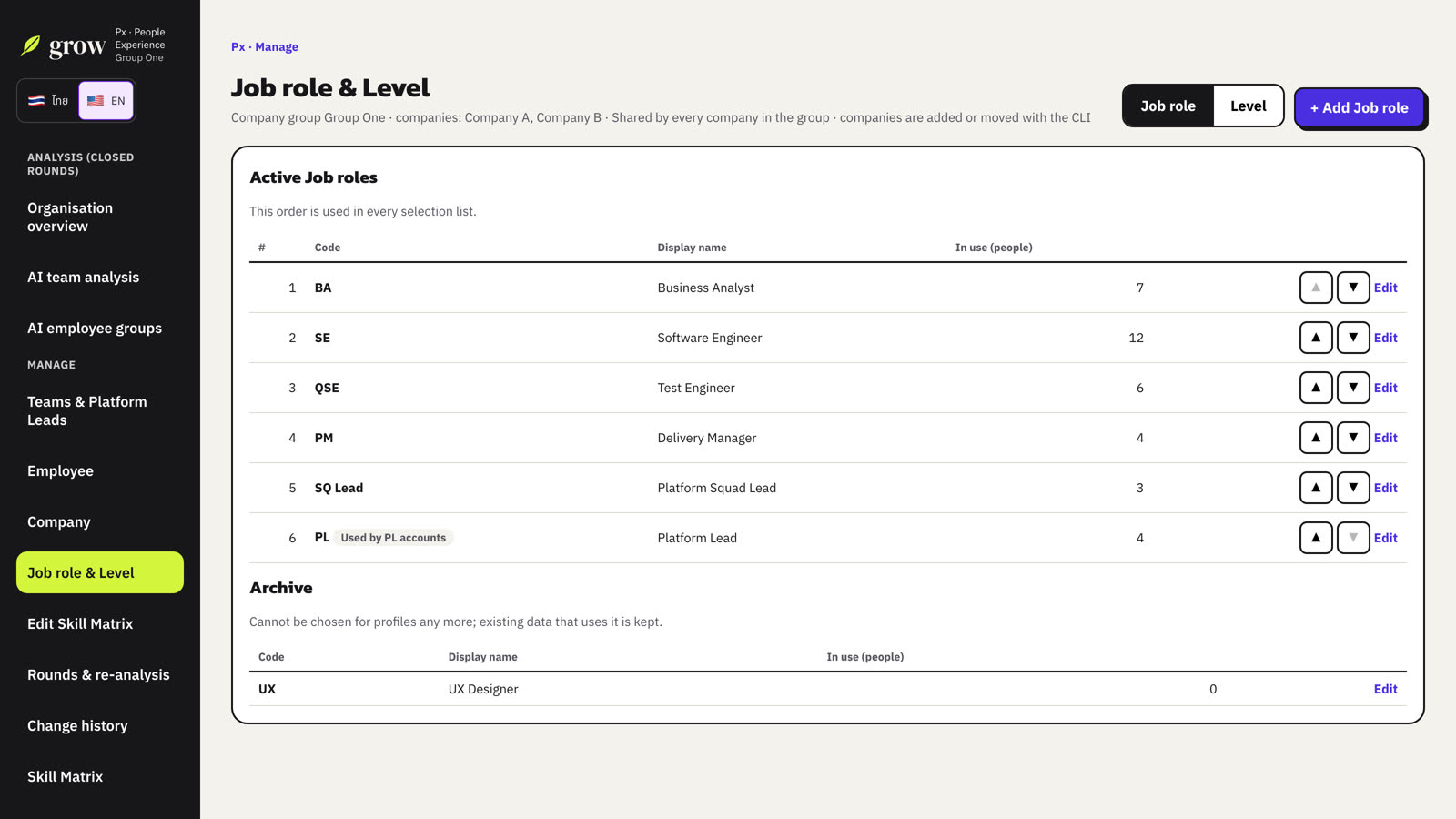
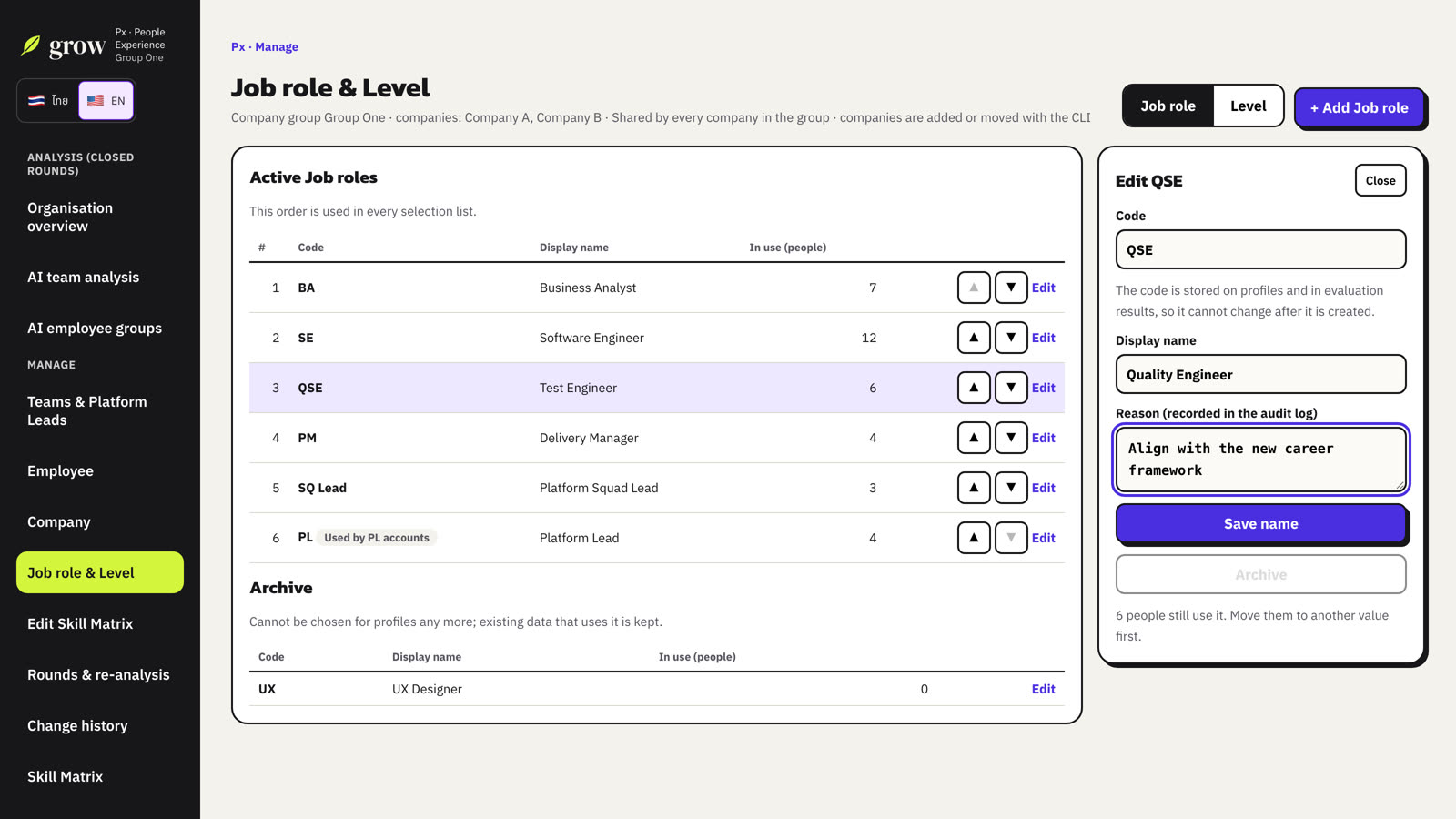
- + Add Job role (or + Add Level): enter a code, an optional display name and a reason.
- Edit renames an item, archives it, or makes an archived item active again.
- Use ▲ ▼ to change the order, then enter a reason and choose Save order. Levels go from junior to senior; reports and drop-downs follow this order.
09Edit the Skill Matrix
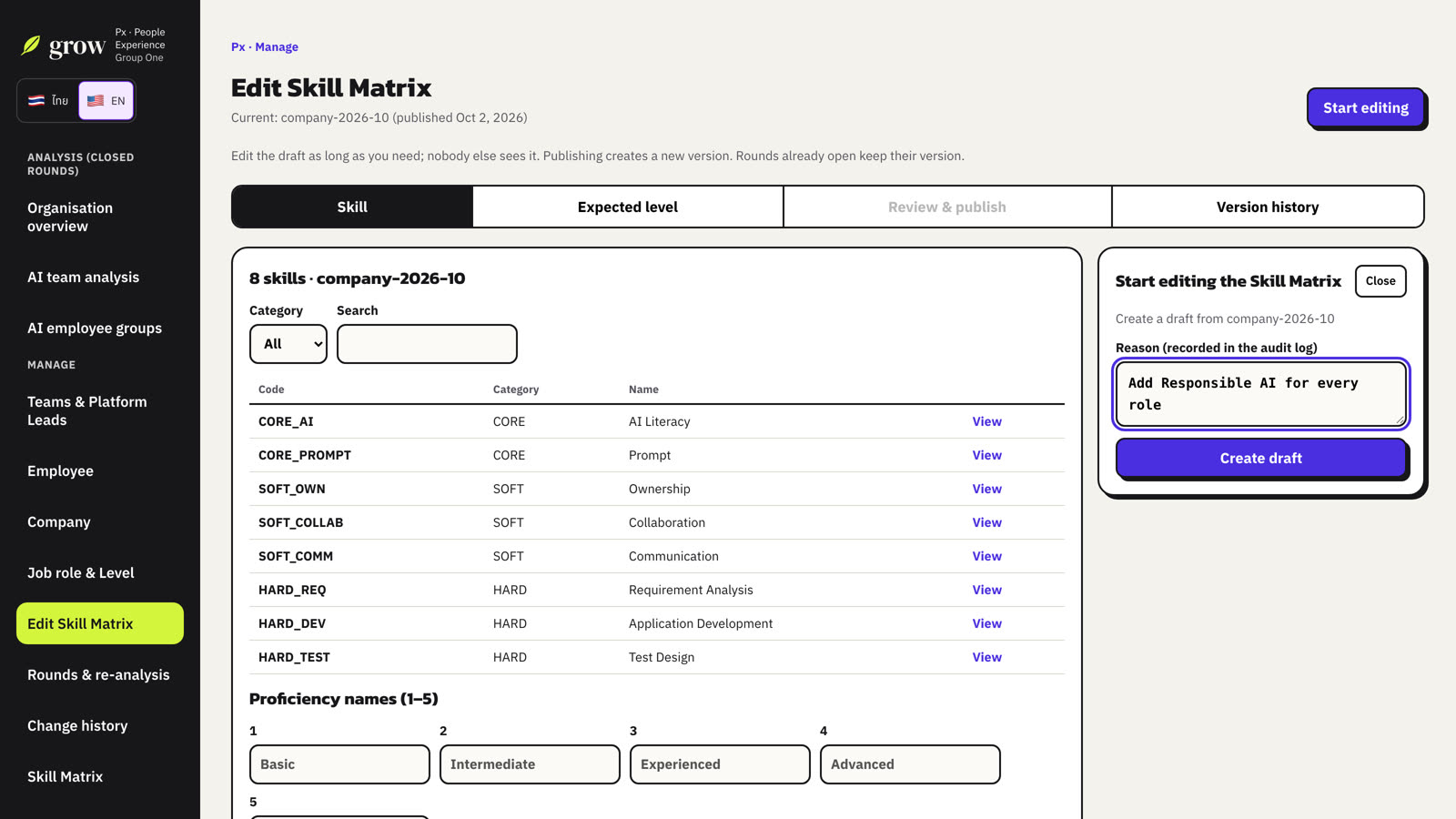
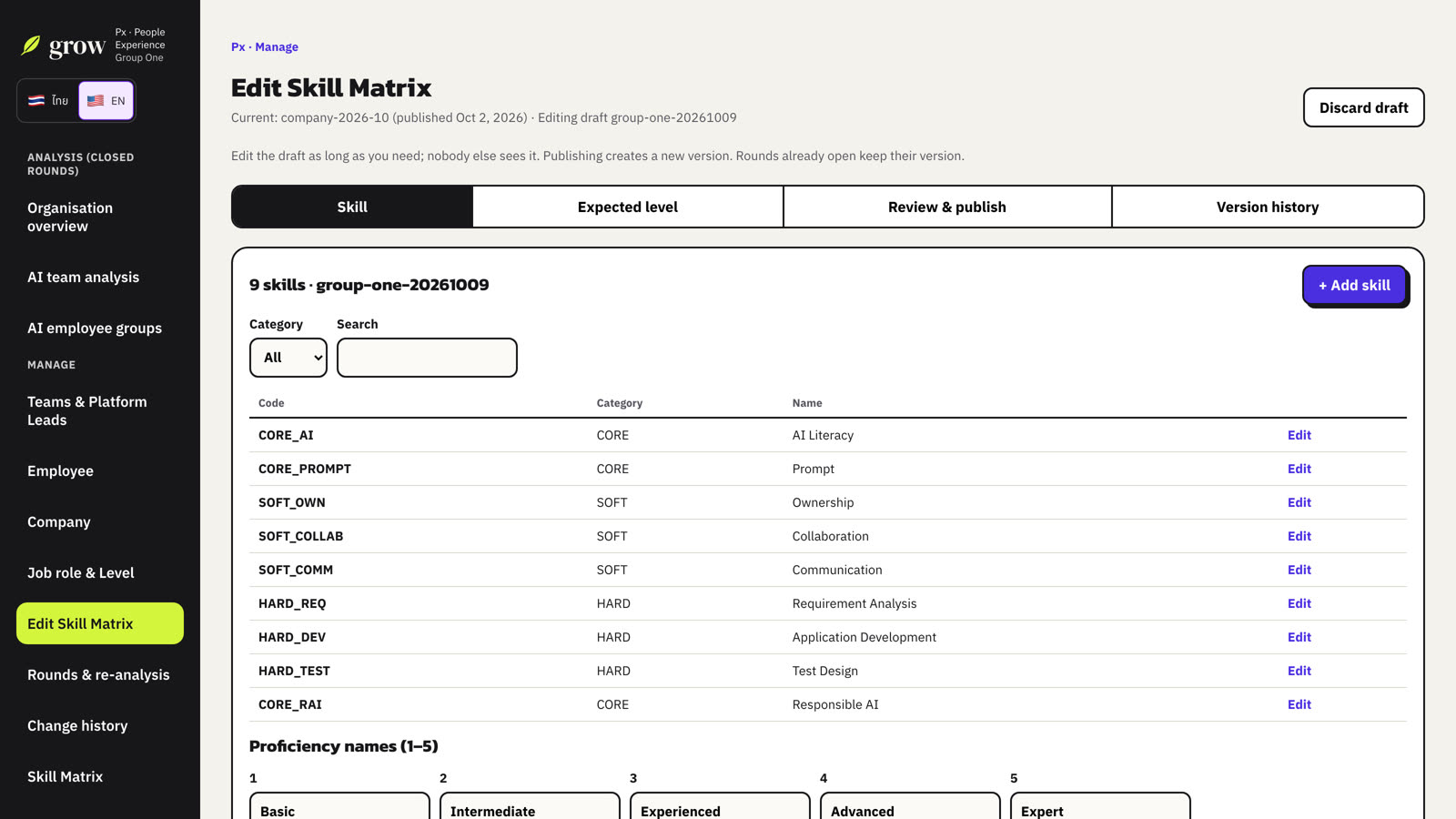
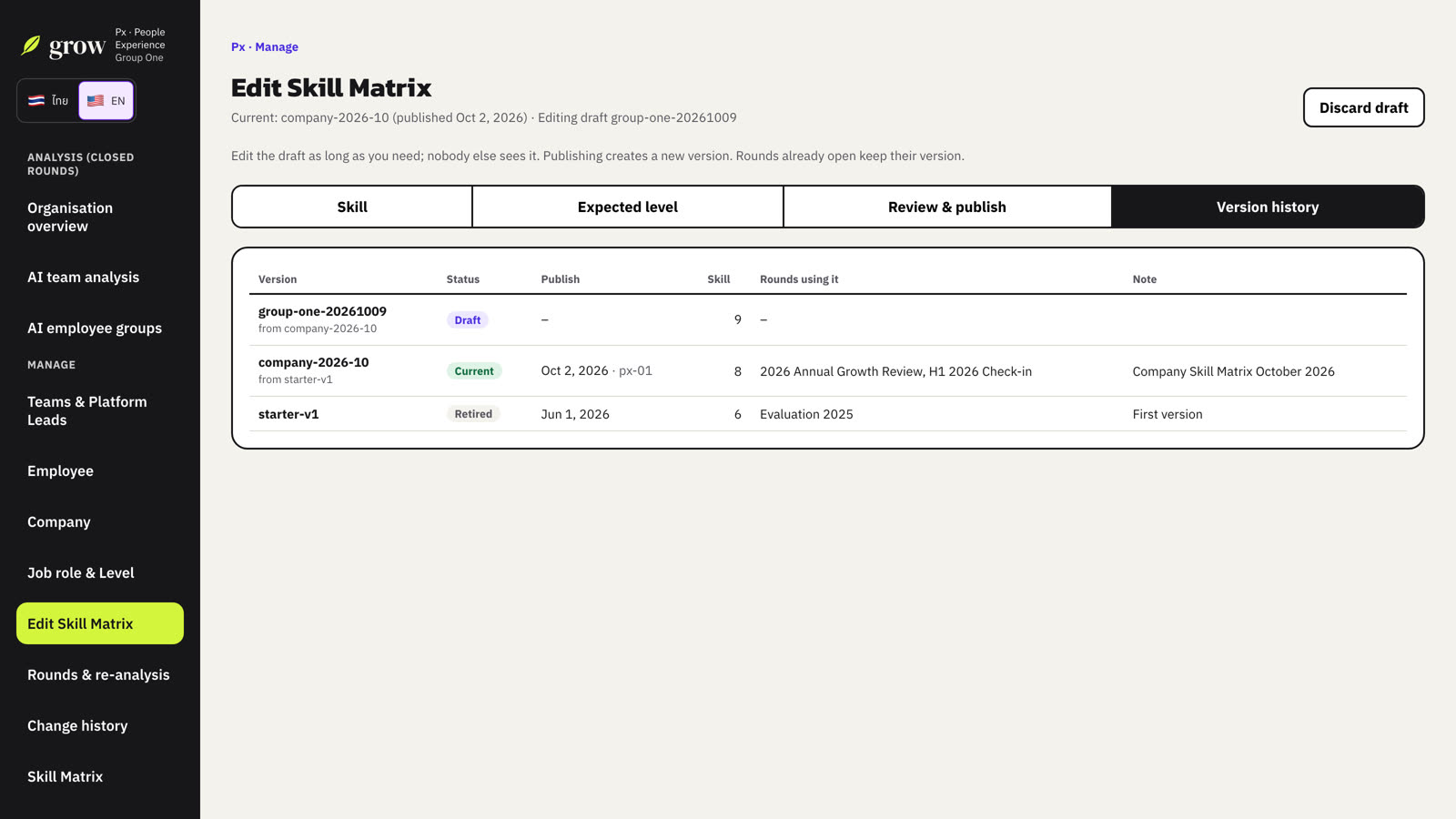
The Skill Matrix is the standard that AI and Platform Leads use to judge results: the skills, the five proficiency levels, and the level expected for each job role at each career level. Px edits it in a draft that nobody else sees, then publishes it as a new version.
- Choose Start editing, enter a reason and choose Create draft. Grow copies the current version.
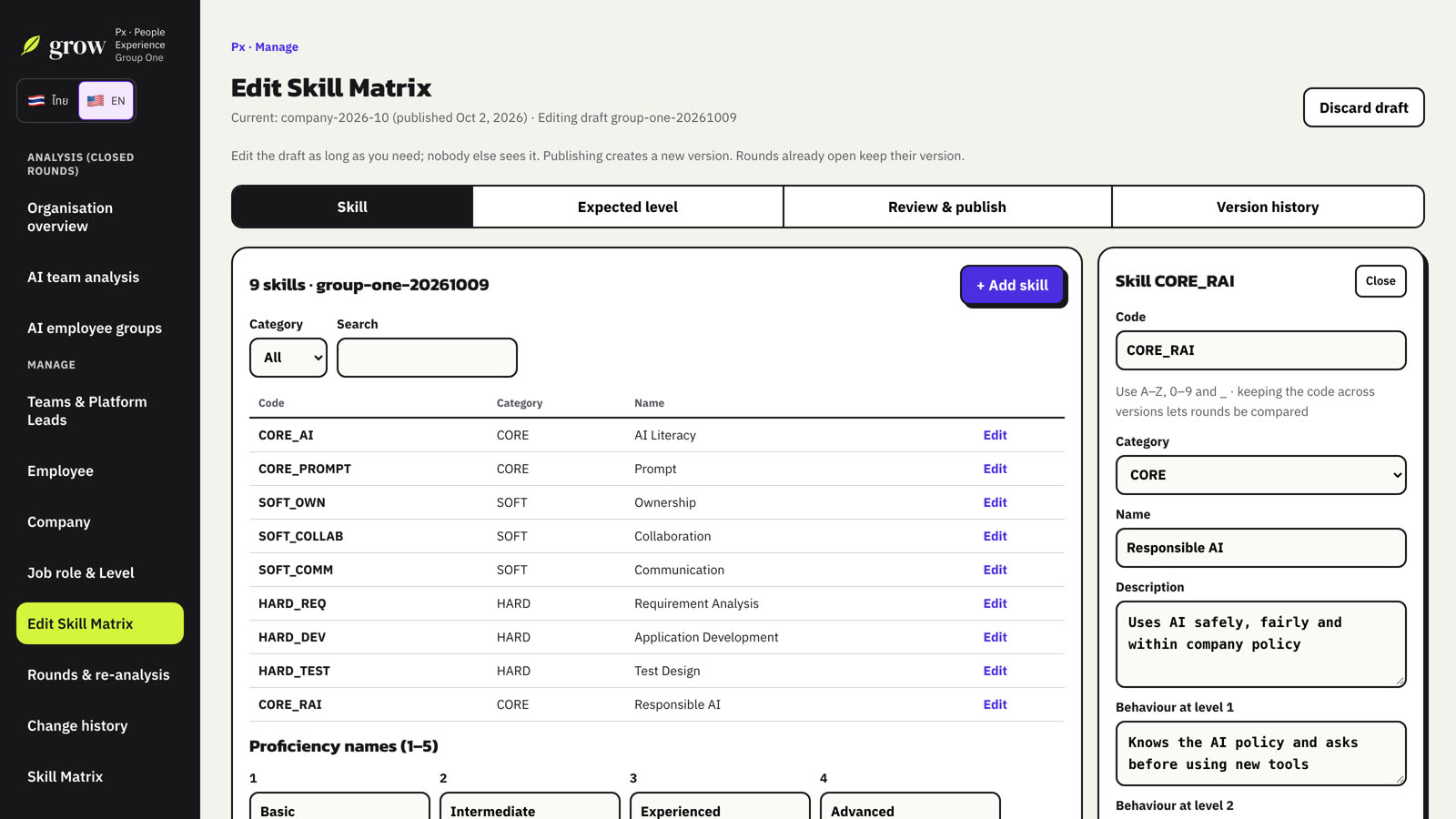
- In Skill, choose + Add skill or Edit on a skill. Fill in the code, category (Core, Soft or Hard), name, description and the behaviour for each of the 5 levels. You can also rename the 5 proficiency levels.
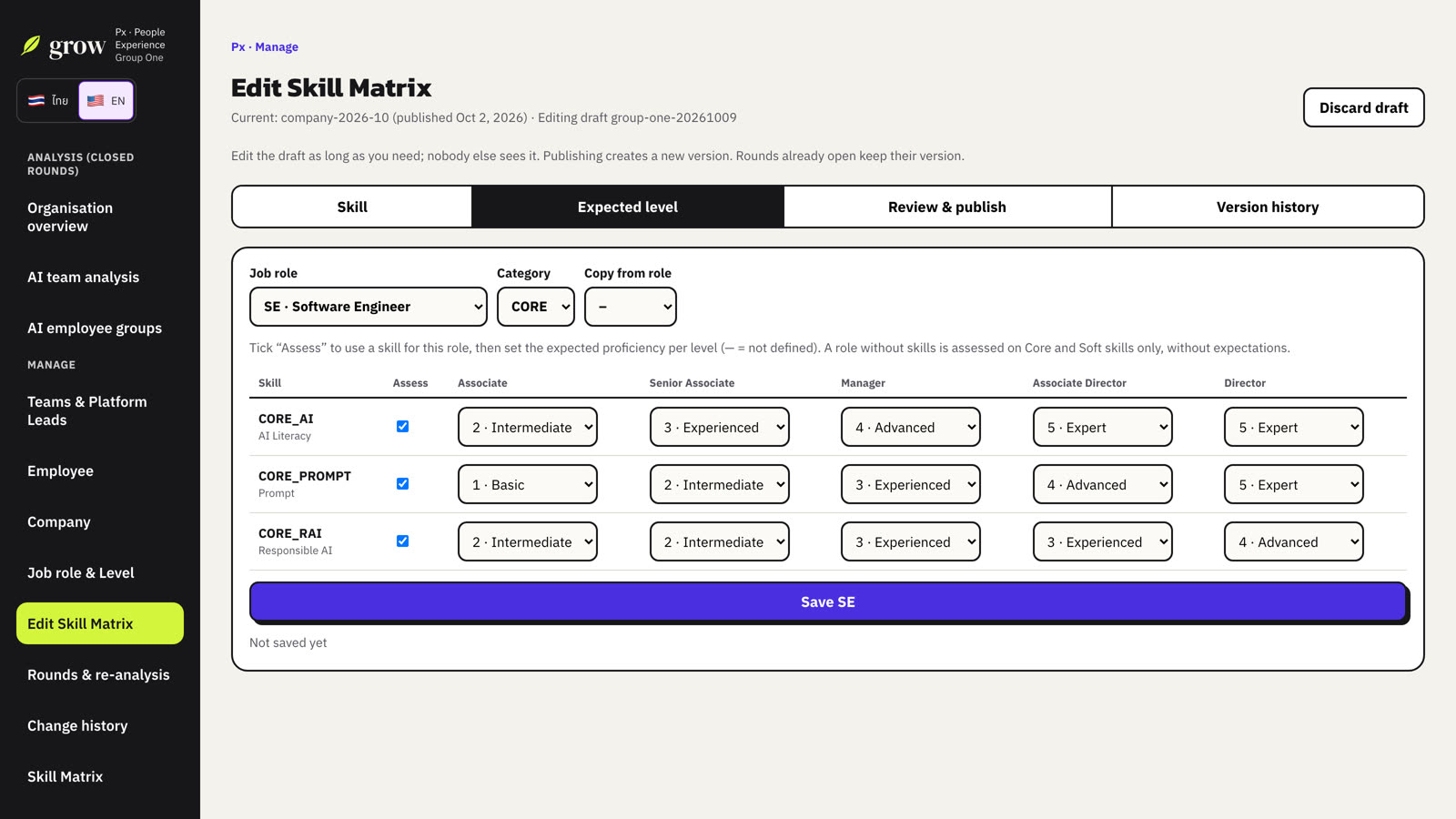
- In Expected level, pick a job role. Tick Assess for each skill that applies to that role and set the expected level for each career level (— = not set). Copy from role gives you a starting point. Choose Save for each role.
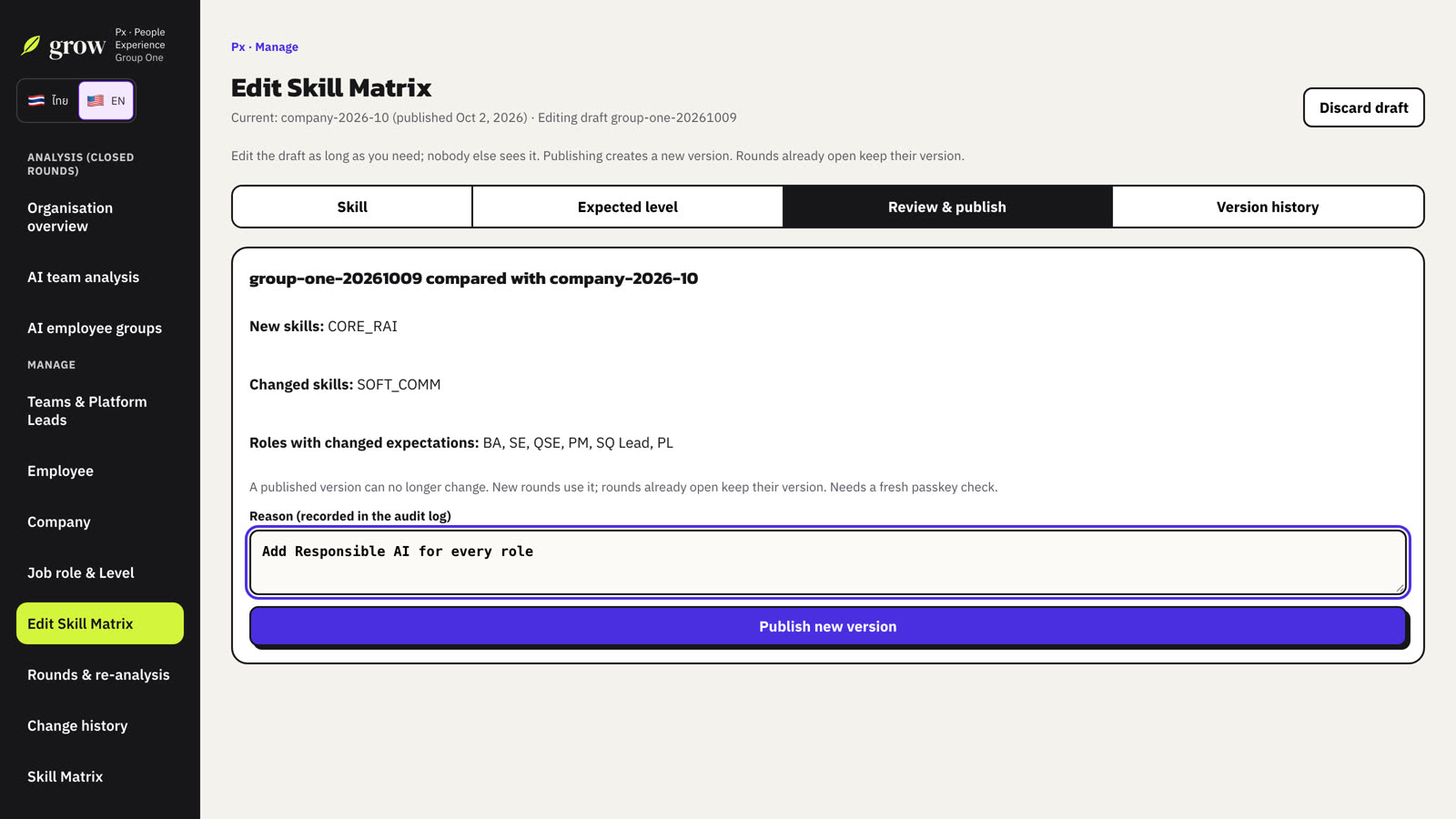
- In Review & publish, check the list of new, removed and changed skills and roles. Errors (for example a missing level description) block publishing; warnings do not.
- Enter a reason and choose Publish new version. Grow asks for your passkey again.
Version history shows every version, which one is current, when it was published and by whom, and which rounds use it.
10Rounds & re-analysis
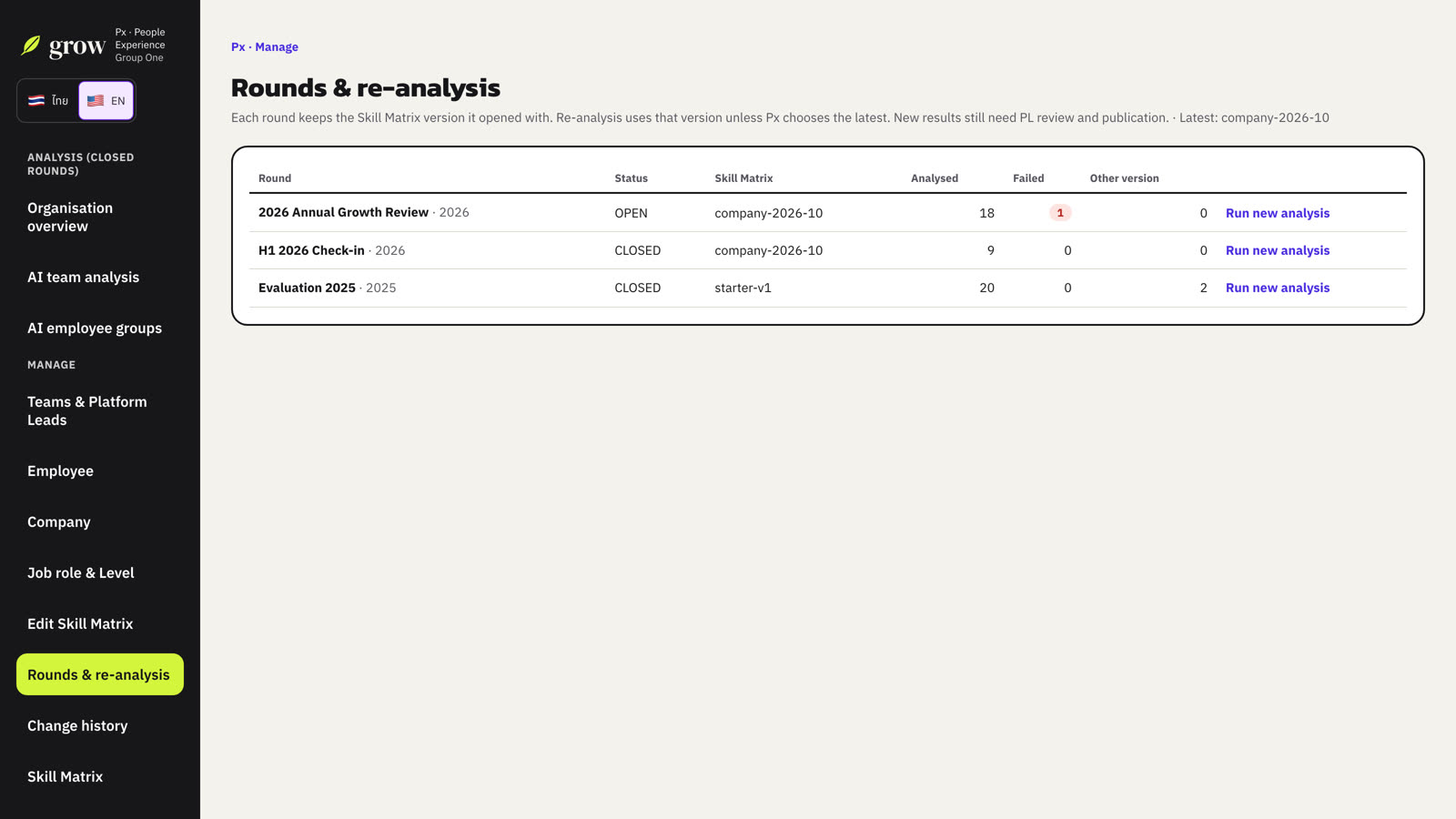
This page lists every round of your group with its Skill Matrix version, how many people were analysed, how many analyses failed, and how many results were made with another version.
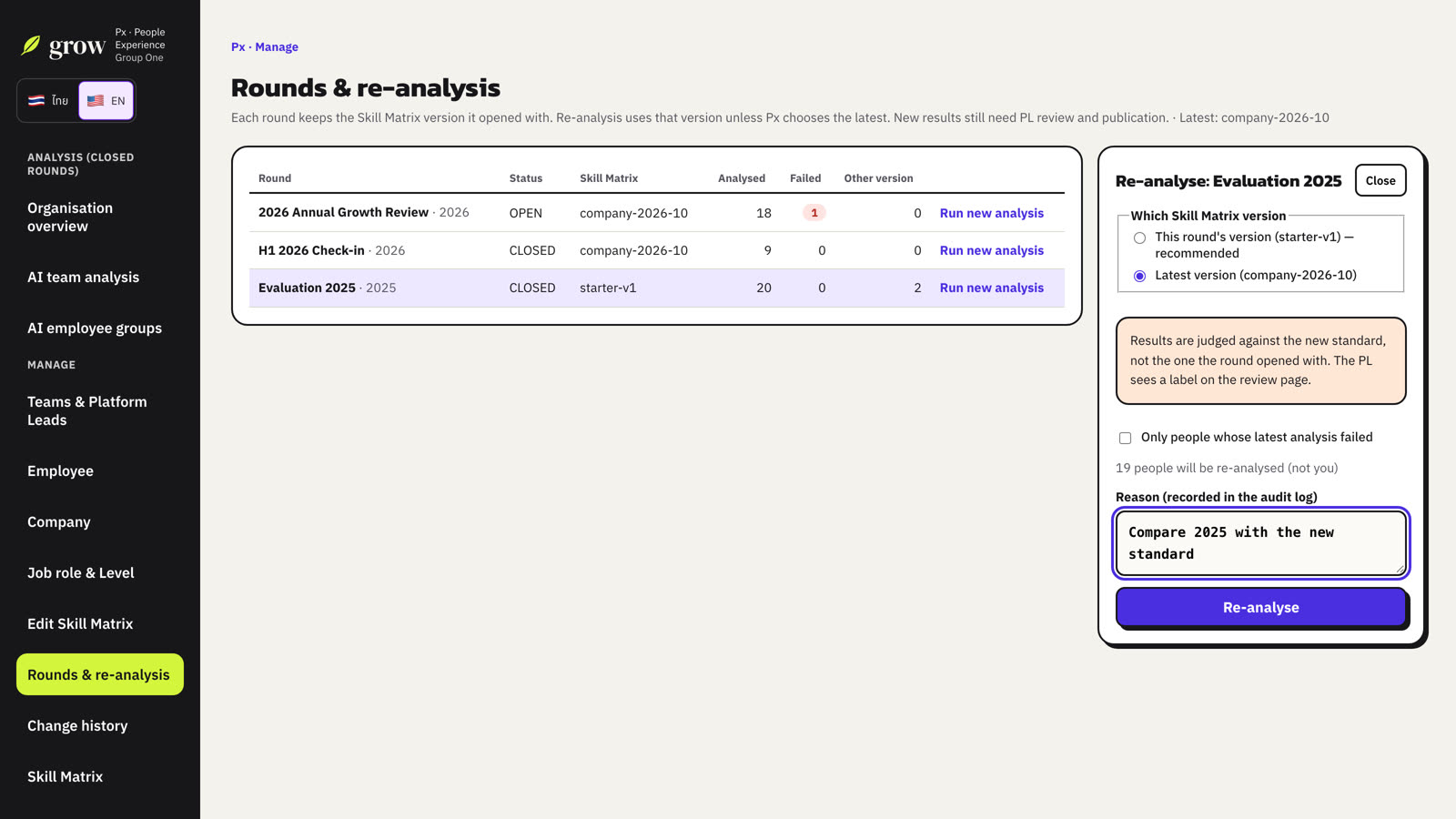
- Choose Run new analysis on a round.
- Choose the version: This round's version (recommended) or the Latest version.
- Optionally tick Only people whose latest analysis failed.
- Check how many people will be re-analysed, enter a reason and choose Re-analyse. Grow asks for your passkey again.
11Change history
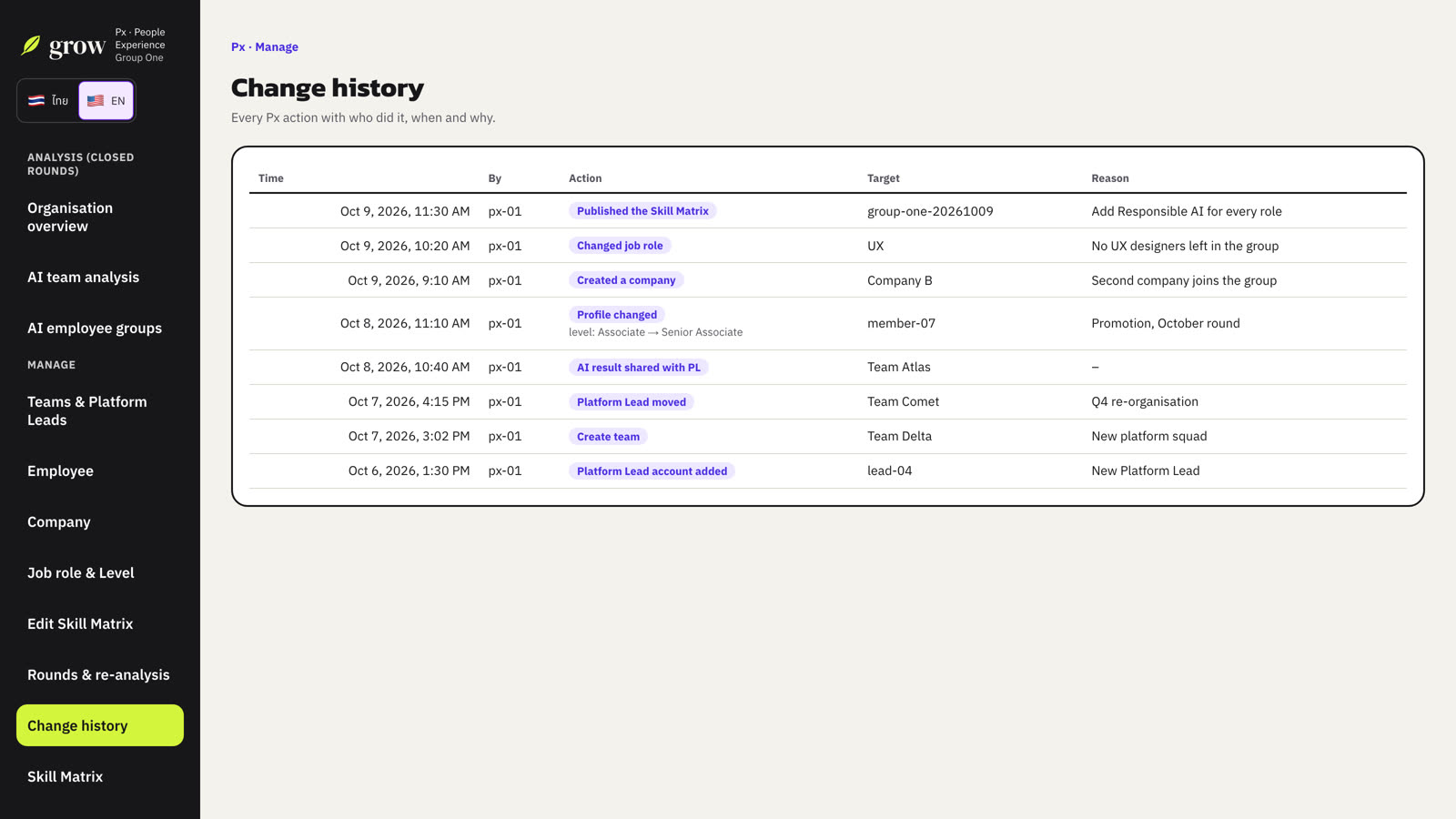
Every Px action is recorded with who did it, when, what changed and why, including company, job role, level and Skill Matrix changes and re-analyses.
12Golden rules
- You see levels, not answers. Use the overview to plan, not to rank people.
- Your own evaluation is always excluded from what you see and from AI input.
- AI suggests; you review every item, and the Platform Lead decides on actions.
- Give a clear reason for every change. It is kept in the history.
- You cannot give yourself a team or edit your own profile.
- Publishing a new Skill Matrix never changes a round that is already open.