Quick start
- Open the private registration link from your PL and create a passkey.
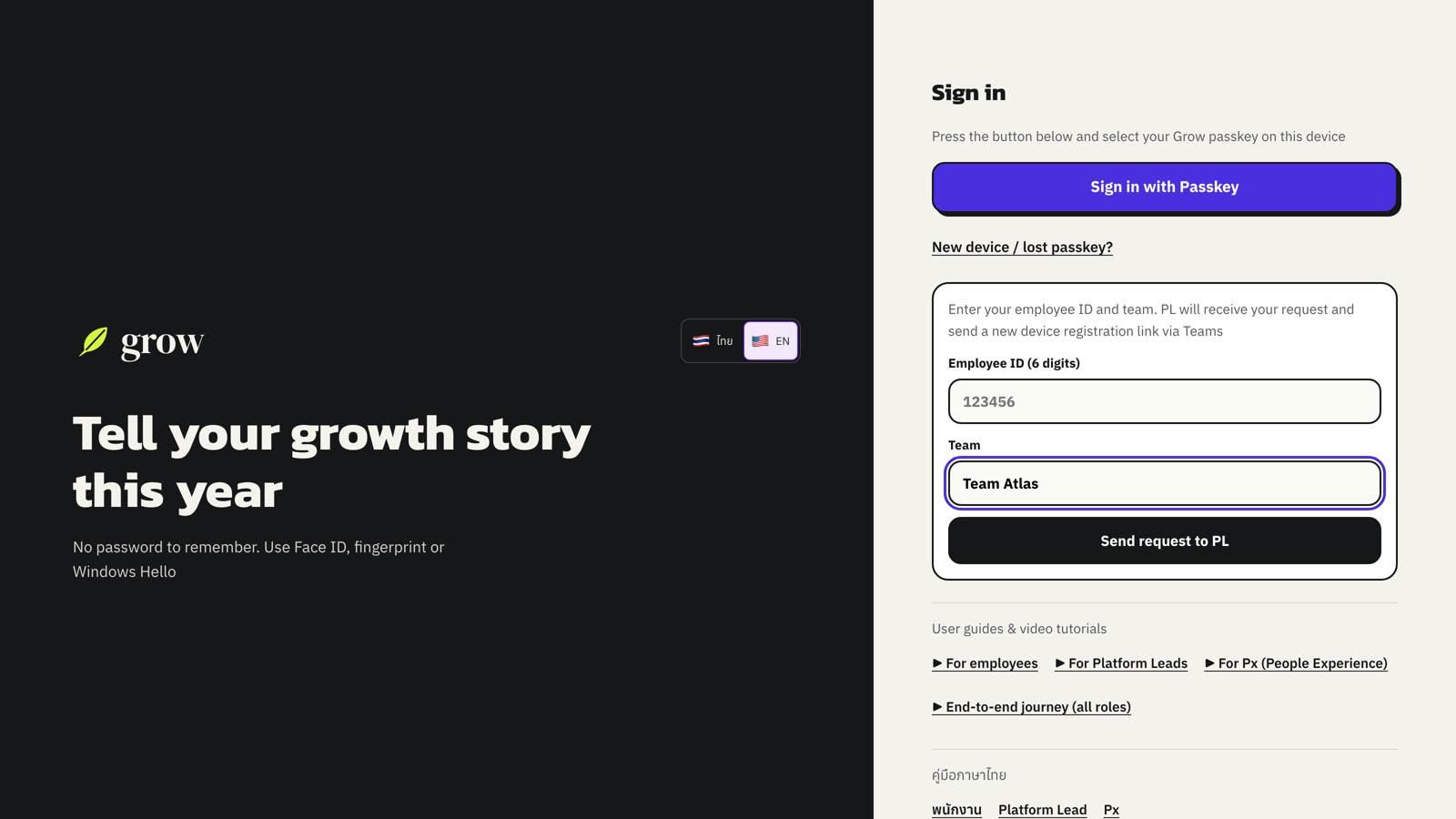
- Sign in with Sign in with Passkey. Switch between Thai and English with the flags at any time.
- Open your cycle on the home page and choose Continue. Answers save automatically.
- Write one story per card: what you did, your own contribution, and the outcome.
- Choose Review before submitting, fix anything listed, then Submit to PL → Confirm submission.
- Come back later to read PL Feedback, AI Analysis and your Development plan.
- All year: note your work in the Evidence log, log progress on your plan and watch your Skill profile grow.
01Create your passkey
Grow has no password. You sign in with a passkey on your device, verified with your fingerprint, face or device PIN.
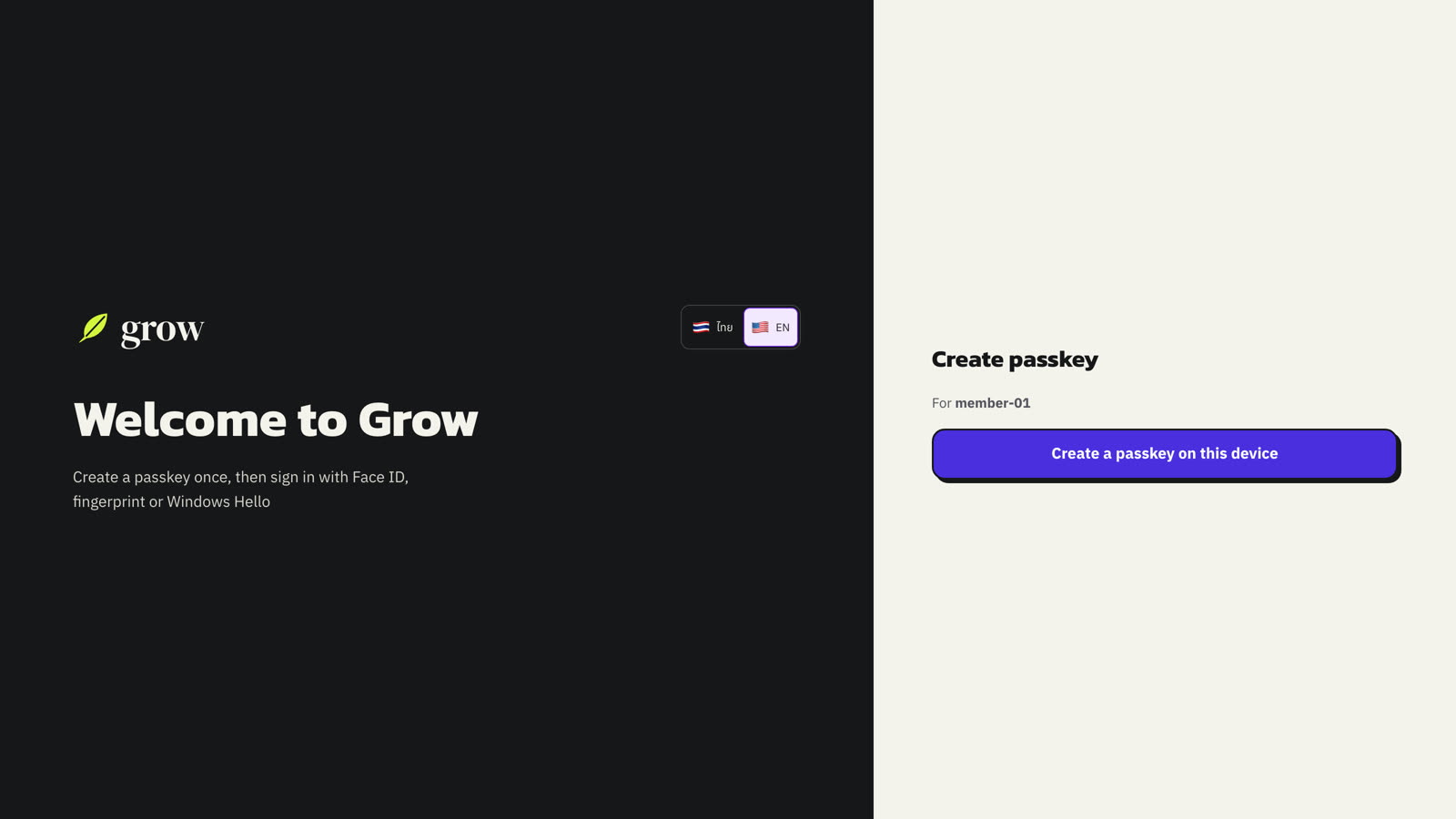
- Open the private registration link your PL sent you, on the device you want to use.
- Check that the account shown is yours. If it is not, stop and tell your PL.
- Choose Create a passkey on this device and follow the prompt on your device.
- When registration succeeds, Grow opens your home page.
02Sign in
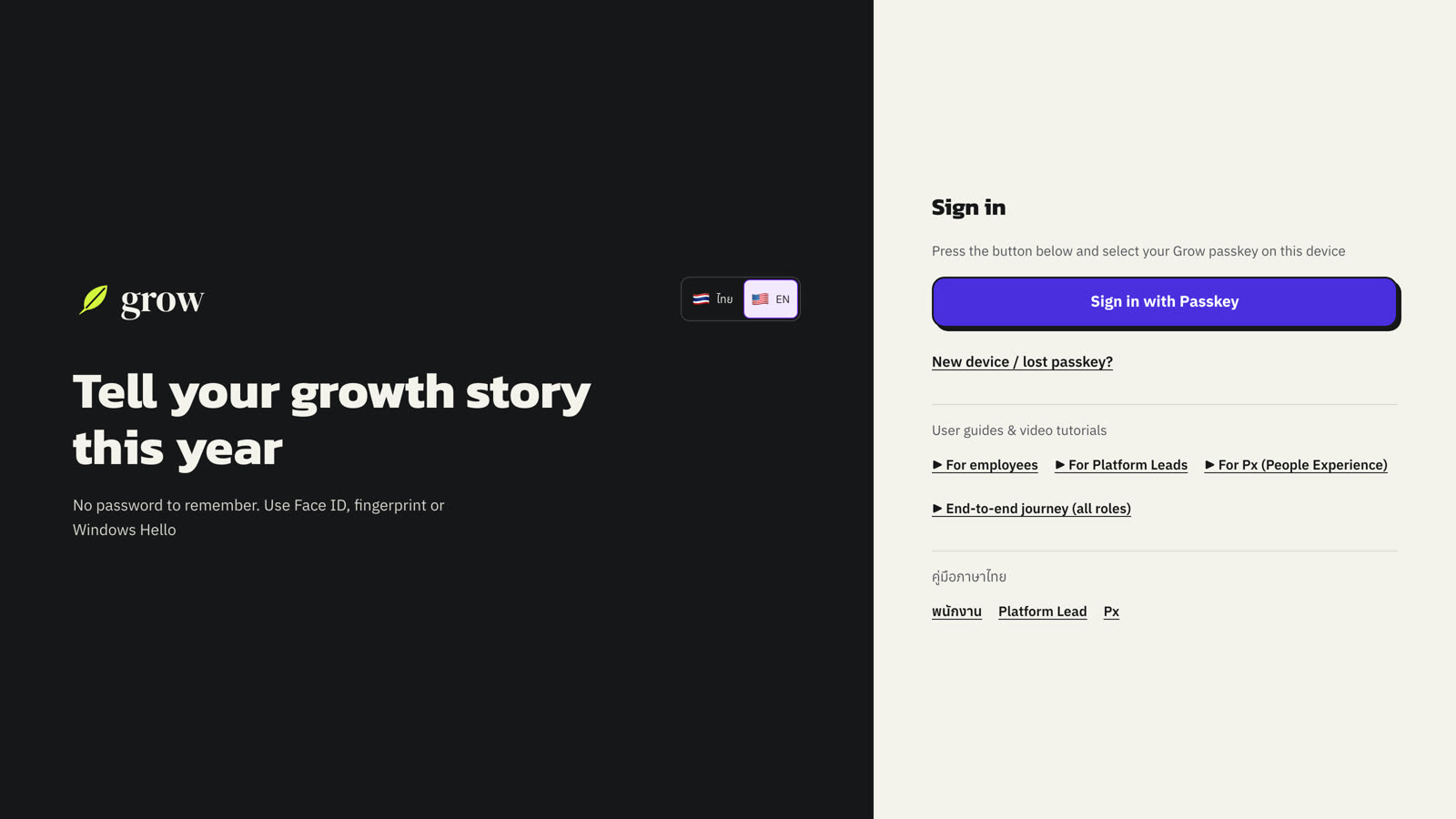
- Open Grow and choose Sign in with Passkey.
- Pick your Grow passkey and confirm on your device. There is nothing to type.
- Use the 🇹🇭 / 🇺🇸 switch to change language. Your answers stay as they are.
03Your home page
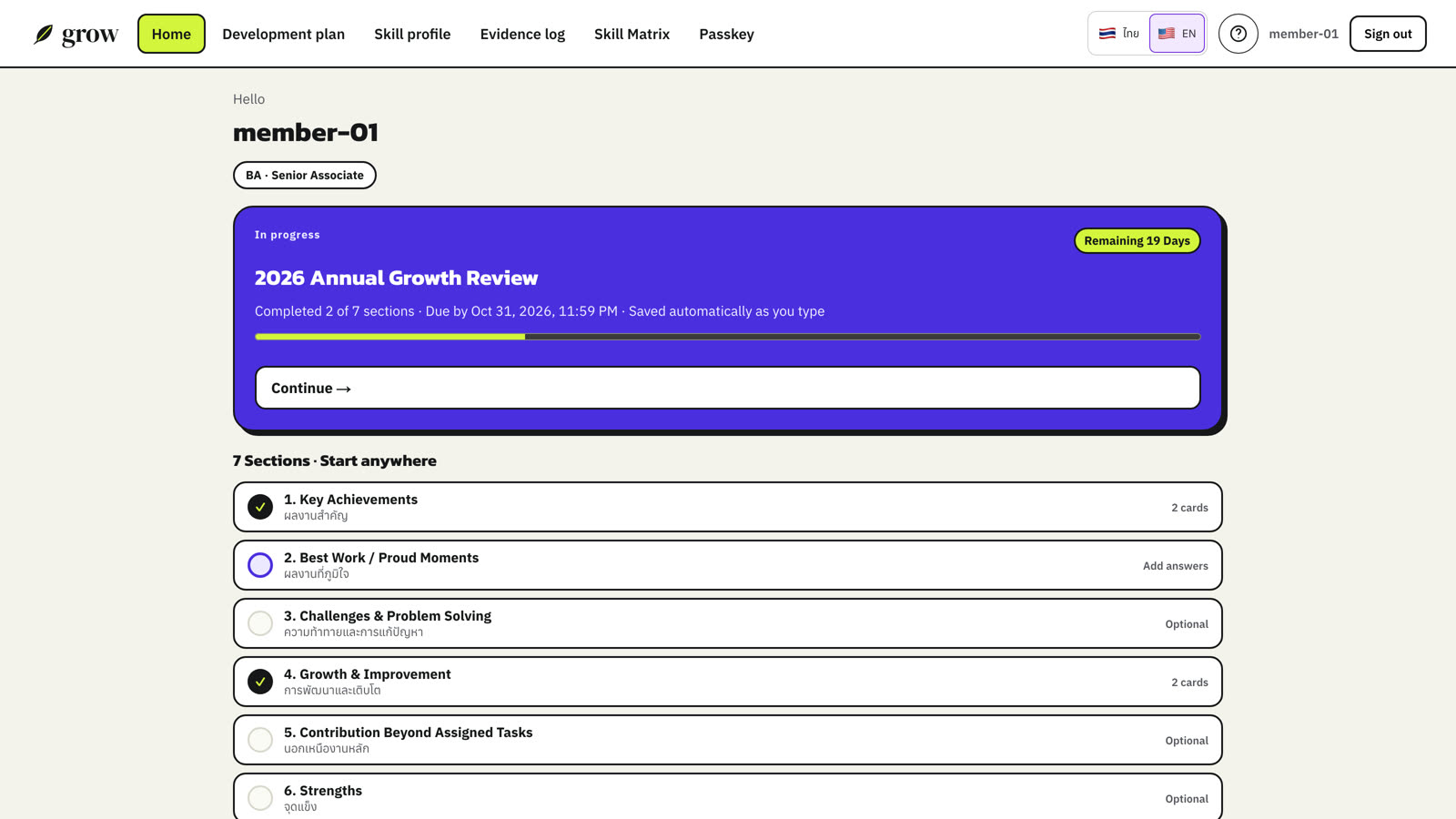
The home page shows your evaluation cycle, the deadline, how many days are left and your progress. Choose Continue to carry on, or open any of the seven sections directly.
| Status | What to do |
|---|---|
| Not started | Choose Start your story once the cycle opens. |
| In progress | Choose Continue to add or edit answers. |
| Submitted | Your answers are with your PL. Wait for the review. |
| Reviewed by PL | Open the cycle to read feedback and published results. |
| Cycle closed | You can read your answers; editing is no longer possible. |
04Write one story per card
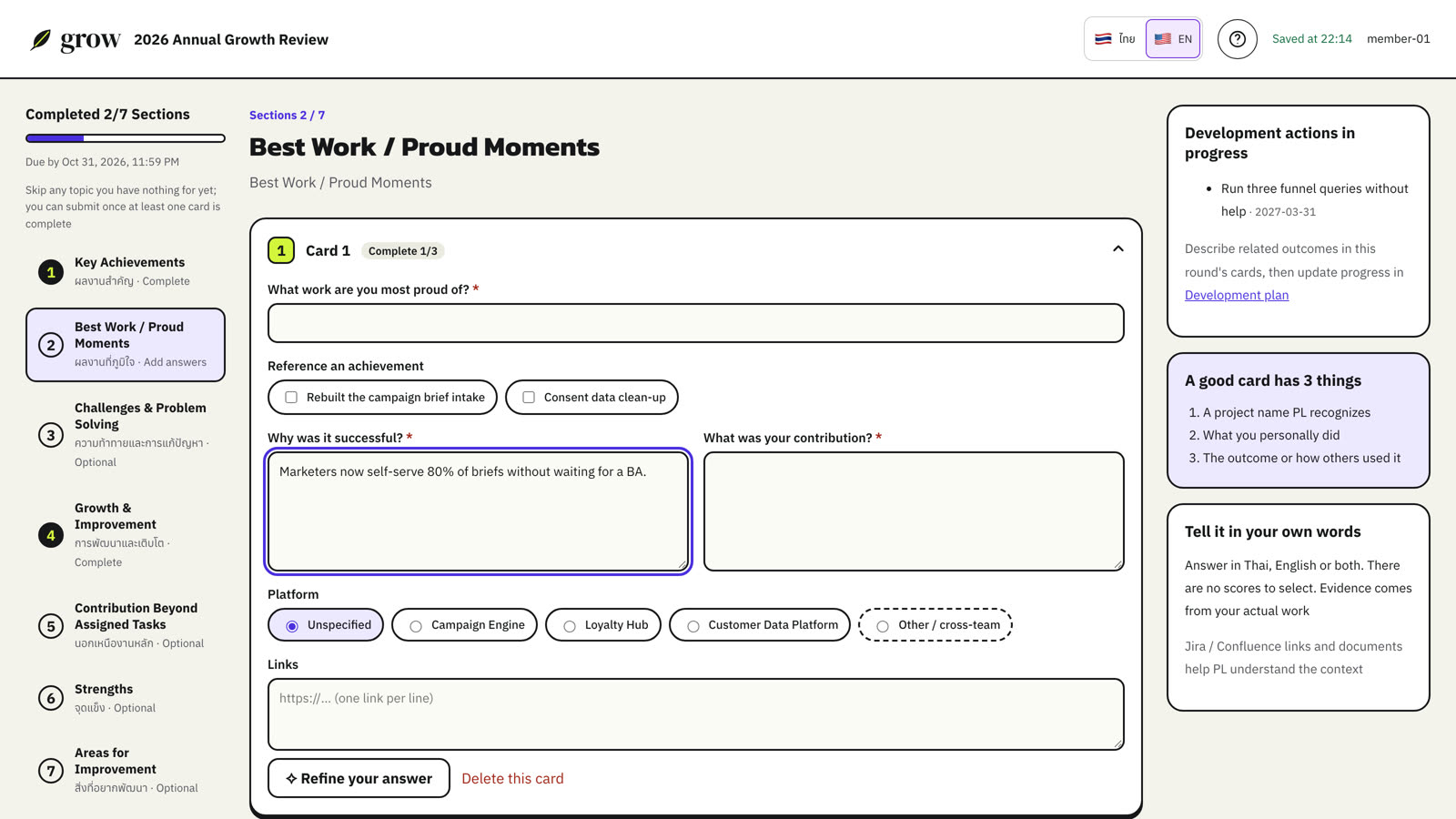
Each section is a set of cards, and each card is one story. A strong card has three things: a piece of work your PL will recognise, what you personally did, and the outcome or how others used it.
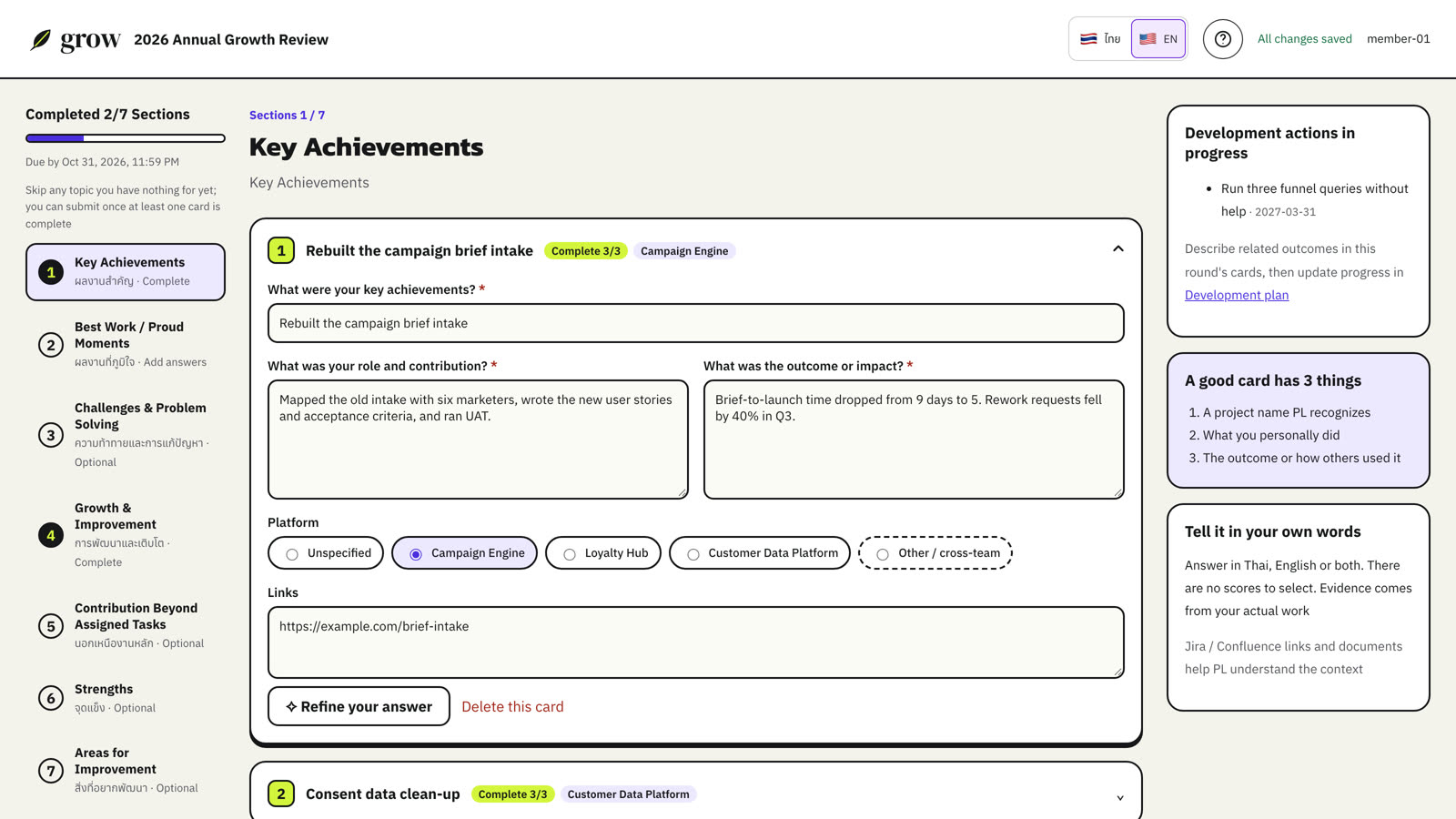
- Give the card a title your PL will recognise.
- Describe your own contribution, not only the team's work.
- Explain what changed. Numbers help: “brief-to-launch time dropped from 9 days to 5”.
- Tag the platform the work was on, or choose Other / cross-team or Unspecified.
- Add links to tickets or documents, one per line.
- Use + Add card for another story, within the limit shown. Use Delete this card to remove one.
Reuse a story instead of rewriting it
In later sections you can reference a card you already wrote, then just add why it mattered.
Polish with the helper
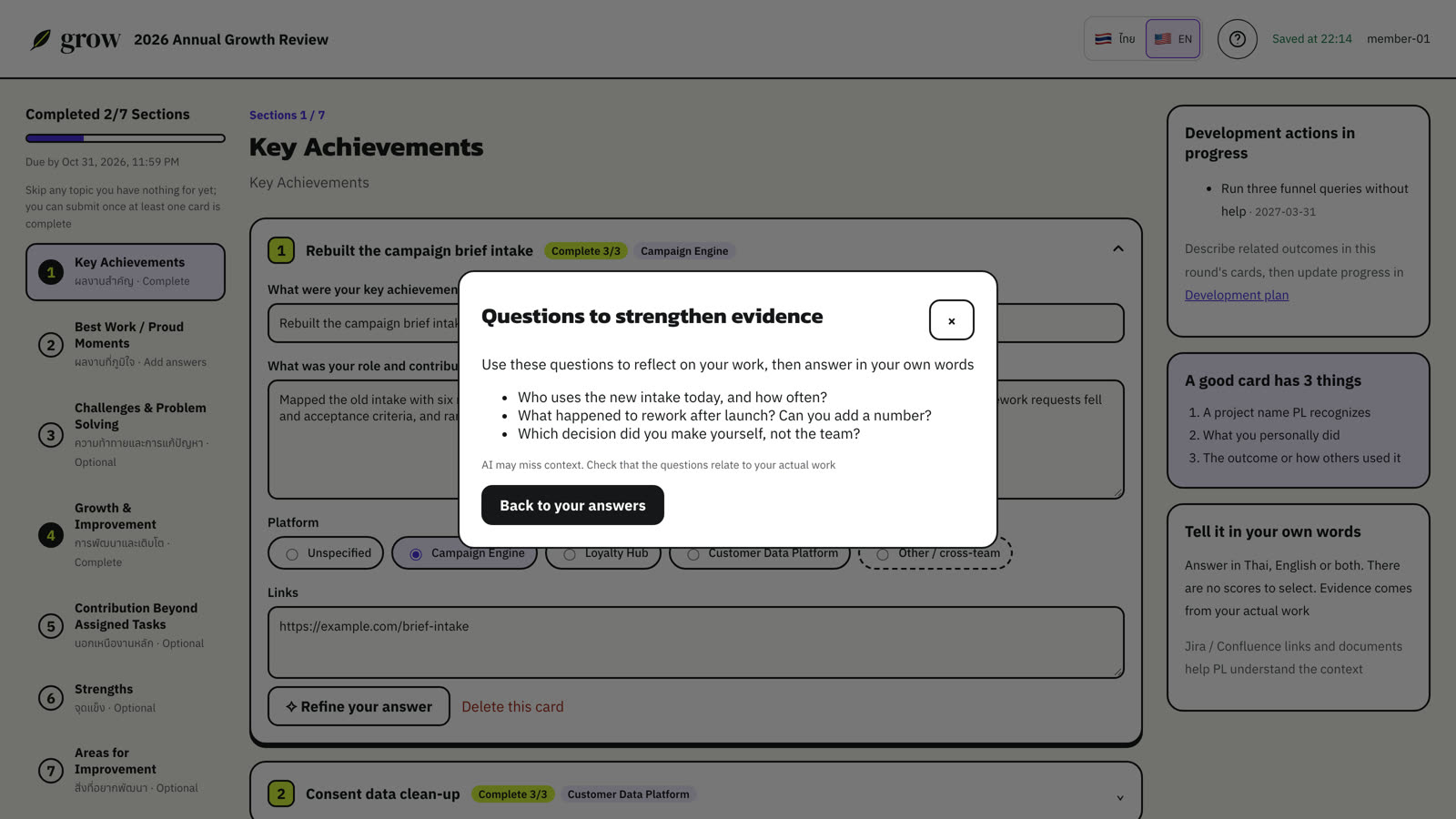
Not sure a card is strong enough? Choose Refine your answer. Grow asks a few questions about your own story. It never writes or changes your answer for you.
Growth & Improvement
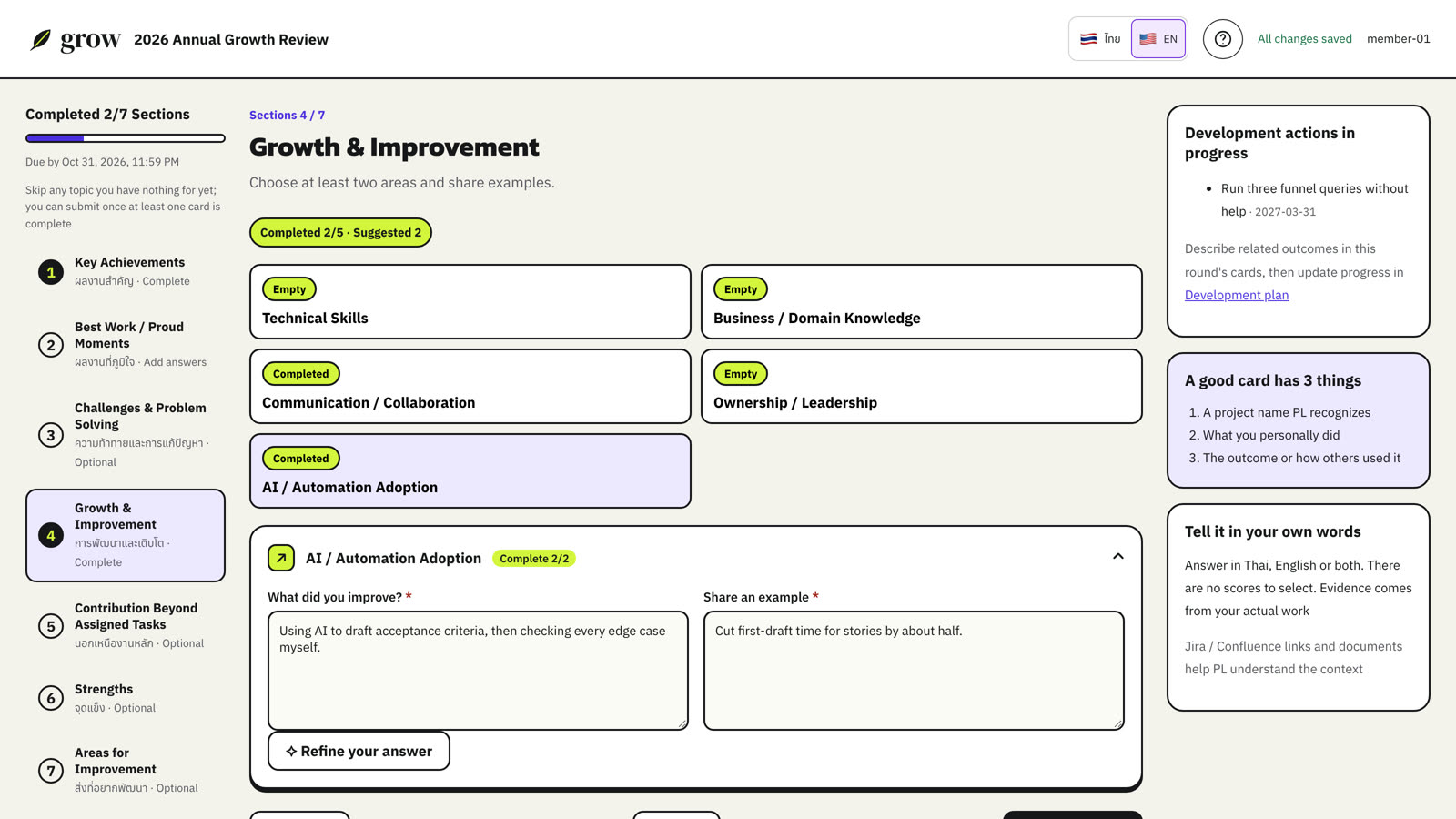
This section works a little differently: choose the growth areas that fit you (at least two are suggested), then describe what improved with a real example.
05Saving
Grow saves your draft automatically. Before closing the page, wait for Saved at … or All changes saved. Use one browser tab per evaluation. If Grow finds a newer version from another tab, save a copy of your text first, then load the latest version.
06Review and submit
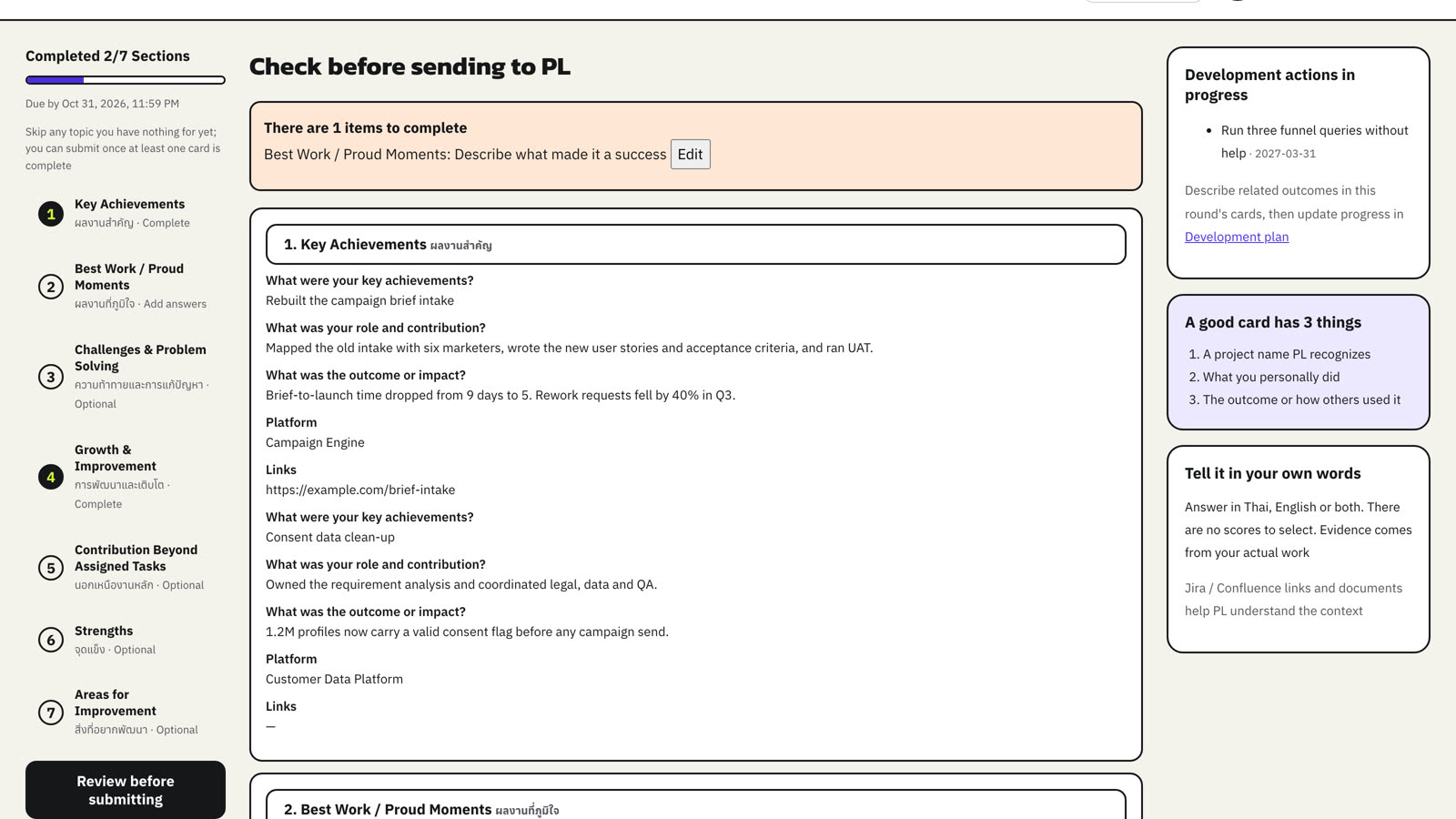
- Choose Review before submitting.
- If Grow lists missing items, choose Edit to jump straight to each one.
- When everything is clear, choose Submit to PL.
- Read the message and choose Confirm submission.
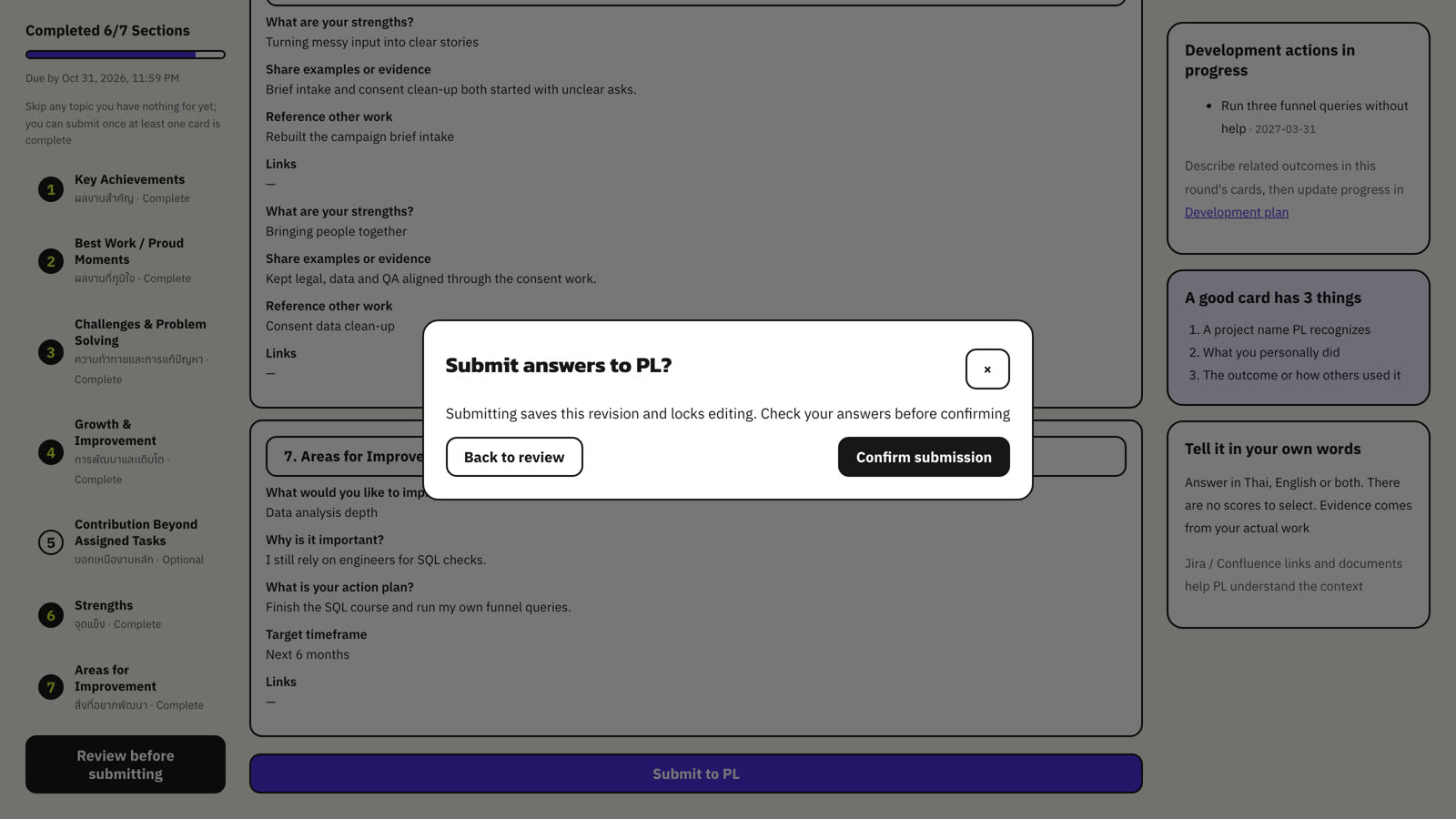
If the deadline has passed while the cycle is still open, you can keep saving but you need your PL to extend your deadline before you can submit.
07Read your feedback and AI analysis
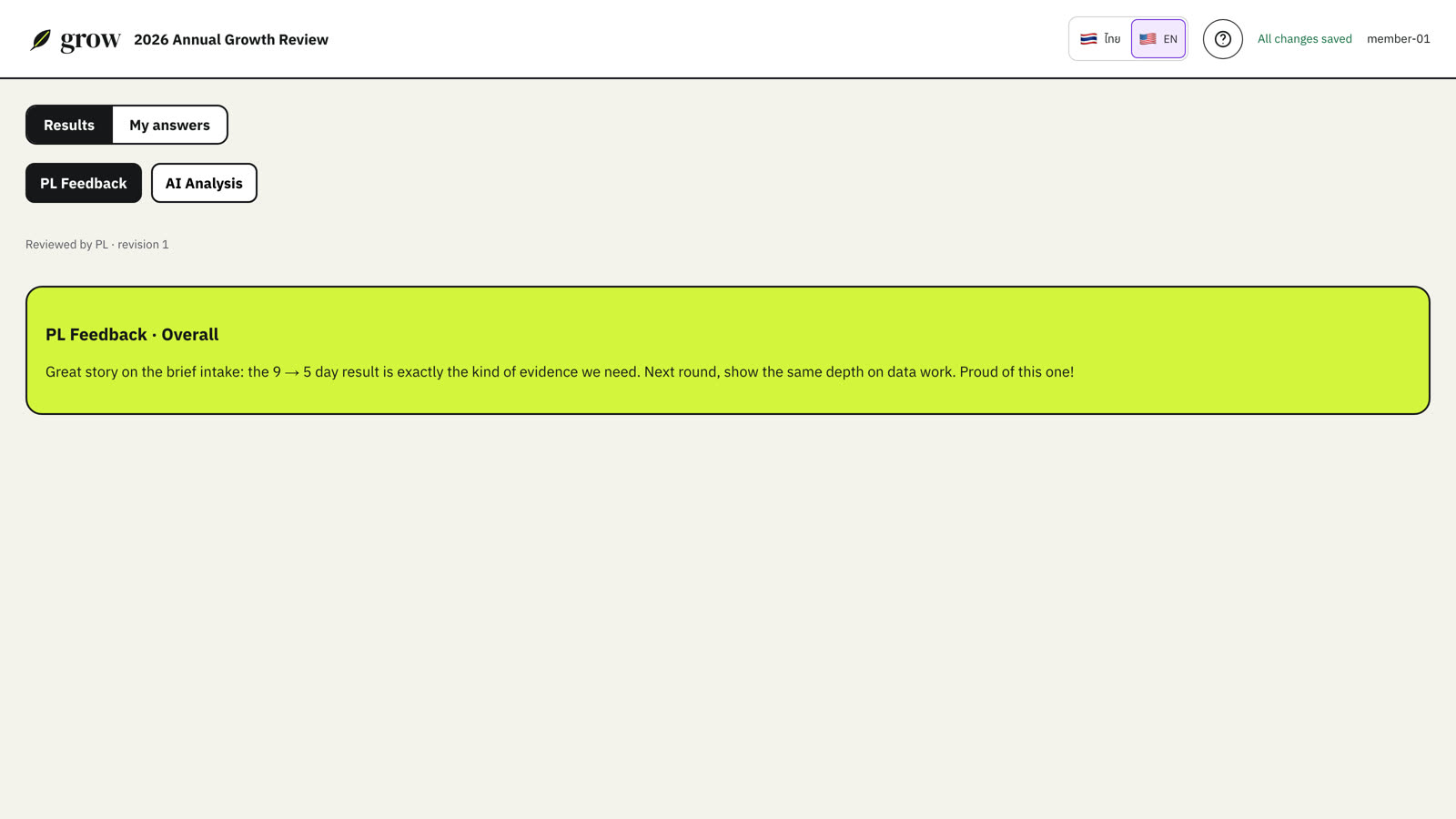
Open the same cycle from your home page. PL Feedback appears after your PL marks your evaluation as reviewed.
AI Analysis appears after your PL has checked every finding and published it. It maps the evidence in your cards to skills from the company Skill Matrix, by category: Core, Soft and Hard skills.
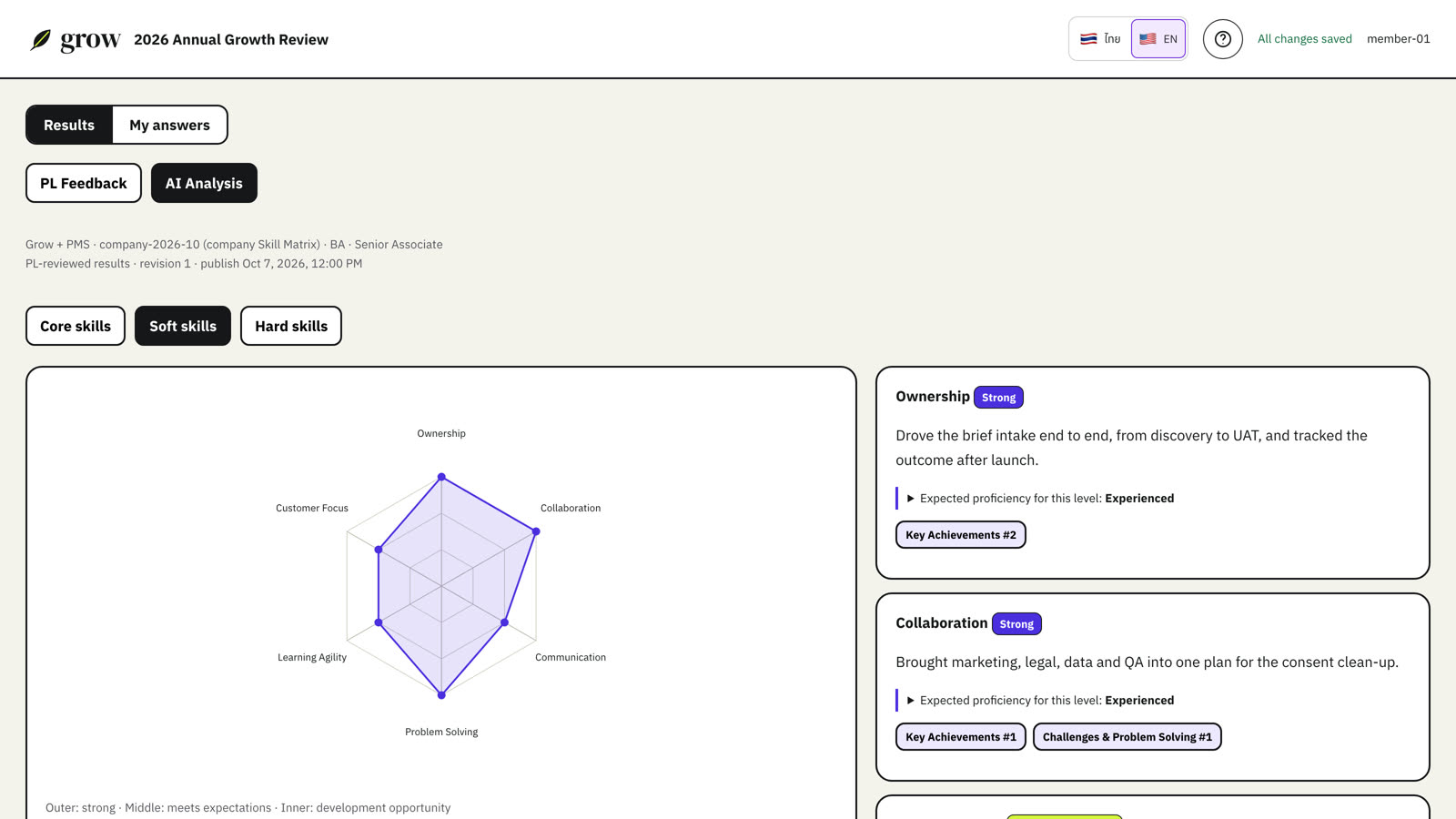
| Result | How to read it |
|---|---|
| Strong | Your evidence is above what is expected at your level. Build on it. |
| Meets expectations | Your evidence matches what is expected at your level. |
| Development opportunity | A good starting point for a development conversation with your PL. |
| Insufficient evidence | No card showed this skill yet. It is not a weakness and is not plotted as zero. |
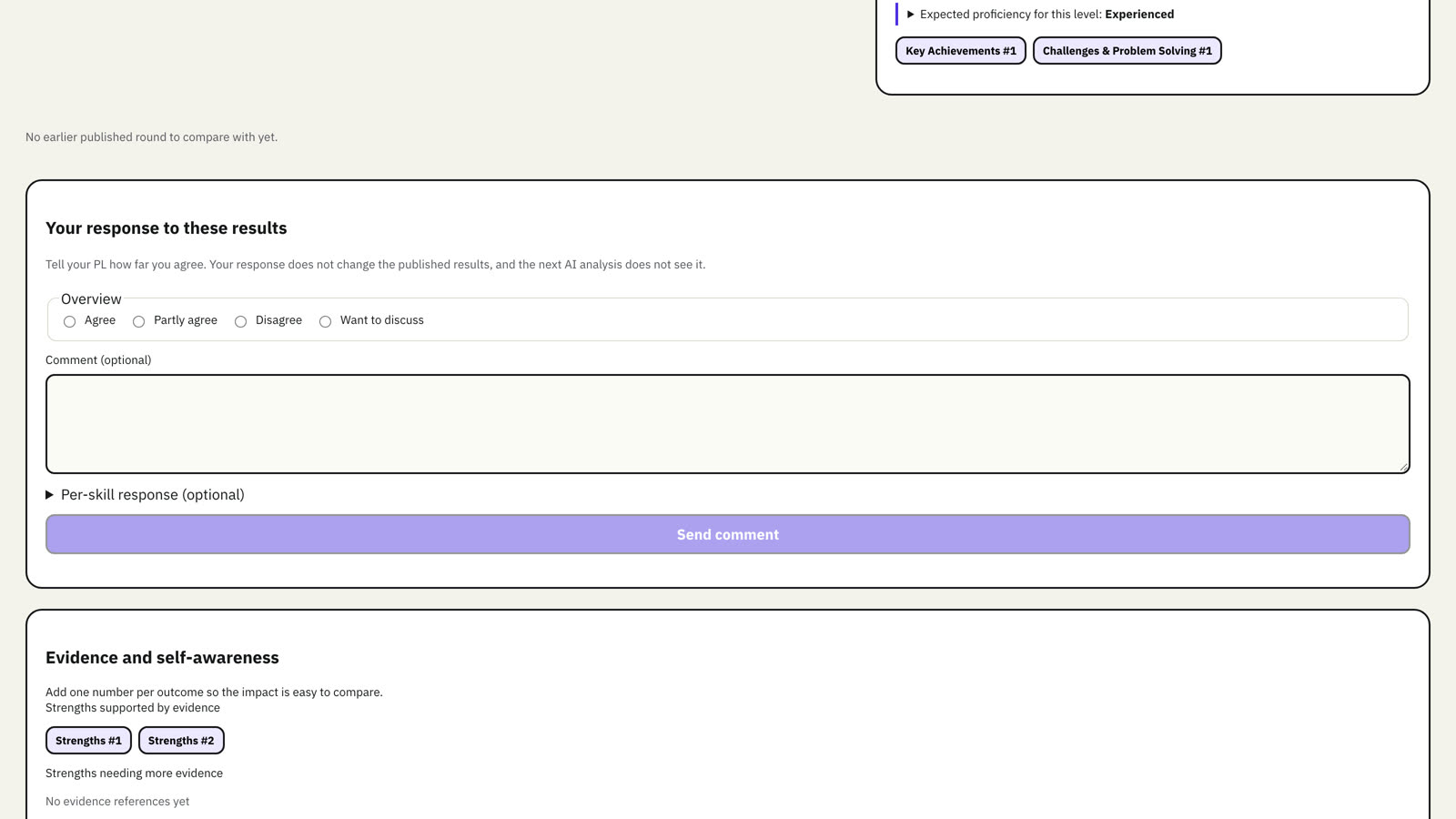
Tell your PL what you think of the results
Under the AI Analysis you can respond once per published result: Agree, Partly agree, Disagree or Want to discuss, with an optional comment and an opinion per skill. You can change it until the round closes.
08Grow all year: the evidence log
Do not wait for the next round to remember what you did. Open Evidence log and write a short entry whenever something worth keeping happens: a title, what you did and what came of it, the date, and up to five related skills.
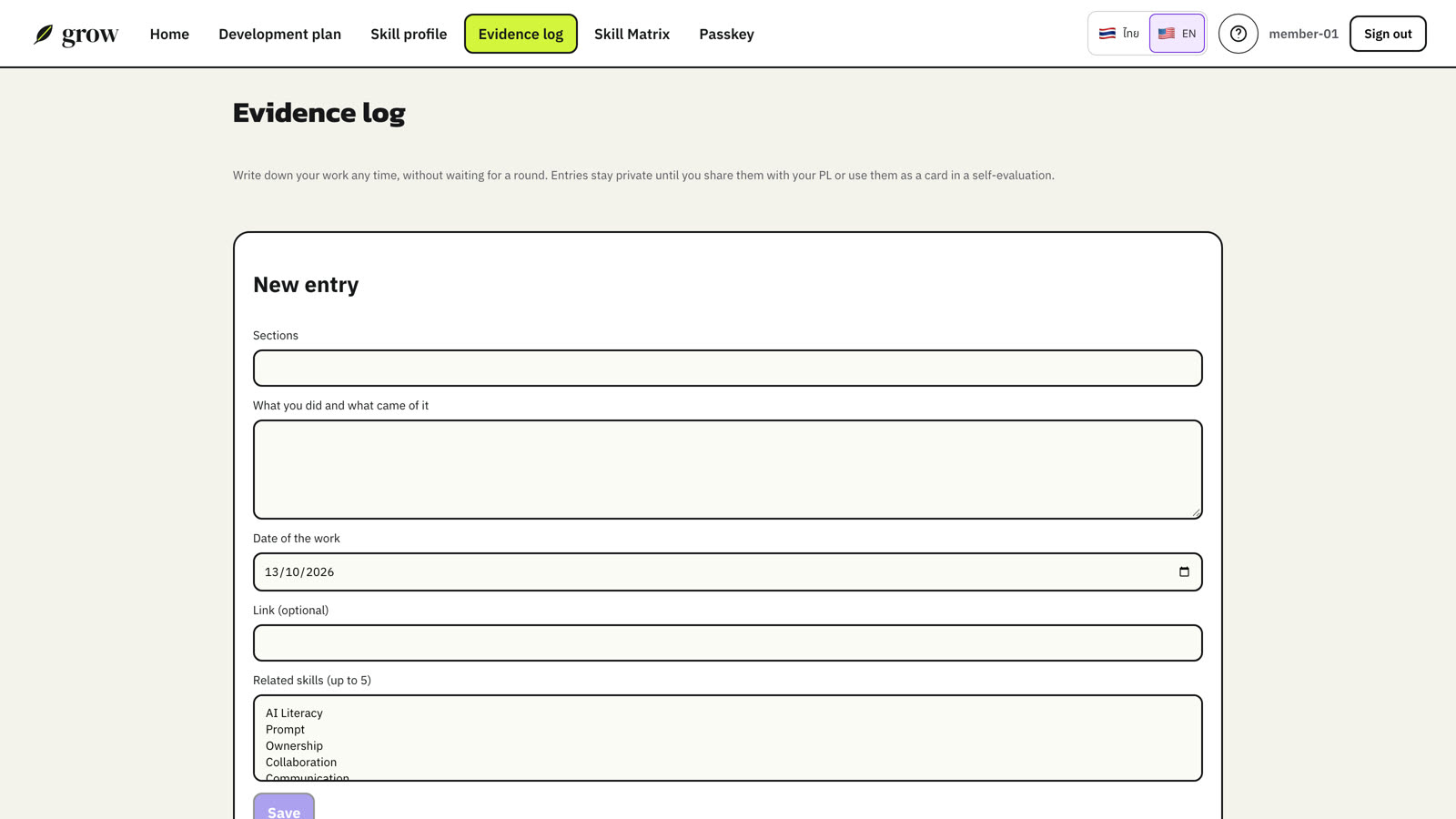
- Share with PL makes an entry visible to your current PL. Stop sharing hides it again.
- When you fill in a self-evaluation, turn entries from the round's period into cards instead of starting from a blank page.
- Archive entries you no longer need. Entries are never deleted.
09Your development plan
Development plan brings your growth together in one place, not tied to a round.
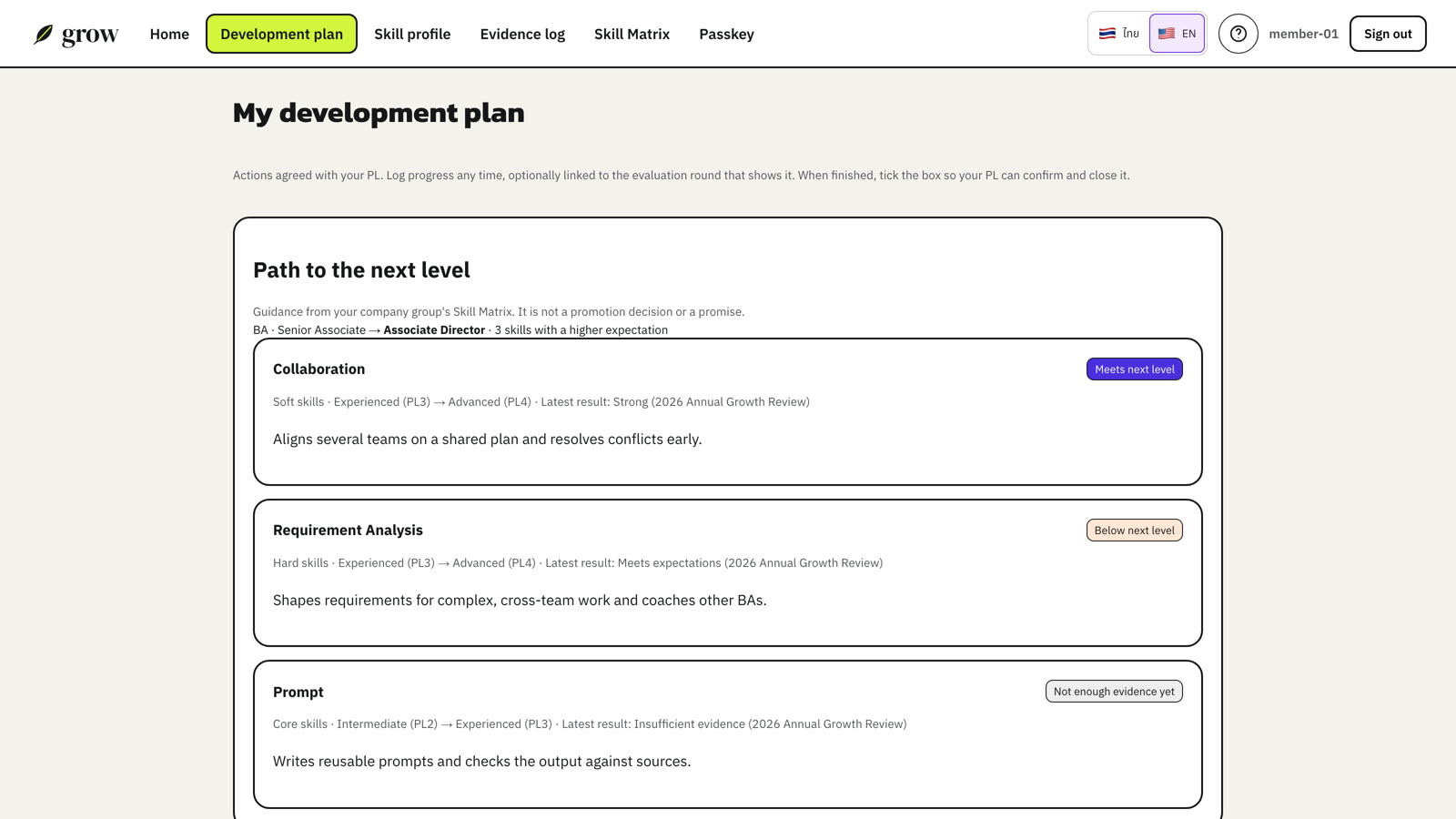
Path to the next level
Grow compares what your role expects at your level with the next level, and lists the skills where the expectation rises, with your latest published result for each.
Actions and progress
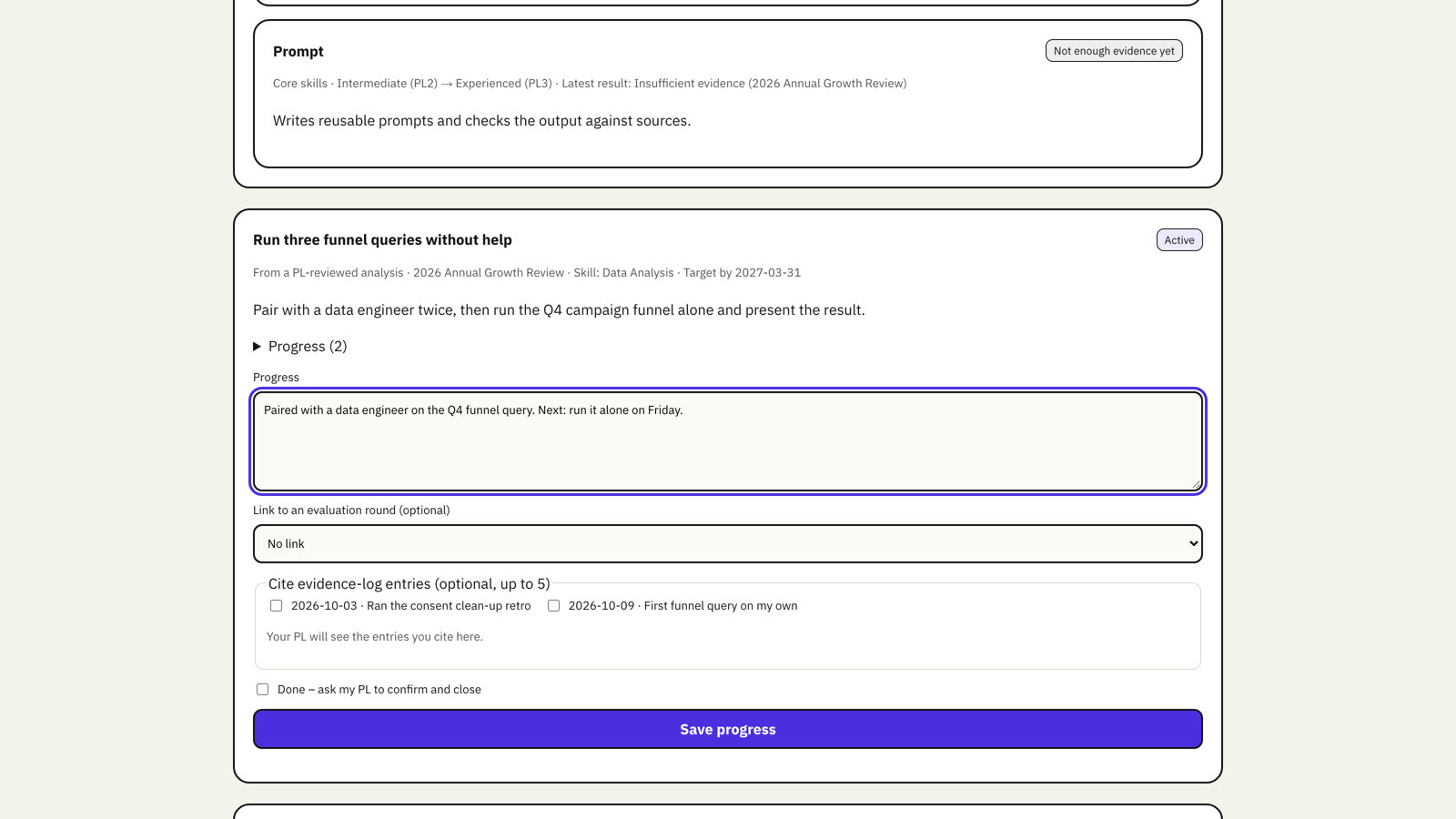
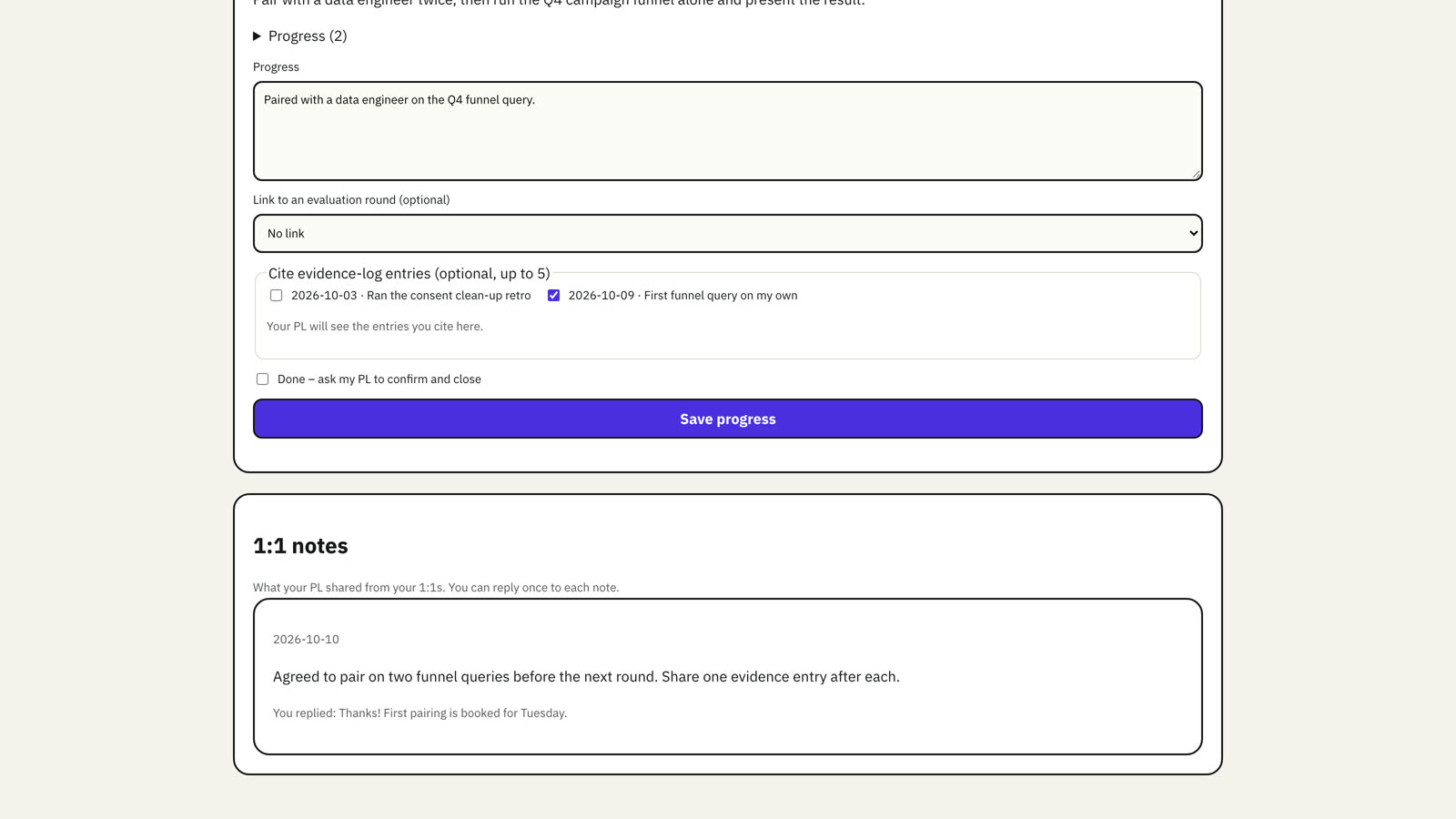
Actions you agree with your PL appear here. Log progress whenever you take a step. You can link it to an evaluation round and cite up to five evidence-log entries; your PL sees the entries you cite. When you have finished, tick Done so your PL can confirm and close the action.
The next AI analysis also reads your actions and your own progress notes as evidence. A completed action means the work was done; it is not proof of a level by itself.
1:1 notes
When your PL shares notes from a 1:1, they appear at the bottom of the page. You can reply once to each note.
10Your skill profile
Skill profile shows every skill you have shown, across all rounds. It stays with you when your role or level changes, and is not tied to a round.
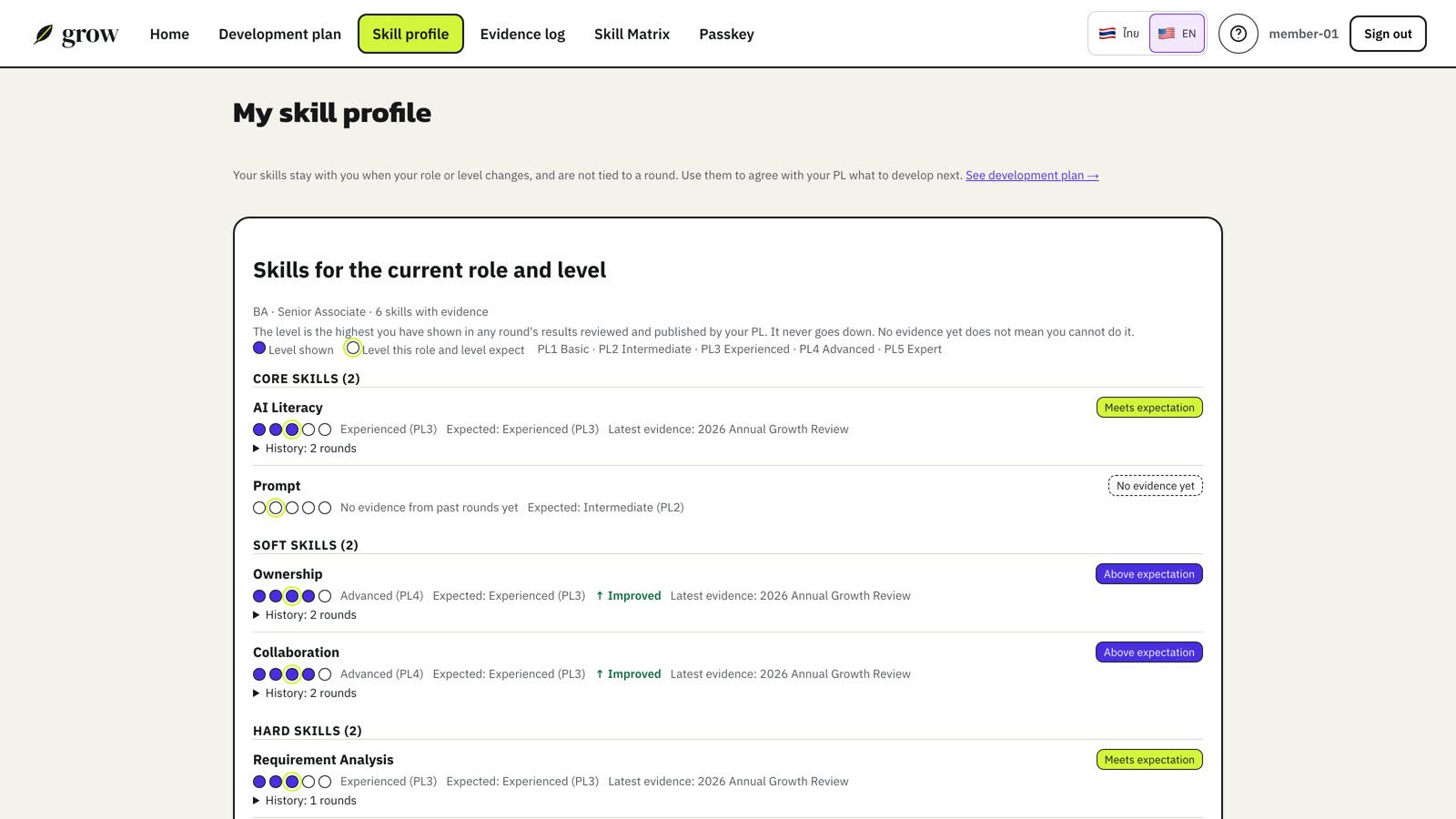
| Label | Meaning |
|---|---|
| Above expectation | You have shown a level above what your role and level expect. |
| Meets expectation | You have shown the expected level. |
| Developing | You use the skill, below the expected level. A good topic for your plan. |
| No evidence yet | No published result has shown this skill. It is not a weakness. |
| ↑ Improved | Your level is higher than when the skill first appeared. |
Levels follow the Skill Matrix criteria: your PL confirms the level each round's evidence shows. Your level is the highest you have shown and never goes down.
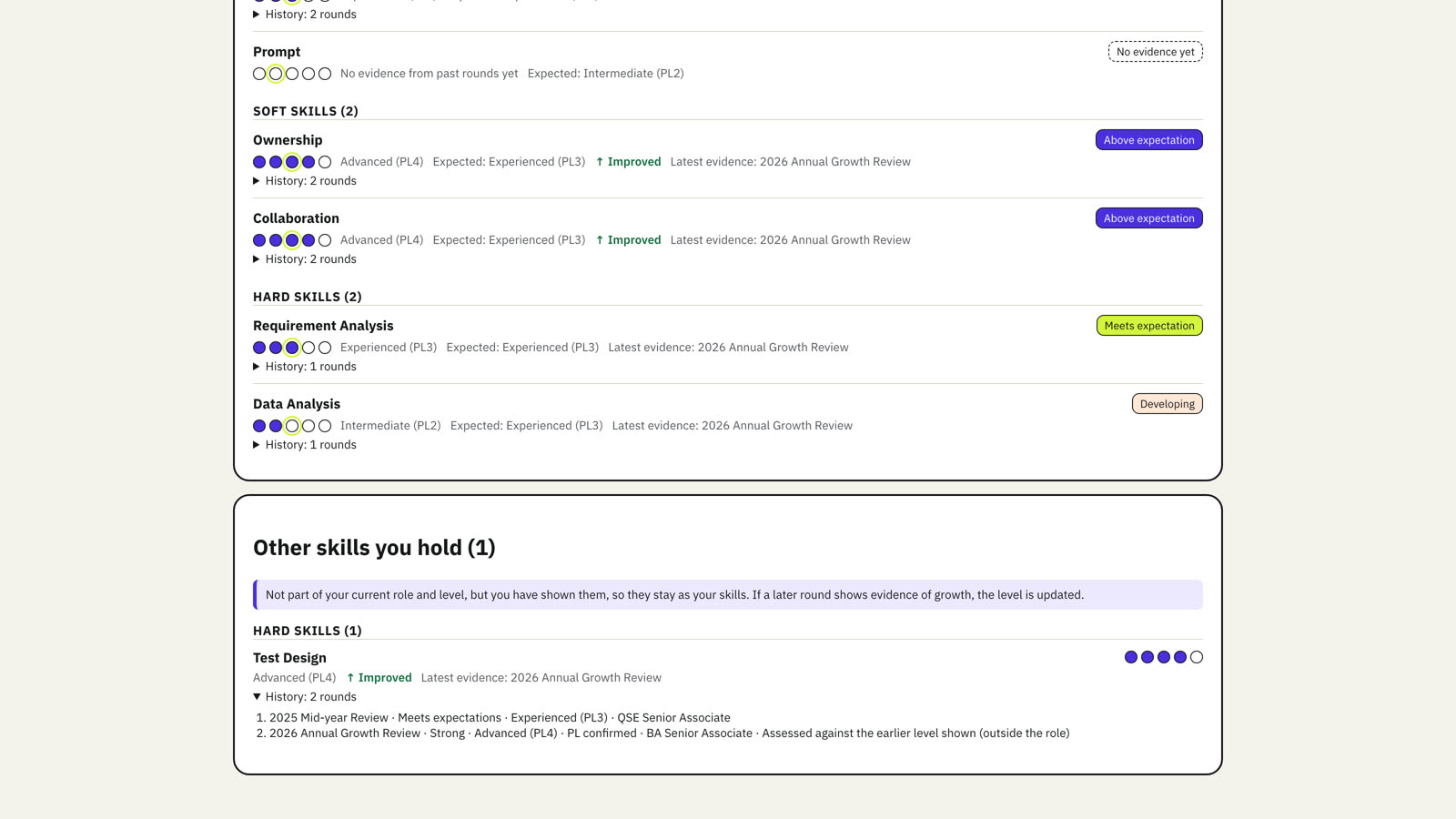
Other skills you hold
Skills you showed earlier that your current role and level do not use stay in a second section. If a later round shows growth in one of them, its level is updated too.
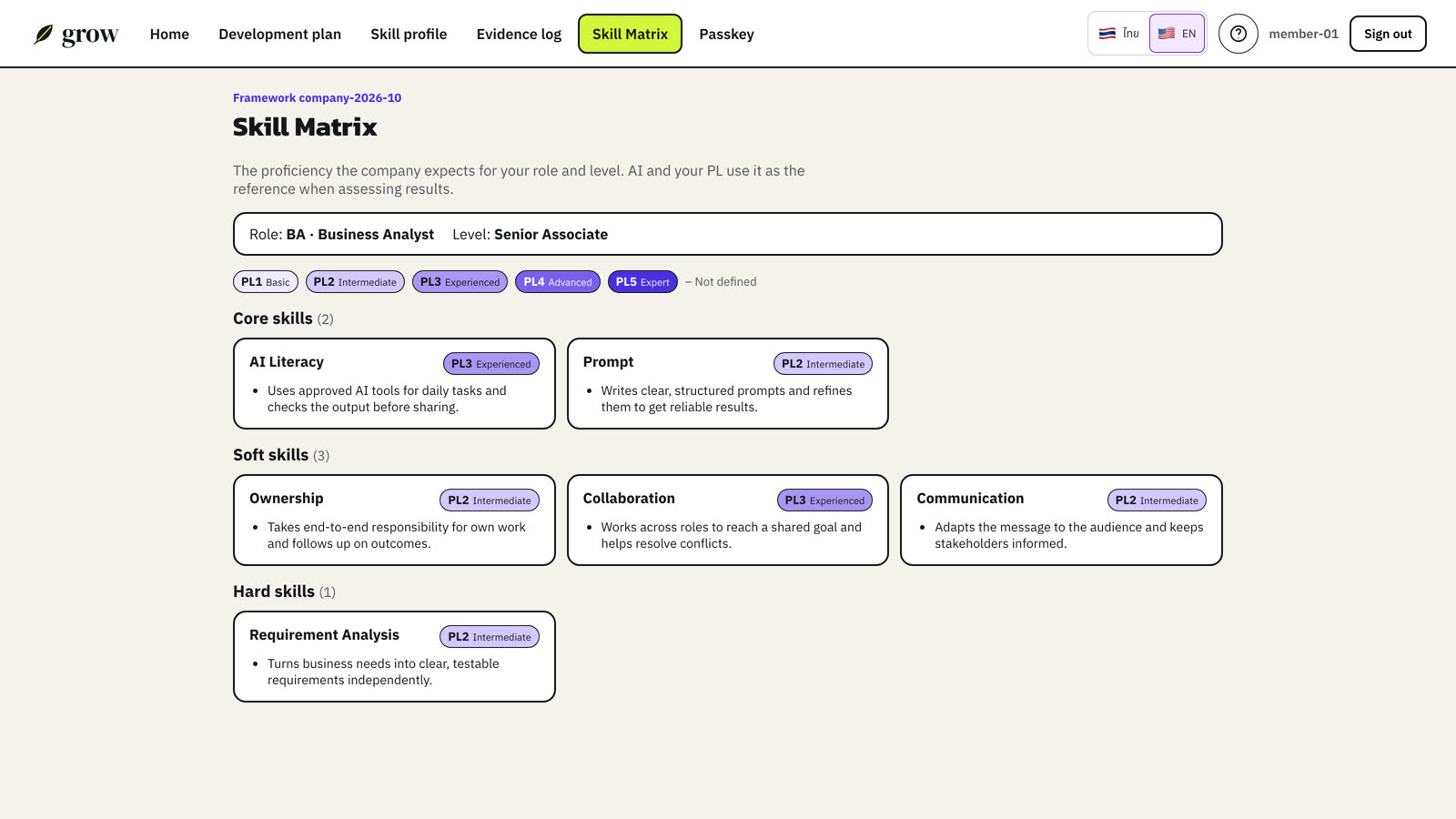
11What good looks like: the Skill Matrix
Open Skill Matrix to see the expected proficiency and behaviour for your own role and level, skill by skill.
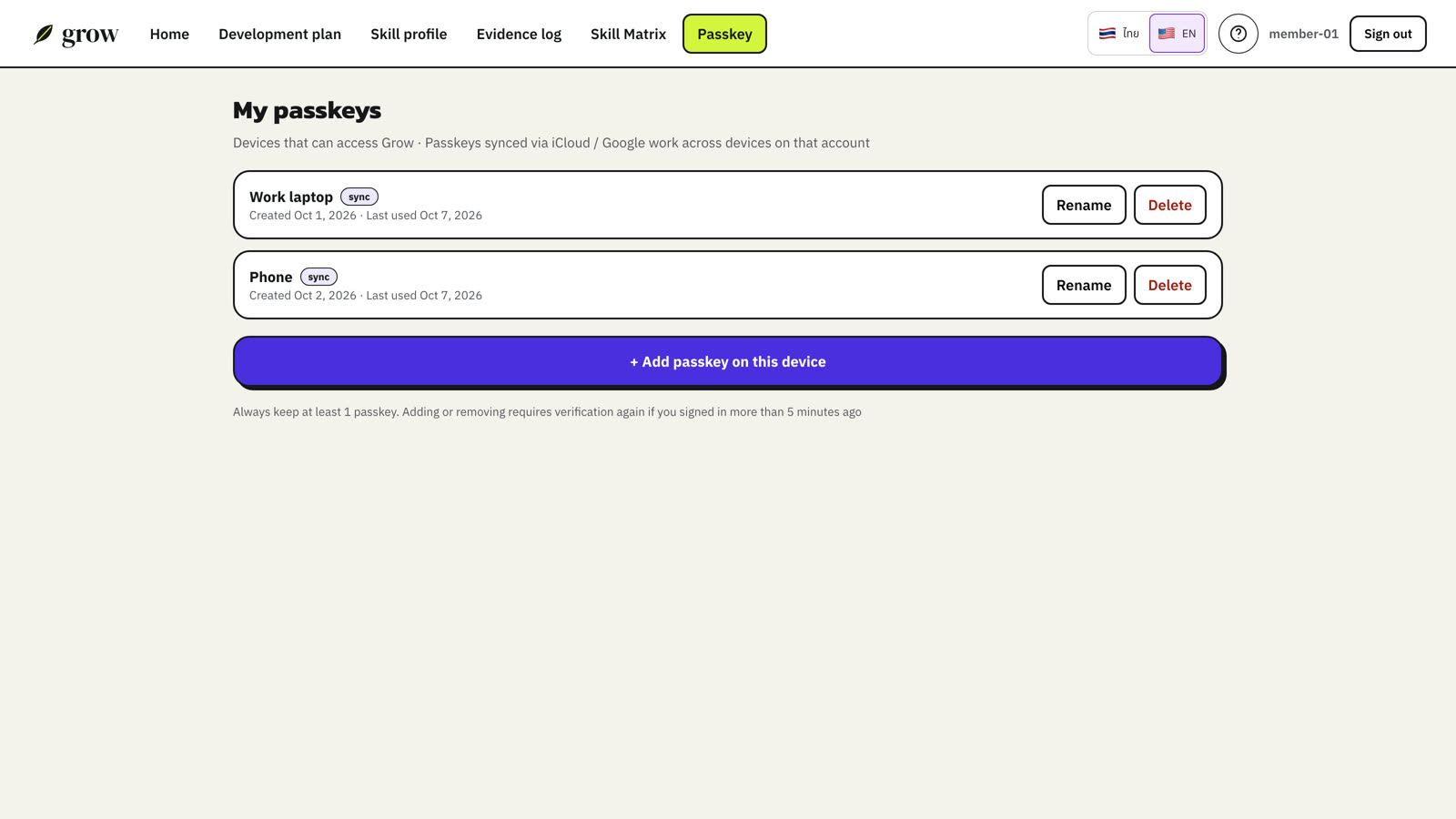
12Passkeys and new devices
Open Passkey to see which devices can sign in. You can rename a passkey, add one on a new device, or delete one you no longer use (at least one must remain).
Lost your phone or passkey?
- On the sign-in page, choose New device / lost passkey?.
- Enter your work account and your team, exactly as recorded in Grow.
- Choose Send request to PL. Your PL sees the request and sends you a new private link.
- Open the link and create a new passkey.
13Troubleshooting
| Problem | What to do |
|---|---|
| Invalid registration link | Ask your PL for a new link. It may have expired, been used or been replaced. |
| Passkey prompt fails | Try again and pick the Grow passkey. If none works, request a new-device link. |
| No cycle on the home page | Check the opening date, then ask your PL whether you are in the cycle. |
| Submit is not available | Review the missing items, the deadline and whether the cycle is closed. |
| Need to change submitted answers | Ask your PL to return them for updates. |
| Feedback or analysis not visible | Feedback appears after the PL review; analysis also needs to be published. |
| Wrong role or level | Tell your PL. |